Wipe Edge’s data from its own Settings, under Privacy & security: the Clear browsing data screen lets you choose which kinds of data go, such as history, cookies or cached files. Pick only what you need, because clearing cookies signs you out of websites and clearing saved passwords or autofill data means typing them again. The table below helps you decide before you tap anything.
Pick what to clear first
Microsoft’s Edge help explains each kind of browsing data on its desktop page; it doesn’t publish a separate list for the iPhone app, which may show a shorter list. Use these definitions to match the data type to your problem.
| Data type | What it removes | What you’ll notice | Clear it when |
|---|---|---|---|
| Browsing history | The list of sites you visited, with dates and times | Address-bar suggestions and the History list start over | You share the phone or want past visits gone |
| Cookies and other site data | Small files sites store, which Microsoft says include sign-in info and site preferences | You’re signed out of most websites; carts and site settings reset | A site keeps loading the wrong account or behaves oddly |
| Cached images and files | Copies of pages and images saved to load sites faster | Pages may load a little slower the first time | A site shows an old version or won’t load properly |
| Passwords | Passwords saved in Edge | You’ll need to type them (or get them from another password manager) | You’re giving the phone away or stopped trusting saved logins |
| Autofill form data | Saved form entries such as addresses, and, per Microsoft, saved cards | Forms no longer fill in for you | Old addresses or details keep popping up |
| Site permissions | Choices you made for sites, such as location access | Sites ask for permission again | A site has access you no longer want |
A practical rule: to fix one misbehaving website, start with cached images and files, and add cookies only if that doesn’t help. To clean up for privacy, choose browsing history plus cookies. Leave passwords unticked unless you mean to lose them. Your favorites aren’t on Microsoft’s list of data types; to save sites you want to keep, add a site to favorites in the Edge iPhone app.
Clearing data in the Edge app
Microsoft’s help for Edge on iOS documents the route to the app’s privacy settings (the menu, then Settings, then Privacy & security) but doesn’t give iOS steps for the clearing screen itself. The option is labeled Clear browsing data in current versions, but labels can move between app updates, so look for the closest match if yours differs. The screenshots come from an older version of the app.
- Open the Microsoft Edge app.
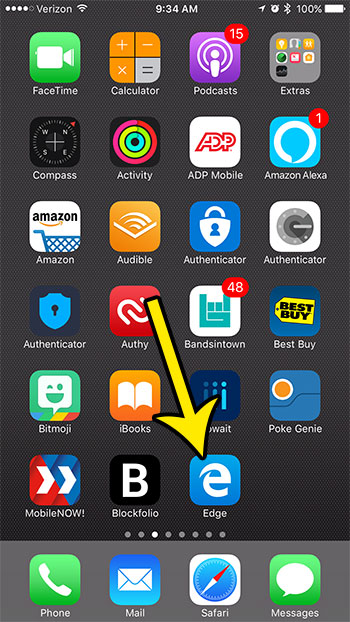
- Tap the menu button at the bottom-right corner of the screen.
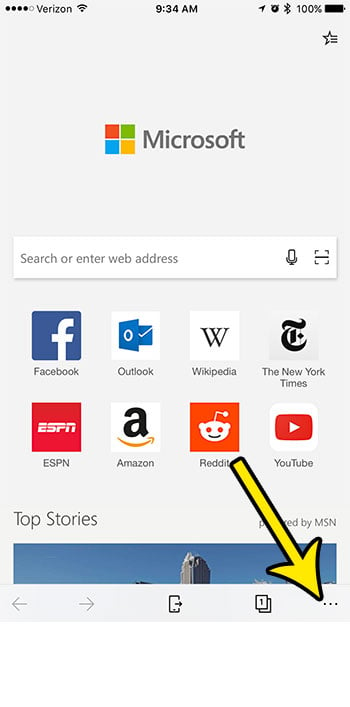
- Tap Settings.
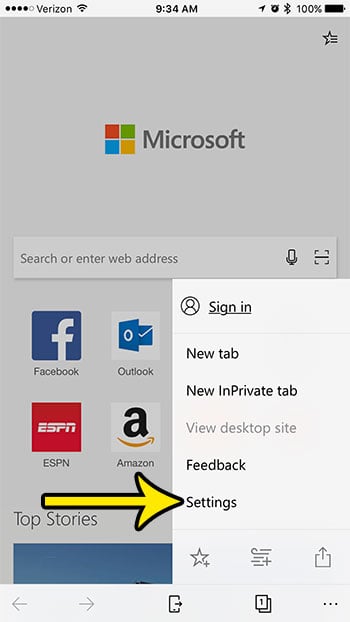
- Tap Privacy & security (older versions called it Privacy).
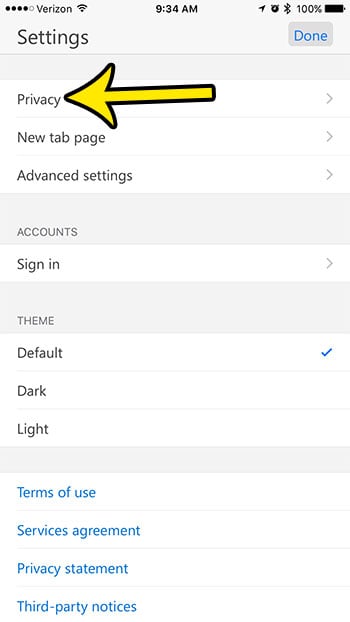
- Tap Clear browsing data.
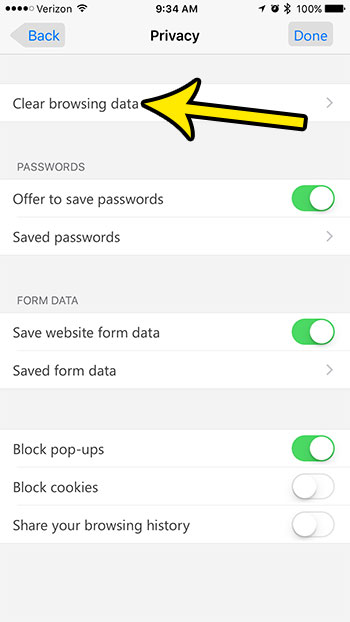
- If the screen offers a time range, choose how far back to go. Then tick the data types you picked from the table and untick everything else.
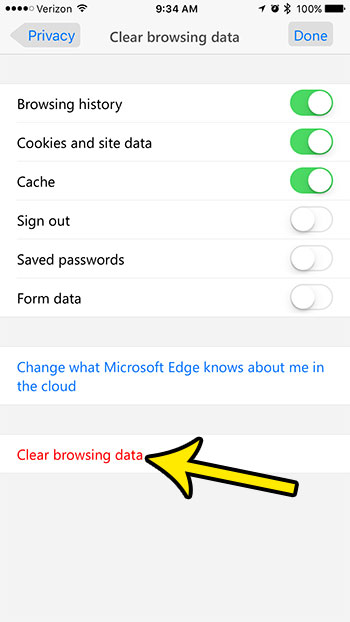
- Tap the clear button and confirm if Edge asks. (Microsoft’s Android help calls this button Clear; desktop Edge calls it Clear now.)
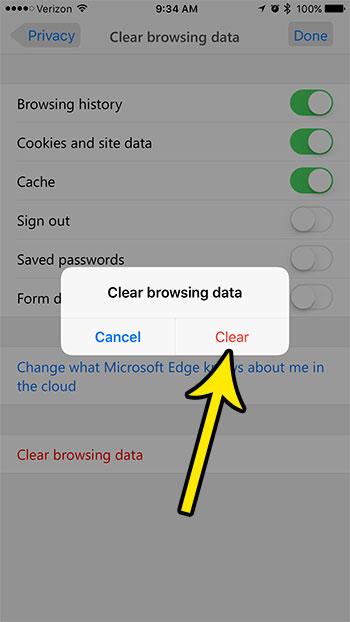
To check it worked, open your history from the Edge menu: if you cleared browsing history for the whole range, it should be empty. If you cleared cookies, a site you were signed in to will ask you to sign in again.
Only want one page out of your history? You don’t need this screen at all: see how to delete a single web page from Edge’s history on iPhone.
Keeping data from piling up
Edge for Android has a Clear browsing data upon exit switch, according to Microsoft’s app help. Microsoft’s iOS help doesn’t list one, so don’t count on it on an iPhone: look on the Privacy & security screen, and if it isn’t there, clear manually as above.
For browsing you don’t want saved in the first place, use an InPrivate tab. Microsoft says you start one from Tabs on a mobile device, and that InPrivate browsing data is deleted when you close all InPrivate windows. If you’re closing a pile of regular tabs at the same time, see how to close all tabs in the Edge iPhone app.
What clearing reaches beyond this app
Synced devices
If you sign in to Edge with a Microsoft account and sync is on, clearing can reach beyond your iPhone. Microsoft’s desktop help puts it this way: “Items that are synced will be cleared across all synced devices.” To clear data only on the device you’re using, Microsoft says to make sure sync is turned off first. Microsoft doesn’t publish an iPhone-specific version of that rule, so if you want your PC’s history kept, turn off sync in the app before clearing.
Microsoft also notes that browsing data saved to your Microsoft account in the cloud is managed separately, through its privacy dashboard, rather than from the browser. Microsoft points you to the privacy dashboard for that copy, and deleting it from the dashboard doesn’t delete data from your device.
Clearing on a PC instead? Desktop Edge has its own shortcut and screen, covered in how to clear cache and cookies in Microsoft Edge on Windows 10.
Other browsers
Clearing Edge doesn’t touch any other browser on your iPhone. Each app keeps its own history and cookies:
- Safari: delete cookies on iPhone in Safari and other browsers.
- Chrome: delete browsing history in Chrome on iPhone, or on a computer, clear browsing data in Google Chrome.
- Firefox: clear cookies in the Firefox iPhone app.
Microsoft’s own references are the Microsoft Edge app help page, its view and delete browser history page and its browsing data and privacy overview.
Edge iPhone cleanup answers
Which boxes should I tick to fix a site that won’t load properly?
Start with cached images and files only, then reload the site. If it still misbehaves, clear cookies and other site data as well and sign in again. That order keeps you signed in everywhere else for as long as possible.
Will clearing browsing data change my default search engine?
Your search engine isn’t among the data types Microsoft lists, so clearing doesn’t reset it. To change it on purpose, see how to change the default search engine in Edge on iPhone.
Will it free up much storage on my iPhone?
Microsoft doesn’t publish typical sizes. To see how much space Edge uses, check Settings > General > iPhone Storage. If storage is the real problem, look at photos, videos and large apps first; these ways to free up storage on an iPhone make a bigger difference.

Kermit Matthews runs Live2Tech from just outside Philadelphia. He is an IT specialist with over 20 years of experience, from a university help desk to small-business IT, IT management and his own consulting practice, and has written tech guides full time since 2020. Steps are checked against the current software on a real device or the maker’s official documentation. More about Kermit.