A support agent asks which driver version your Wi-Fi adapter runs, or an update just changed something and you want proof. On Windows 10 the exact answer sits in Device Manager: right-click Start, choose Device Manager, expand the category, right-click the device, choose Properties, and open the Driver tab for the provider, date and version. For every driver at once, use a command instead.
What the Driver tab tells you
The Driver tab is short, but each line answers a different question. Knowing what they mean saves you from chasing an update you don’t need.
| Field | What it tells you | How to use it |
|---|---|---|
| Driver Provider | The company that published the driver package | “Microsoft” usually means Windows supplied a built-in or generic driver; a hardware brand means the maker’s own driver is installed. |
| Driver Date | The date stamped on the driver package by its publisher | Treat it as the release date of that driver, not the day it landed on your PC. |
| Driver Version | The version number of the installed package | This is the number to give support, or to compare with the maker’s download page. |
| Digital Signer | Who signed the driver | If no signer is listed, that is worth questioning, especially on a work PC. |
A Microsoft-provided driver isn’t a problem in itself. Many keyboards, mice, storage controllers and USB devices run perfectly on Windows’ own drivers. The cases where the maker’s driver usually matters are graphics cards, some Wi-Fi and audio chips, and devices with their own control software.
Read one device’s driver details
Use this when you need the facts for a specific piece of hardware. For other ways to launch the tool, see how to open Device Manager in Windows 10.
- Right-click the Start button (Windows key + X opens the same menu) and choose Device Manager.
- Expand the category that holds the device, such as Network adapters, Display adapters or Sound, video and game controllers.
- Right-click the device and choose Properties.
- Open the Driver tab and note the Driver Provider, Driver Date and Driver Version.
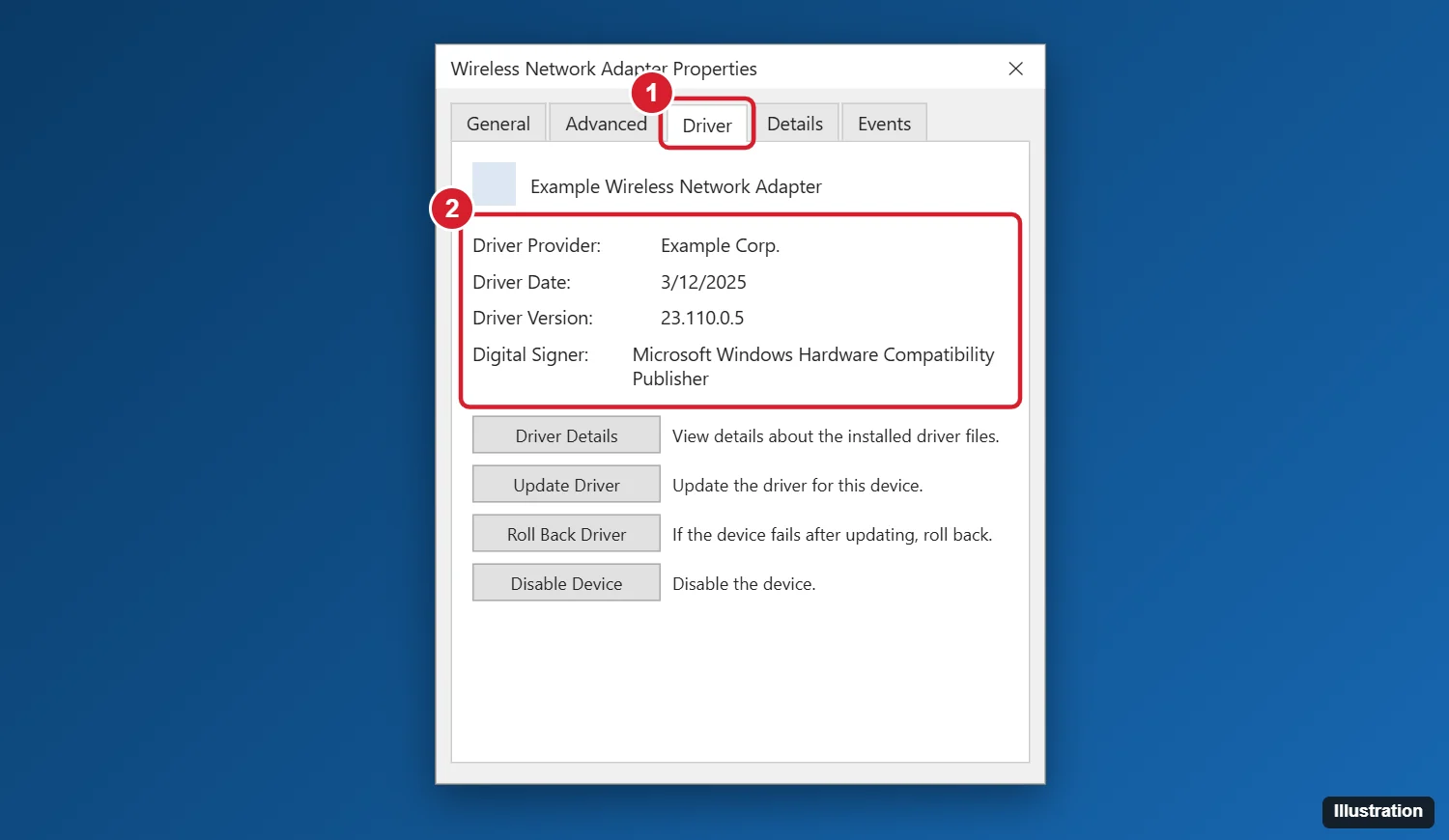
- Click Driver Details to see the files that make up the driver, which is where to look if support asks for a specific file name.
- Click OK to close the dialog. Nothing changes unless you use one of the action buttons.
The Driver tab also has buttons to update, roll back, disable or uninstall the driver. Microsoft’s Device Manager driver help notes that rolling back requires administrator rights. If Roll Back Driver is grayed out, there is usually no earlier driver to return to.
Worked example: a laptop’s Wi-Fi keeps dropping, and the PC maker’s support chat asks for the adapter’s driver version. Expanding Network adapters shows the wireless adapter; its Driver tab lists the maker as provider, a date from last year and a version number. That version number, copied exactly, is what the agent needs to say whether a newer one applies.
Get every driver in one list
Checking devices one at a time is slow if you’re auditing a PC or comparing before and after an update. Windows 10 has several built-in tools, and each answers a slightly different question.
| Tool | Command or path | Best for |
|---|---|---|
| Command Prompt | driverquery |
A quick inventory of installed drivers |
| PowerShell | Get-CimInstance Win32_PnPSignedDriver |
Device names with driver versions, dates and providers |
| PnPUtil | pnputil /enum-drivers |
Third-party driver packages stored in Windows |
| System Information | msinfo32 > Software Environment > System Drivers | Browsing driver state without typing commands |
driverquery in Command Prompt
- Click Start, type cmd, and open Command Prompt.
- Run
driverqueryfor the basic table. - Run
driverquery /vfor verbose output, ordriverquery /sifor information about signed drivers. - To save a spreadsheet, run
driverquery /v /fo csv > %USERPROFILE%\Desktop\drivers.csvand open the file in Excel.
Microsoft’s driverquery reference lists /fo csv for comma-separated output and /nh to drop the header row, and states that /v is not valid for signed drivers, so run /v and /si as separate commands. Microsoft’s page doesn’t list driverquery’s output columns, so when version numbers are the point, the PowerShell command below is the more direct route.
PowerShell for versions and dates
Open Windows PowerShell from Start and run:
Get-CimInstance Win32_PnPSignedDriver | Select-Object DeviceName, DriverProviderName, DriverVersion, DriverDate | Sort-Object DeviceName
Add | Export-Csv "$env:USERPROFILE\Desktop\driver-versions.csv" -NoTypeInformation to the end to save it. The property names come from Microsoft’s Win32_PnPSignedDriver class reference, which defines DriverDate as the build date from the manufacturer. Exporting once before a big update and again afterward gives you two files to compare, which is the simplest way to see exactly which drivers changed.
PnPUtil for stored driver packages
In an administrator Command Prompt, run pnputil /enum-drivers. Microsoft’s PnPUtil syntax page says this lists third-party driver packages in the driver store and has been available since Windows 10 version 1607. Its extra filters, /class and /files, only arrived in Windows 11, so leave them off on Windows 10.
System Information
Press Windows key + R, type msinfo32, and press Enter. Expand Software Environment and select System Drivers, which should list each driver’s state, which is handy when you’re looking for one that is stopped.
Track down the device that needs attention
Sometimes the question isn’t which version, but which device. Device Manager marks trouble with small icons on the device itself.
- Yellow exclamation point: Device Manager has an error message for the device; open its Properties and read it on the General tab. Microsoft’s Device Manager error message list explains each code.
- Down arrow: a down arrow usually means the device is disabled. Right-click it and choose Enable device if you didn’t disable it on purpose.
- Unknown device or an Other devices category: an Unknown device entry usually means Windows has no driver for it yet.
Devices that aren’t plugged in right now are hidden by default. Choose View > Show hidden devices to list them, which helps when an old printer or dock has left drivers behind. For printers specifically, there is also a separate place to view installed printer drivers in Windows 10, which gives a fuller list of printer drivers than Device Manager does.
If a check shows a broken driver, the options to reset drivers on Windows 10 (reinstall, roll back or replace) are the next step.
Compare your version with what’s available
A version number only means something once you know whether a newer one exists. There are two sources to compare against.
- Windows Update. Go to Settings > Update & Security > Windows Update and select Check for updates. If View optional updates appears, select it, choose the driver updates you want, and select Download and install. Microsoft’s driver update help notes that optional drivers aren’t installed automatically.
- The maker’s website. Search the PC or device maker’s support page for your model and compare the listed version with your Driver tab. If Windows says the best drivers for your device are already installed, it only means Windows Update has nothing newer; the maker’s site might.
Graphics drivers change most often. Press Windows key + R, type dxdiag, and open the Display tab (it may be numbered, such as Display 1) for a quick read of the graphics driver, then follow the steps to update your graphics driver in Windows 10 if it’s out of date. For a mouse that stutters or ignores extra buttons, see how to update the mouse driver in Windows 10.
Windows 10 and Windows 11 differences
Windows 10 reached end of support on October 14, 2025, and only PCs enrolled in the consumer Extended Security Updates (ESU) program keep receiving security fixes, through October 12, 2027, per Microsoft’s end-of-support notice. Checking drivers works the same either way.
If you move to Windows 11, Device Manager, the Driver tab, driverquery and PowerShell behave the same way. Two things change: optional driver updates live under Settings > Windows Update > Advanced options > Optional updates, and pnputil gains its class and file filters. The Windows 11 walkthroughs to check a graphics driver in Windows 11 and check the chipset driver version in Windows 11 cover those two common cases.
Driver detail questions
How do I tell whether a driver came from Windows or from the hardware maker?
Look at Driver Provider on the Driver tab, then click Driver Details for the signer of each file. A hardware brand as provider means the maker’s package is installed; Microsoft usually means a built-in driver.
Why does a driver I installed today show an old date?
The Driver Date reflects when the publisher dated the package, so a driver released last year shows last year’s date even if you installed it this morning. Use the version number, not the date, to confirm you have the release you meant to install.
Can I see when a driver was installed or changed?
The device’s Properties dialog may also have an Events tab listing recent installs and changes. For the whole PC, comparing two PowerShell exports taken at different times is the dependable method.
Do I need administrator rights just to look?
Usually not for Device Manager: a standard account can open it and read the Driver tab, but changing or rolling back drivers needs administrator rights (Microsoft), and PnPUtil is run from an administrator Command Prompt.
Before your next support call or major update, run the PowerShell export once and keep the file; it turns “something changed” into a clear list of which drivers did.

Kermit Matthews runs Live2Tech from just outside Philadelphia. He is an IT specialist with over 20 years of experience, from a university help desk to small-business IT, IT management and his own consulting practice, and has written tech guides full time since 2020. Steps are checked against the current software on a real device or the maker’s official documentation. More about Kermit.