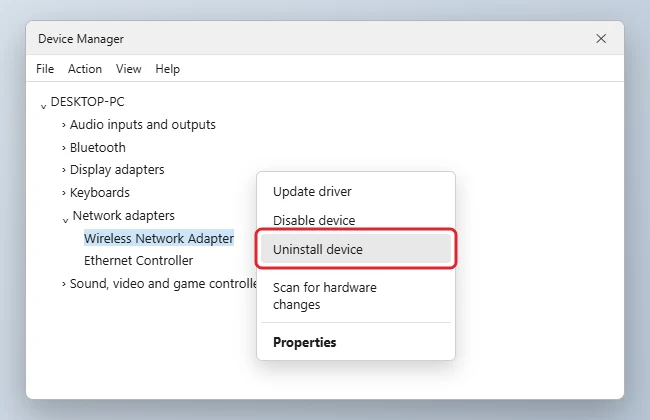
To reset a driver in Windows 10, open Device Manager, right-click the device, choose Uninstall device, and restart your PC. Windows reinstalls a fresh copy of the driver automatically when it starts. If a problem started after a recent update, use Roll Back Driver instead to return to the previous version.
There’s no single button that resets every driver at once. You reset the one causing trouble, such as audio, Wi-Fi, graphics, or a mouse. Create a restore point first so you can undo changes if something goes wrong.
Windows 10 reached end of support on October 14, 2025. Consumer Extended Security Updates (ESU) now run until October 12, 2027.
Before You Start
- Create a restore point: search for Create a restore point, select Create, and name it.
- If you’re resetting a network driver, download the replacement driver from your PC maker first in case Windows can’t get online afterward.
Method 1: Uninstall and Reinstall the Driver
- Right-click Start and select Device Manager.
- Expand the category, such as Sound, video and game controllers or Network adapters.
- Right-click the device and select Uninstall device.
- In the confirmation box, leave Delete the driver software for this device unchecked for a simple reset. Check it only if you want to remove the current driver completely.
- Select Uninstall, then restart your PC.
- After restarting, open Device Manager again. If the device doesn’t appear, select Action > Scan for hardware changes.
Is it safe to uninstall drivers?
Yes, for most devices. Windows reinstalls basic drivers automatically. Avoid uninstalling items under System devices or Storage controllers unless you know what they do.
Does resetting drivers delete my files?
No. Drivers are separate from your personal files.
Method 2: Roll Back to the Previous Driver
- In Device Manager, right-click the device and choose Properties.
- Select the Driver tab.
- Select Roll Back Driver. If it’s grayed out, there’s no older version saved.
- Pick a reason, select Yes, and restart.
Method 3: Update or Replace the Driver
- In Device Manager, right-click the device and choose Update driver.
- Select Search automatically for drivers.
- Also check Settings > Update & Security > Windows Update > View optional updates > Driver updates.
- For graphics, audio, and chipset drivers, the newest version is usually on your PC maker’s or chip maker’s support site.
Updating all drivers in Windows 10 covers this in more detail.
Which Option Should You Use?
| Situation | Best option |
|---|---|
| A device stopped working for no clear reason | Uninstall and reinstall |
| Problems started after a driver update | Roll back |
| The driver is old or generic | Update from the maker’s site |
| Wi-Fi and Ethernet both misbehave | Network reset (below) |
| Many devices broke after a change | System Restore |
Reset Specific Driver Types
- Network: Settings > Network & Internet > Status > Network reset reinstalls all network adapters. See how to reset the network adapter.
- Graphics: Press Windows + Ctrl + Shift + B to restart the graphics driver without rebooting. The screen blinks once.
- Audio: The steps for resetting audio drivers also apply to Windows 10.
If Windows keeps playing the USB connect sound after a driver reset, a device is still dropping out. The steps for turning off the USB connection sound show how to track it down.
If the Device Still Won’t Work
- The device shows a yellow warning icon after restart: Windows couldn’t find a driver. Download it from the maker’s site and run the installer.
- The same broken driver comes back: Uninstall it again with Delete the driver software for this device checked, then install a known-good version.
- Things got worse: Use System Restore to go back to the restore point you created.
A driver that crashes the desktop is easier to remove after you restart the PC in Safe Mode, where only basic drivers load.

Kermit Matthews runs Live2Tech from just outside Philadelphia. He is an IT specialist with over 20 years of experience, from a university help desk to small-business IT, IT management and his own consulting practice, and has written tech guides full time since 2020. Steps are checked against the current software on a real device or the maker’s official documentation. More about Kermit.