When a mouse, headset or Wi-Fi adapter stops working, Device Manager is where Windows 10 shows what is wrong with it and lets you fix the driver. The most dependable way in is to press Win + R, type devmgmt.msc, and press Enter; it works even when the Start menu is frozen. If Start responds, Win + X opens a menu with Device Manager in it.
Pick the route that fits your situation
All the routes open the same tool. The right one depends on what is not working and what you plan to do once it is open.
| Your situation | Best route |
|---|---|
| You just want to look at a device | Win + X menu, or search Start for device manager |
| The Start menu will not open or respond | Win + R, then devmgmt.msc |
| The mouse or touchpad is the broken device | Keyboard only: Win + R, devmgmt.msc, then Tab and the arrow keys |
| You need to roll back or change a driver on a standard account | An elevated Command Prompt (Run as administrator), then devmgmt.msc, or sign in as an administrator |
| You are already in a terminal | Type devmgmt.msc in Command Prompt or PowerShell |
| You check devices often | A desktop shortcut or a taskbar pin |
Open it from the keyboard
These routes need no mouse at all, which matters when the device you are troubleshooting is the mouse.
- Run box: press Win + R, type
devmgmt.msc, and press Enter. - Quick Link menu: press Win + X, then press M, the underlined letter for Device Manager in that menu. If M does nothing on your PC, use the arrow keys to highlight Device Manager and press Enter.
- Task Manager: press Ctrl + Shift + Esc; if it opens in the small view, select More details (Tab to it and press Enter), then press Alt to reach the menu, open File > Run new task, type
devmgmt.msc, and press Enter.
Once the window is open without a mouse, press Tab to move into the device list, use the arrow keys to expand a category (Right arrow) and select a device, then press Shift + F10 or the Menu key to open its right-click menu.
Open it with administrator rights
Anyone can open Device Manager and look. Changing things is different: Microsoft notes that rolling back a driver requires administrator permissions, and the same applies to most driver changes. On a standard account, Windows may show a message that you can view settings but not change them.
Two ways to get the rights you need:
- Sign in with an administrator account and open Device Manager as usual. This is the simplest option on a family PC.
- Use an elevated Command Prompt: select Start, type cmd, right-click Command Prompt and choose Run as administrator, enter an administrator’s password if Windows asks, then type
devmgmt.mscand press Enter. Device Manager opens with the same rights.
On an administrator account, Task Manager’s Run new task also offers Create this task with administrative privileges.
On a work or school PC, driver changes are often blocked on purpose. Viewing the error code and passing it to IT is usually the right move there.
Open it by clicking
If the mouse works and Start responds, any of these gets you there:
- Start search: select Start, type device manager, and select Device Manager in the results. This is the route Microsoft’s own support page gives for Windows 10.
- Right-click Start: choose Device Manager in the menu shown above.
- Control Panel: open Control Panel, then Hardware and Sound > Device Manager (it sits under Devices and Printers). With View by set to Large icons, it appears in the main list.
- Computer Management: right-click Start, choose Computer Management, and select Device Manager in the left pane. This version opens inside a larger console, which is handy if you also need Disk Management.
- File Explorer: click the address bar, type
devmgmt.msc, and press Enter.
Pin it so it is one click away
- Right-click an empty part of the desktop and select New > Shortcut.
- Type
devmgmt.mscas the location and select Next. - Name it Device Manager and select Finish.
- To keep it on the taskbar instead, open Device Manager, right-click its taskbar icon and choose Pin to taskbar.
What the icons and codes mean once it is open
Devices are grouped by category, such as Audio inputs and outputs, Display adapters and Network adapters. Select the arrow beside a category to expand it. A device that has a problem carries a yellow warning mark, and Microsoft says Device Manager also gives an error message for it. To read it, double-click the device and look at the status box on the General tab.
| Code | Microsoft’s problem name | What it usually points to |
|---|---|---|
| 10 | CM_PROB_FAILED_START | The device could not start; often a driver problem |
| 22 | CM_PROB_DISABLED | The device was turned off; right-click it and choose Enable device |
| 28 | CM_PROB_FAILED_INSTALL | No driver is installed for it |
| 31 | CM_PROB_FAILED_ADD | Windows could not load the driver |
| 43 | CM_PROB_FAILED_POST_START | Windows stopped the device after it reported a problem |
| 45 | CM_PROB_PHANTOM | The device is not connected right now |
The full list is on Microsoft’s Device Manager error messages page. A device that is missing entirely may simply be unplugged: select View > Show hidden devices to list it, or Action > Scan for hardware changes after you reconnect it.
First moves for a misbehaving device
Try these in order. Each one is described in Microsoft’s guide to updating drivers manually.
- Update the driver. Right-click the device, select Update driver, then Search automatically for drivers (older builds and Microsoft’s support page call it Search automatically for updated driver software). If nothing turns up, select Search for updated drivers on Windows update.
- Roll back a recent update. If the trouble started after a driver update, right-click the device, select Properties, open the Driver tab and select Roll Back Driver. Pick a reason, select Yes, and restart if asked. The button is grayed out when there is no earlier driver to return to.
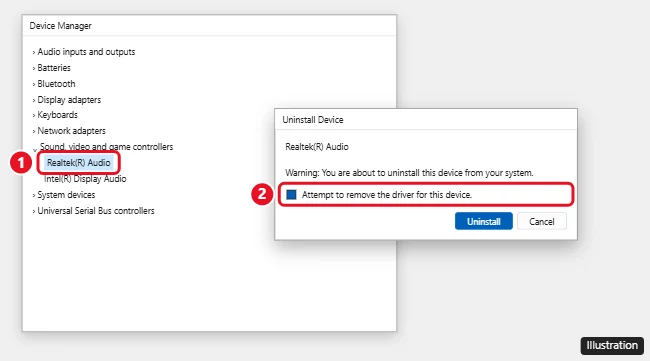
- Uninstall and restart. Right-click the device, select Uninstall device, confirm with Uninstall, then restart. Windows usually reinstalls a basic driver on startup. If you install a driver by hand, get it from the device maker’s site only.
Before changing anything, it helps to check the version, date and provider of any driver on Windows 10 so you can tell whether a change took effect. For a deeper clean-up across several devices, see how to reset drivers on Windows 10. If a driver is fine but the hardware may not be, a hardware diagnostic on Windows 10 is the next check.
When the window opens blank or will not start
- Empty window: restart the PC first. If it stays empty, open Command Prompt as an administrator and run
sfc /scannowto check Windows system files. - “MMC could not create the snap-in” or a similar error: try Computer Management instead; if that fails too, the same system file check is the next step.
- Nothing happens on a work PC: your organization may block the tool. Ask IT.
On Windows 11 instead?
The Run box, search and Win + X routes carry over, but the menus look different. See how to get to Device Manager on Windows 11. For a specific Windows 11 task in the same tool, here is how to check COM ports in Windows 11.
Windows 10 reached end of support on October 14, 2025, and PCs enrolled in Extended Security Updates get security updates through October 12, 2027. Device Manager itself works the same either way.
Device Manager questions
Is there any difference between devmgmt.msc and mmc devmgmt.msc?
No practical one. devmgmt.msc is a console file that opens in the Microsoft Management Console, so both commands open the same window.
Does opening Device Manager change anything?
No. It only lists devices until you choose an action such as Update driver, Disable device or Uninstall device.
Why does a device show up twice?
A device plugged into different USB ports, or a Bluetooth device paired more than once, can appear as separate entries. With hidden devices shown, grayed-out duplicates are usually old connections.
Can I find a device’s hardware ID here?
Yes. Open the device’s Properties, select the Details tab, and choose Hardware Ids in the list. The steps are covered in how to find a device ID on Windows 10.

Kermit Matthews runs Live2Tech from just outside Philadelphia. He is an IT specialist with over 20 years of experience, from a university help desk to small-business IT, IT management and his own consulting practice, and has written tech guides full time since 2020. Steps are checked against the current software on a real device or the maker’s official documentation. More about Kermit.