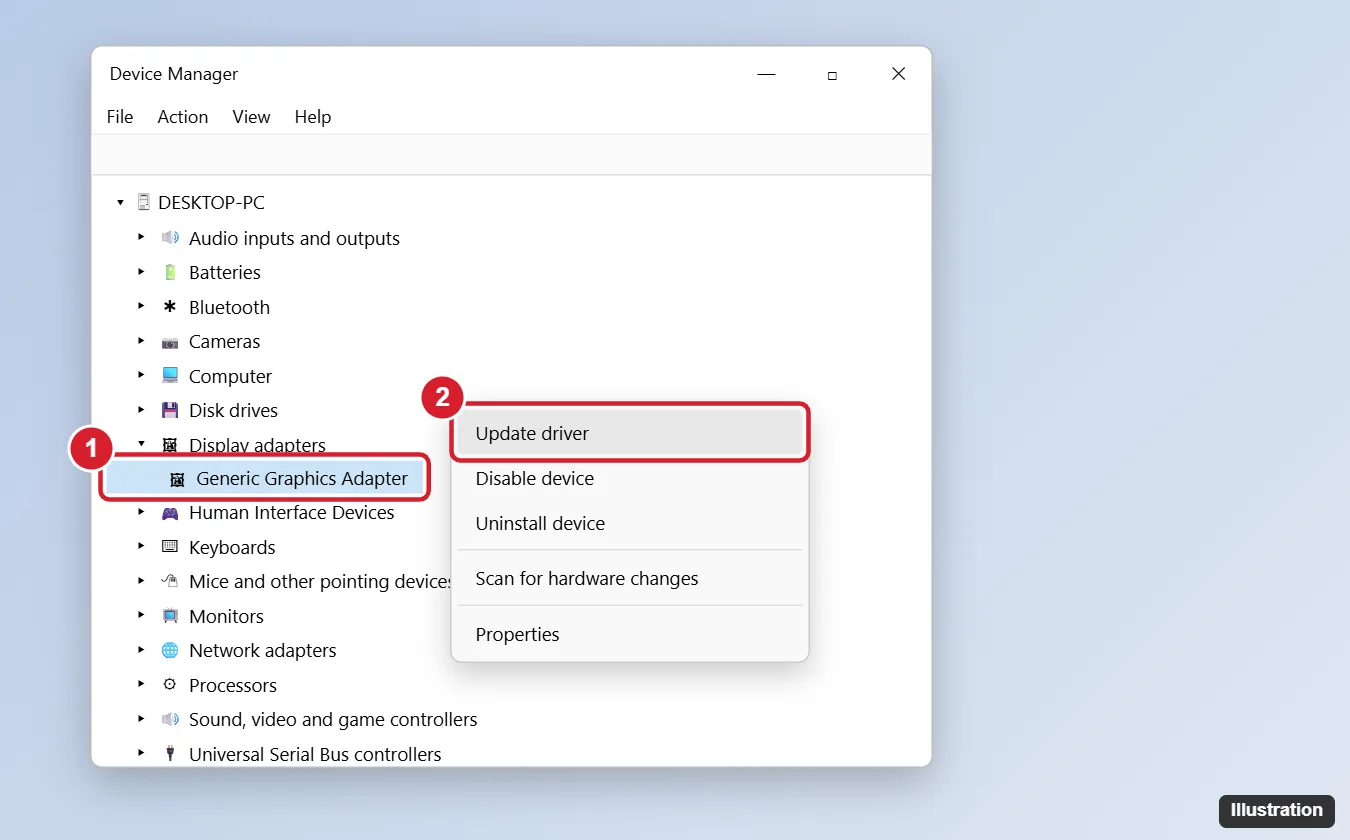
Drivers are the small programs that let Windows 11 talk to your hardware: graphics card, Wi-Fi adapter, audio, printer, touchpad, and more. The safest way to update them is Settings > Windows Update > Check for updates, then Advanced options > Optional updates > Driver updates to install any available drivers. To update one device, right-click Start, open Device Manager, right-click the device, and choose Update driver. For graphics cards and other performance-critical hardware, the manufacturer's website or app usually has the newest version.
Which Method Should You Use?
| Method | Best for | Pros | Cons |
|---|---|---|---|
| Windows Update | Most people, most devices | Tested for Windows, automatic, safe | Not always the newest version |
| Optional driver updates | Fixing a specific device issue | Official, easy to pick individual drivers | Only offered when available |
| Device Manager | A single device or a downloaded driver file | Precise control | Automatic search often finds nothing new |
| Manufacturer website or app | Graphics cards, gaming, new hardware | Newest versions and features | You must pick the right model |
| PC maker support tool | Laptops and prebuilt desktops | Drivers tailored to your exact model | Extra software to install |
Before You Start
- Create a restore point so you can undo system changes: search for Create a restore point, select your system drive, and click Create.
- Know your hardware. In Device Manager, expand a category to see device names, or run msinfo32 to see your system model.
- Avoid third-party "driver updater" programs from unknown publishers. Many bundle unwanted software, and Windows plus your hardware makers already provide everything you need.
Method 1: Update Drivers With Windows Update
- Press Windows key + I to open Settings.
- Click Windows Update in the left pane.
- Click Check for updates and install anything offered.
- Restart if prompted.
Windows Update installs many drivers automatically, including chipset, network, and some graphics drivers. It is the most stable source because these drivers have been certified for Windows.
Method 2: Install Optional Driver Updates
Some drivers are not installed automatically and appear as optional updates instead.
- Go to Settings > Windows Update > Advanced options.
- Under Additional options, click Optional updates.
- Expand Driver updates.
- Check the drivers you want and click Download & install.
Only install optional drivers for devices that are having problems, or if your PC maker recommends them. If a device is working fine, there is usually no need.
Method 3: Update a Driver in Device Manager
- Right-click the Start button and select Device Manager (or press Windows key + X, then M).
- Expand the category for your device, such as Display adapters or Network adapters.
- Right-click the device and choose Update driver.
- Choose one of these options:
- Search automatically for drivers: Windows looks for a better driver already on your PC. If it says the best driver is installed, it may offer a link to search Windows Update.
- Browse my computer for drivers: use this if you downloaded a driver. Point it to the folder containing the driver files (usually a folder with an .inf file) and click Next.
- Restart your PC if prompted.
"The best drivers for your device are already installed" only means Windows has nothing newer on hand. The manufacturer may still have a more recent version.
Pick From Drivers Already on Your PC
If a recent driver causes problems, choose Browse my computer for drivers > Let me pick from a list of available drivers on my computer. Windows shows compatible drivers it has stored, and you can choose an earlier one.
Method 4: Download From the Manufacturer
For the newest drivers, go straight to the source.
- Graphics cards: NVIDIA, AMD, and Intel each offer a driver download page and a companion app that can check for updates automatically. Gamers usually want these, since new game-ready drivers appear much sooner than on Windows Update.
- Laptops and prebuilt PCs: Dell, HP, Lenovo, ASUS, Acer, Microsoft Surface, and others have support pages where you enter your model or serial number, plus update apps that install the right drivers for your machine.
- Printers, audio interfaces, and peripherals: check the device maker's support page for Windows 11 drivers and software.
Most manufacturer downloads are installers: run the file and follow the prompts. Download only from the manufacturer's official site.
PC Maker Update Apps
Laptop and prebuilt PC makers offer tools that check every driver and firmware update for your exact model, which is often easier than hunting through a support page.
| Maker | App |
|---|---|
| Dell | SupportAssist |
| HP | HP Support Assistant |
| Lenovo | Lenovo Vantage (or Commercial Vantage) |
| ASUS | MyASUS |
| Acer | Acer Care Center |
| Microsoft Surface | Updates arrive through Windows Update |
Open the app, find its updates or drivers section and install what it recommends. On a custom-built PC, get chipset, audio and network drivers from your motherboard maker’s support page instead.
Method 5: Command Line (Advanced)
If you have a driver package (.inf file), you can install it from an elevated Terminal:
pnputil /add-driver C:\Drivers\*.inf /subdirs /install
To list installed third-party drivers, use pnputil /enum-drivers. This is mostly useful for IT administrators or when an installer will not run.
How to Check a Driver's Version
- In Device Manager, right-click the device and choose Properties.
- Open the Driver tab to see the provider, date, and version.
Compare the version with the one listed on the manufacturer's site to see whether an update is available.
How to Roll Back a Driver
If a device stops working properly after an update:
- Open Device Manager, right-click the device, and choose Properties.
- On the Driver tab, click Roll Back Driver.
- Pick a reason and click Yes, then restart.
If Roll Back Driver is grayed out, Windows does not have the previous version stored. Use Let me pick from a list (above), reinstall an older version from the manufacturer, or use System Restore.
Stop Windows From Replacing a Driver
Windows Update may reinstall a driver you rolled back. Microsoft has offered a Show or hide updates troubleshooter for hiding a specific update, and on Windows 11 Pro you can use Group Policy (Computer Configuration > Administrative Templates > Windows Components > Windows Update) to exclude drivers from quality updates. Only change these settings if you have a specific reason, and remember to revisit them later.
Bluetooth missing? See how to turn on or install Bluetooth on Windows 11.
Wi-Fi driver acting up? See how to reinstall the Wi-Fi driver in Windows 11.
Firmware is updated separately; see how to check your BIOS version.
When a Device Still Isn’t Working
A device shows a yellow warning icon
That means Windows has a problem with the device or has no driver. Open its Properties to see the error code, then install the driver from the manufacturer or try Uninstall device and restart so Windows reinstalls it.
"Unknown device" appears in Device Manager
Open its Properties, go to Details, and select Hardware Ids. The vendor (VEN) and device (DEV) values can help you identify the hardware and find its driver on the maker's site.
The installer says the driver is not compatible
Make sure you downloaded the Windows 11 (64-bit, or ARM64 on Arm-based PCs) version for your exact model.
My screen went black during a graphics driver update
That is normal for a few seconds. If it stays black, restart; if the problem continues, boot into Safe Mode and roll back or reinstall the driver.
Related: Create a restore point in Windows 10.
A serial adapter that shows a warning icon is easier to sort out once you identify its entry under Ports (COM & LPT).
Other Driver Update Questions
How often should I update drivers?
Let Windows Update handle routine updates. Manually update when a device has problems, when you install new hardware, or, for graphics drivers, when a new game or app recommends it.
Should I update the BIOS or firmware too?
Only if your PC maker recommends it for a problem you have or a security fix. Firmware updates carry more risk, so follow the maker's instructions carefully and keep laptops plugged in.
Why is Optional updates empty?
Either your drivers are current or Microsoft has nothing newer to offer for your hardware. Check the manufacturer’s site or update app if you still want a newer version.
Is it the same on Windows 10?
Nearly. On Windows 10, open Settings, Update & Security, Windows Update and click View optional updates to find driver updates. Device Manager and manufacturer downloads work the same way.
Before updating a printer driver, note the current version by viewing the printer drivers installed in Windows 11.

Kermit Matthews runs Live2Tech from just outside Philadelphia. He is an IT specialist with over 20 years of experience, from a university help desk to small-business IT, IT management and his own consulting practice, and has written tech guides full time since 2020. Steps are checked against the current software on a real device or the maker’s official documentation. More about Kermit.