Windows 11 usually installs audio drivers automatically. If your sound isn’t working or you need a newer driver, the quickest fix is Windows Update: go to Settings > Windows Update > Advanced options > Optional updates > Driver updates, check any audio driver listed, and click Download & install. You can also right-click Start > Device Manager, expand Sound, video and game controllers, right-click your audio device, and choose Update driver. For the best driver made for your exact PC, download it from your PC or motherboard maker’s support website.
Below are all four methods, how to reinstall a driver cleanly, and what to try if you still have no sound.
Method 1: Install audio drivers with Windows Update
- Open Settings with Windows key + I.
- Click Windows Update, then Check for updates, and install anything available.
- Click Advanced options > Optional updates.
- Expand Driver updates, check any audio or sound driver, and click Download & install.
- Restart your PC.
Method 2: Update the driver in Device Manager
- Right-click the Start button and choose Device Manager.
- Expand Sound, video and game controllers.
- Right-click your audio device (for example, High Definition Audio Device or a device with your audio chip maker’s name) and choose Update driver.
- Click Search automatically for drivers. If Windows finds one, it installs it.
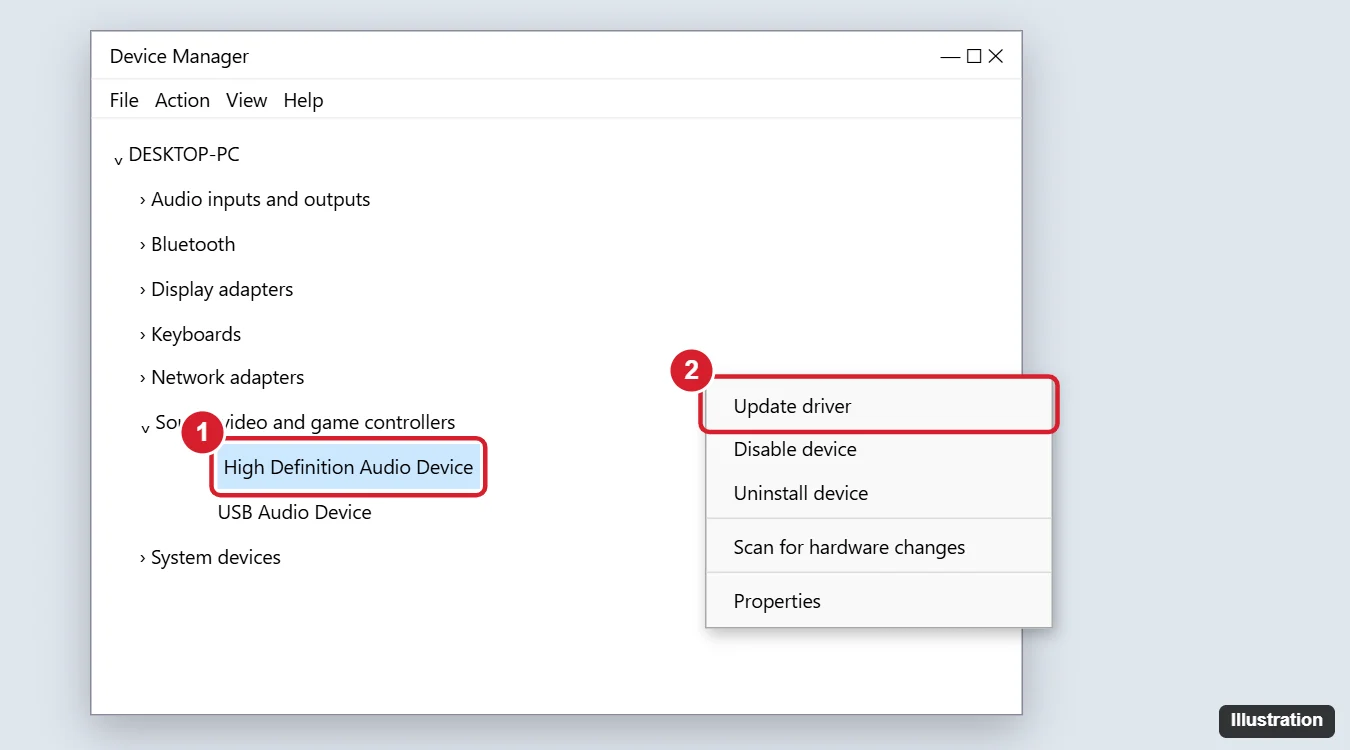
If you see a device with a yellow warning icon under Other devices, such as Multimedia Audio Controller, that’s usually a missing audio driver. Update it the same way, or use Method 3.
Method 3: Download the driver from your PC maker
- Find your PC’s model number on a sticker, or go to Settings > System > About.
- Go to the support website for your PC maker (such as Dell, HP, Lenovo, ASUS, or Acer), or your motherboard maker if you built your PC.
- Enter the model, choose Windows 11, and download the Audio driver.
- Run the installer and restart your PC.
PC makers often include audio enhancements and microphone features that the generic Windows driver lacks. Their support apps, like HP Support Assistant or Lenovo Vantage, can also find drivers for you. HP owners whose speakers sound thin after a driver change can use these fixes for a quiet HP laptop in Windows 11 to test enhancements and run HP’s hardware check.
Once the right driver is in place, you can also turn on spatial sound in Windows 11 for headphones.
Should I use driver updater apps?
It’s safer to avoid them. Many install the wrong drivers or bundle unwanted software. Use Windows Update or your PC maker’s website instead.
Method 4: Reinstall the audio driver
- In Device Manager, right-click your audio device and choose Uninstall device.
- If you see Attempt to remove the driver for this device, leave it unchecked for a simple reinstall, or check it to remove the driver completely. Click Uninstall.
- Restart your PC. Windows reinstalls a driver automatically.
- If it doesn’t, open Device Manager and click Action > Scan for hardware changes.
For more detail, see how to uninstall and reinstall audio drivers in Windows 11.
Which driver does your PC need?
In Device Manager, expand Sound, video and game controllers to see your audio hardware. Common names include Realtek Audio, Intel Smart Sound Technology, Conexant or Synaptics audio on laptops, and NVIDIA or AMD High Definition Audio, which only carries sound over HDMI or DisplayPort to a monitor or TV. Install drivers for the device you actually listen through. On many laptops, Intel Smart Sound Technology must be installed before the Realtek driver will work, so install the PC maker’s drivers in the order their support page lists.
Which audio driver do I have?
In Device Manager, right-click your audio device, choose Properties, and open the Driver tab to see the provider, date, and version.
For a clean reinstall, see uninstalling and reinstalling audio drivers in Windows 11. If you only need the newest version, follow updating audio drivers on Windows 11.
Still no sound?
- Check the output device. Click the speaker icon on the taskbar, then the arrow next to the volume slider, and pick the right speakers or headphones.
- Run the audio troubleshooter. Go to Settings > System > Sound and click Troubleshoot under your output device, or use the Get Help app.
- Check the Windows Audio service. Press Windows key + R, type services.msc, and make sure Windows Audio is running and set to Automatic.
- Roll back a new driver. If sound stopped after an update, open the device’s Properties > Driver > Roll Back Driver.
Related: Reset audio drivers in Windows 11.

Kermit Matthews runs Live2Tech from just outside Philadelphia. He is an IT specialist with over 20 years of experience, from a university help desk to small-business IT, IT management and his own consulting practice, and has written tech guides full time since 2020. Steps are checked against the current software on a real device or the maker’s official documentation. More about Kermit.