Change two separate settings, depending on what looks wrong. The menu language in Google Sheets follows your Google Account, so you change it at myaccount.google.com, while the spreadsheet’s Locale (File > Settings) controls dates, numbers and currency for that one file. If you actually need the words inside your cells in another language, that’s a third job: the GOOGLETRANSLATE function translates cell text without touching either setting.
Which setting do you need?
| What you want to change | Setting to use | Who it affects |
|---|---|---|
| Menus, buttons and dialog boxes | Google Account language | Only you, in all Google services on the web |
| Date order (MM/DD vs. DD/MM), decimal and thousands separators, default currency | Spreadsheet Locale (File > Settings) | Everyone who opens that spreadsheet |
| The time zone the spreadsheet works in | Spreadsheet Time zone (File > Settings) | Everyone who opens that spreadsheet |
| Function names shown in your language | Display language option in File > Settings | Needs a non-English Google Account language (Google’s requirement) |
| The text inside cells | GOOGLETRANSLATE function | The cells you put it in |
| Language of the Sheets mobile app | Your phone’s language settings | That phone |
For an existing file, its own Locale decides the currency, date and number formatting, whatever your account language is.
Sheets has no menu-language setting of its own. Google’s Account Help gives these steps:
- Go to myaccount.google.com/language in your browser. You may need to sign in.
- Next to Language, click the edit (pencil) button.
- Search for the language you want and select it.
- Click Select.
- Close and reopen your browser, then open your spreadsheet again.
This changes your preferred language across Google services on the web, so Gmail, Docs and Drive switch too. That’s the trade-off: you can’t have English menus in Gmail and Spanish menus in Sheets in the same account.
Your computer’s own language doesn’t control Sheets in a browser. Changing the Windows display language changes Windows menus, but Sheets keeps following your Google Account.
Change the spreadsheet locale and time zone
The locale is the setting behind most “my dates and numbers look wrong” problems. Google’s Docs Editors Help describes it this way: changing the locale changes the spreadsheet’s default currency, date and number formatting, and it changes for the entire spreadsheet, so everyone working on it sees the result.
- Open the spreadsheet on a computer.
- Click File > Settings.
- On the General tab, open the Locale menu and pick the country or region whose formats you want.
- Check the Time zone menu on the same tab, and change it if the sheet’s dates and times are for another region.
- Click Save settings.
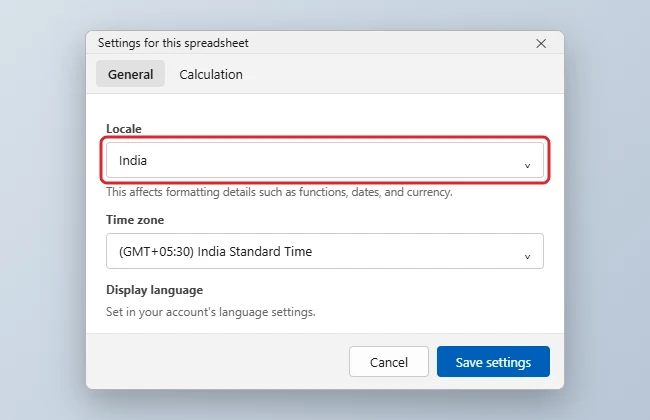
Google is explicit that changing the locale doesn’t change your language settings in Sheets: the menus stay in your account language.
A worked example
Say a bookkeeper in the US receives a budget sheet from an office in Germany. The menus are in English because that’s the bookkeeper’s account language, but the sheet’s locale is Germany, so dates and numbers follow German conventions (Google says the locale sets date and number formatting). Switching the locale to United States makes new entries follow US conventions. Because the locale belongs to the file, the German colleagues will then see US formats too, so agree on one locale before anyone changes it.
Show function names in your language
In the same File > Settings dialog, Google lists a Display language option. Unchecking Always use English function names lets Sheets show function names in your account language, for the languages Google supports. Click Save settings afterward. Google notes this works only when your Google Account is set to a non-English language.
Translate the text in your cells
When the problem is content rather than menus, use the GOOGLETRANSLATE function. Google documents its syntax as GOOGLETRANSLATE(text, [source_language, target_language]).
- Click an empty cell next to the text you want translated.
- Type a formula such as
=GOOGLETRANSLATE(A2, "en", "es")to translate the text in A2 from English to Spanish. - Press Enter, then drag the fill handle down to translate the rest of the column.
- Language codes are two-letter codes, such as en, es, fr and de.
- The source language defaults to
"auto"(detect it automatically), and the target defaults to your system language. So=GOOGLETRANSLATE(A2)translates A2 into your own language. - If you leave out the source language, you must leave out the target too.
The result is a live formula. To keep the translation as plain text, copy the cells and paste them as values only. For a whole document rather than cells, Google Docs has a menu command: see how to translate a document in Google Docs.
The Sheets app on Android and iPhone
The mobile app doesn’t use myaccount.google.com for its language. Google’s Account Help says that to change the language for mobile apps, you update the language settings on your device.
Phone notifications work the same way, as setting the language for Google weather notifications shows for the Google app.
- Android: Google’s Android Help describes per-app languages: open Settings, tap System > Languages > App Languages, select the app, and choose a language. Google notes some of these steps work only on Android 14 and up. If Sheets isn’t listed, change the phone’s main language instead.
- iPhone: Apple’s iPhone User Guide documents the device-wide setting at Settings > General > Language & Region, which also sets the region, date format and number format. Apple’s guide doesn’t describe a separate per-app language for Sheets, so expect the app to follow the phone’s language.
The locale and time zone steps above are written for a computer, and Google’s help doesn’t describe a way to change a file’s locale in the mobile app. Set it once on a computer; the app then shows the file with that locale.
- Menus didn’t switch: close every browser window and reopen it, as Google advises. If you use several Google accounts in one browser, check which account is active in Sheets; each has its own language.
- Formulas show errors after a locale change: separators can change with the locale, so a formula typed from an English example may need different argument separators in some locales. Google’s help pages don’t say how existing formulas are handled, so check a few after switching.
- Dates look wrong: dates typed before the change may display differently. Reformat them with Format > Number, and see how to insert dates in Google Sheets for formats that suit your locale.
- The currency symbol didn’t change: if a cell has its own currency format, reapply the format, as shown in how to apply currency formatting in Google Sheets.
- Sheets keeps “correcting” what you type: that’s autocomplete or autocorrect, not language. You can turn off autocomplete in Google Sheets.
- A work or school account won’t let you change it: in managed accounts, your organization’s administrator may control some settings, so ask them.
Google’s own pages are short and worth bookmarking: Set a spreadsheet’s locale and time zone, Change language in your Google Account and the GOOGLETRANSLATE function reference.
Sheets language questions
Why are my Sheets menus suddenly in another language?
Someone changed your Google Account language, or you’re signed in to a different Google account in that browser. Sheets menus always follow the active account, never the file you’re viewing.
Can two people see different menu languages in the same spreadsheet?
Yes. Each person sees menus in their own account language. The locale and time zone are shared, though, because they belong to the file.
Is the locale the same as the system locale on my PC?
No. Windows has its own system locale for older programs, covered in how to change the system locale in Windows 11. It has no effect on a Google Sheets file, which uses the locale saved in File > Settings.
What does the locale leave alone?
Google describes the locale as changing currency, date and number formatting, so other formatting, like cell colors in Google Sheets, stays as it was. It doesn’t reorder your data either; if rows ended up in the wrong order after a busy editing session, you can unsort in Google Sheets. And if the sheet feeds a presentation, check the numbers in any chart or table you inserted into Google Slides after changing the locale.

Kermit Matthews runs Live2Tech from just outside Philadelphia. He is an IT specialist with over 20 years of experience, from a university help desk to small-business IT, IT management and his own consulting practice, and has written tech guides full time since 2020. Steps are checked against the current software on a real device or the maker’s official documentation. More about Kermit.