Apple devices signed in to your Apple Account join Find My when Find My is turned on in that device’s own settings, so “adding” an iPhone, iPad, Mac or Apple Watch really means switching one setting on, on that device. AirTags and other items work the other way round: you add them from the Find My app on your iPhone or iPad.
Start by picking the kind of device below, because each one has its own route.
Which device you are adding decides the steps
The Find My app has no general “add device” button for Apple hardware. A device shows up in the Devices list once it is signed in to your Apple Account and its own Find My switch is on. Use this list to jump to the right part:
- An iPhone or iPad: turn on Find My in that device’s Settings app.
- A Mac: turn on Find My Mac in System Settings on the Mac.
- An Apple Watch or AirPods: pair it with your iPhone first, then check its Find My setting.
- An AirTag or a supported item from another maker: add it from the Items tab in the Find My app.
- A family member’s iPhone: you can’t switch it on for them. They turn on Find My on their own device, then share their location with you.
If the device isn’t signed in to iCloud yet, do that first. Signing in and setting up iCloud on an iPhone or iPad covers that part, including the Apple Account sign-in screen.
iPhone or iPad: switch on Find My for that device
Do this on the iPhone or iPad you want to find later, not on a different phone. Apple’s Find My setup article lists these steps:
- Open the Settings app.
- Tap your name at the top, then tap Find My.
- Tap Find My iPhone (on an iPad, Find My iPad), then turn it on.
- Turn on Find My network. Apple says this lets the device be seen even when it’s offline.
- Turn on Send Last Location. With it on, the device’s location is sent to Apple when the battery is low.
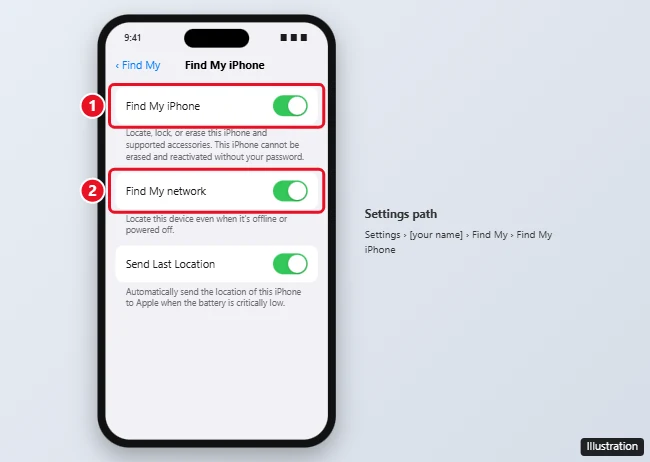
Why the Find My network switch matters: Apple describes the Find My network as a crowdsourced network of Apple devices that use Bluetooth to detect the location of a device or accessory and report its approximate location back to the owner, and says it’s all anonymous and encrypted.
Turning on Find My also turns on Activation Lock. Apple describes Activation Lock as a feature designed to prevent anyone else from using your iPhone or iPad if it’s lost or stolen. For another layer of protection, turning on Stolen Device Protection is a separate setting worth looking at once Find My is on.
Location Services also has to be on for the map to show the device. Check Settings > Privacy & Security > Location Services.
Mac: turn on Find My Mac in iCloud settings
A Mac joins Find My from System Settings on that Mac. Apple’s steps for current macOS:
- From the Apple menu, choose System Settings.
- Click your name, then click iCloud. If you don’t see your name, sign in with your Apple Account first.
- Click See All.
- Scroll down and click Find My Mac.
- Click Turn On, enter your Apple Account password if asked, and allow Find My Mac to use your Mac’s location.
If Find My Mac can’t get a location, look at System Settings > Privacy & Security > Location Services and make sure Location Services is on and Find My is allowed to use it. Apple’s current setup article shows only the System Settings route. If your Mac shows System Preferences instead, its layout is different, so look for the same iCloud and Find My Mac names on screen.
Apple Watch, AirPods and Beats
These accessories don’t need a separate “add” step in the Find My app. They come in through the iPhone or iPad they’re paired with, as long as that iPhone has Find My on.
Apple Watch
Pair the watch with your iPhone as usual. Then confirm the setting on the watch itself:
- On your Apple Watch, open Settings.
- Tap your name, then scroll until you see your Apple Watch.
- Tap your watch name, then tap Find My Watch.
- Make sure Find My network is turned on.
AirPods
- Make sure the AirPods are connected to your iPhone or iPad.
- Open Settings, then tap Bluetooth.
- Tap the More Info button next to your AirPods.
- Scroll down to Find My network and make sure it’s turned on.
Once they appear, Find My can play a sound on them. If that sound sits on “pending,” fixing AirPods sound pending in Find My explains what the message means.
Beats
Apple keeps the Find My steps for supported Beats products in a separate Beats support article rather than in its general setup page. Check that article for your model, since not every Beats product works with Find My.
AirTags and other Find My items
Items are the one place where you do add something inside the Find My app. Apple’s AirTag article gives two routes.
The setup card
- Hold the AirTag near your iPhone or iPad, then tap Connect.
- Select a category to name the AirTag. If you choose Custom Name, select an emoji.
- Tap Agree or Continue to link the AirTag to your Apple Account.
- Tap Done.
The name you pick here is what shows in the Items list, so something you’ll recognize at a glance helps. These funny AirTag names include the steps to change the name and emoji later, and if you haven’t ordered the tag yet, AirTag engraving ideas can make a tag easier to spot in a drawer.
From the Items tab
Use this route for a supported item from another maker, or if the setup card doesn’t appear:
- For a non-Apple item, follow the maker’s instructions to get it ready to connect.
- Open Find My, tap Items, then tap the Add button.
- Tap AirTag or Other Item.
- Complete the onscreen setup steps.
Apple’s requirements for adding an AirTag include iOS or iPadOS 14.5 or later, and iOS or iPadOS 26.2.1 or later for an AirTag (2nd generation). If a third-party item won’t finish setup, the item’s maker is the one to ask whether that model supports Find My.
There is also a cap. Apple says you can add up to 32 items in Find My, including shared items and accessories, and AirPods count against it: AirPods Max count as one item, AirPods and AirPods Pro 1 as two, and AirPods Pro 2 and later as three. A household with several pairs of AirPods can reach the limit sooner than the number of tags suggests.
Seeing family members’ devices
You can’t sign someone else’s phone into Find My from your own iPhone. Each person turns on Find My on their own devices, and then shares their location with you. Apple documents two ways to share your location with family:
- With Family Sharing set up: open Settings, tap Family, then tap Location Sharing. Under Share Your Location With, select the family members to share with.
- Without Family Sharing: in the Find My app, tap the People tab, select the person’s name, tap the More button, then tap Share My Location.
Sharing can pile up over the years. Seeing who you share your location with shows how to review that list and stop sharing with anyone on it.
When a device is missing from your list
Most “it never showed up” cases come down to one of the settings above. Work through these on the missing device:
- Same Apple Account. Open Settings on the missing device and check the name at the top. A device signed in to a different Apple Account shows up in that account’s Find My, not yours.
- Find My switched on. Repeat the steps for that device type. On AirPods and Apple Watch, check the Find My network switch too.
- Location Services on. Without it, the device may be listed but can’t report where it is.
- Country or region. Apple says Find My availability and features might vary by country or region.
- The right place to look. iCloud.com can find your Apple devices, but Apple’s lost-device article says AirTags and Find My network accessories can only be located with the Find My app on iPhone, iPad, Mac or Apple Watch. A tag that’s missing from the browser view isn’t missing from your account.
If an AirTag is in the list but shows as not reachable, that’s a different problem from setup: what an AirTag not reachable message means walks through it.
Adding to Find My questions
Is there a limit on how many devices I can add?
Apple’s 32-item limit applies to items, shared items and accessories, with AirPods counting as one to three items each depending on the model. Apple’s setup article does not state a similar cap for your own iPhones, iPads and Macs.
Can I add an AirTag from a Mac or a web browser?
Apple’s AirTag steps run on an iPhone or iPad: the setup card appears there, and the Items tab route starts in the Find My app on that device. iCloud.com can’t locate AirTags at all.
How long does iCloud.com show a location sent by Send Last Location?
Apple says the device tries to upload its location just before it needs to be charged, and that locations are shown on iCloud.com for up to 24 hours.
Once every device and tag is in, open the Find My app and check the Devices and Items lists while everything is nearby. It’s much easier to fix a missing switch now than when something is actually lost.

Kermit Matthews runs Live2Tech from just outside Philadelphia. He is an IT specialist with over 20 years of experience, from a university help desk to small-business IT, IT management and his own consulting practice, and has written tech guides full time since 2020. Steps are checked against the current software on a real device or the maker’s official documentation. More about Kermit.