The list lives in the Find My app: open it and tap People to see everyone you share your location with, along with anyone who shares theirs with you. For a wider review, Safety Check in Settings shows every person and app with access to your location and can stop all of that sharing at once. These steps follow Apple’s current instructions and work on any iPhone with a recent iOS version.
Check the People list in Find My
- Open the Find My app.
- Tap People.
- Review each name and the line of text under it.
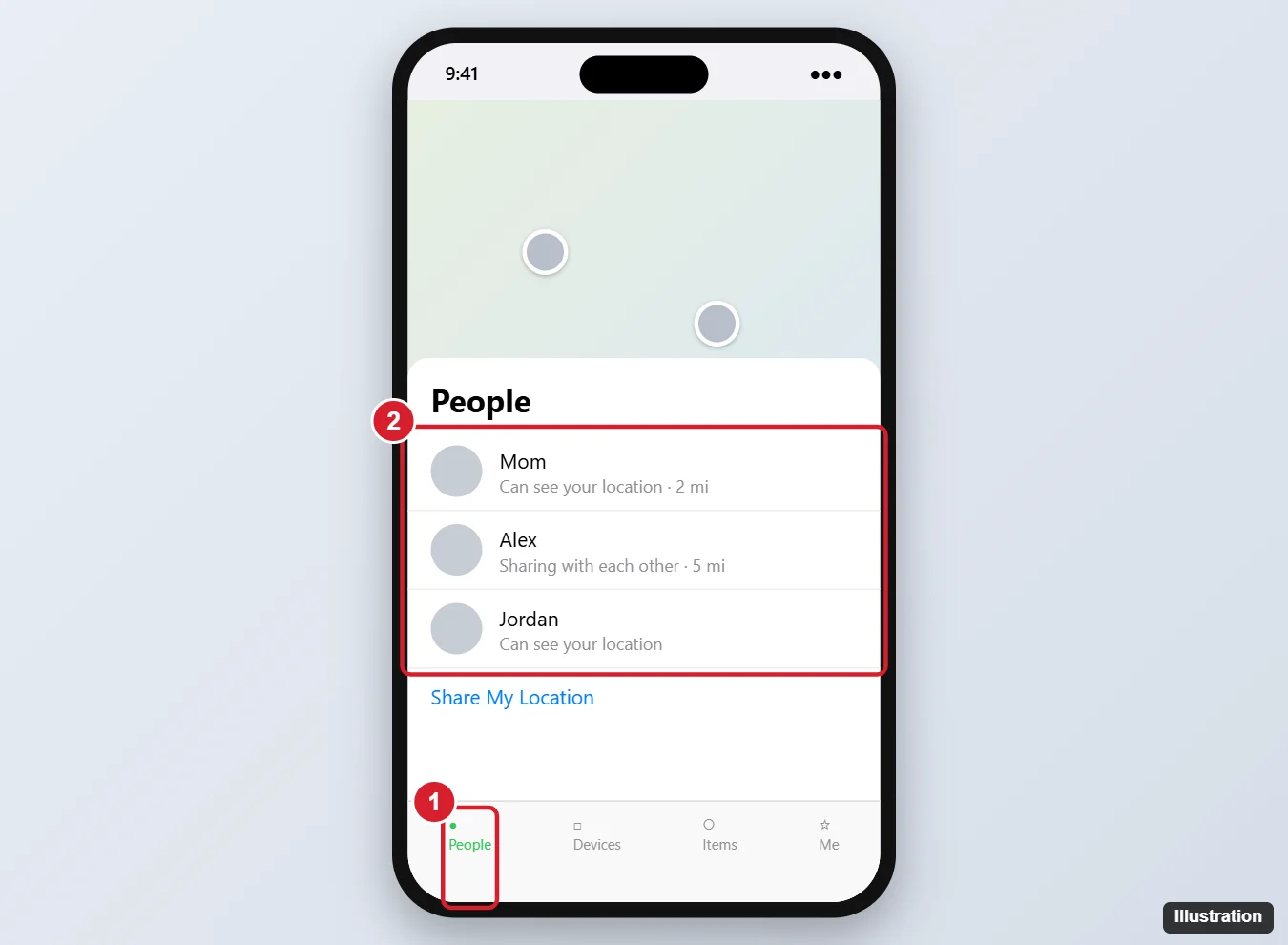
The People list mixes two groups: people who can see your location and people who share their location with you. The text under each name tells them apart. According to Apple’s guide to locating a friend in Find My, “Can see your location” appears below the name of someone who can see you but whose location you aren’t following. When a friend shares with you, their location shows instead, and they may be able to see yours too; tap the name to see the options for that person, including Stop Sharing My Location. If a friend’s location can’t be found, you see “No location found,” which is about their device and says nothing about your own sharing.
Two situations catch people out. Members of a Family Sharing group can appear in People even when they aren’t sharing yet, because each member still has to choose to share. And a person can appear because they share with you, even if you never shared back.
Find My only works with location turned on. Apple says to make sure Location Services is on in Settings > Privacy & Security > Location Services > Find My; if that switch is off on your phone, see how to enable location on iPhone.
Stop or pause sharing with one person
To stop sharing for good with someone in the list:
- In Find My, tap People.
- Tap the name of the person you no longer want to share with.
- Tap Stop Sharing My Location, then tap Stop Sharing Location to confirm.
If you only want a break, tap the person’s name and choose Hide Location instead. Apple’s Find My and location sharing guide says sharing “automatically resumes the next day,” which suits an evening out or a surprise trip.
Apple is careful about what the other person learns: people you previously shared with may notice that your location is no longer visible, and on earlier operating systems they may receive a notification in Messages. If stopping could put you at risk, read the Safety Check section below before you change anything.
Stop sharing with everyone at once
- Open Find My and tap Me.
- Turn off Share My Location.
This hides your location from everyone you share with in Find My. Apple’s share your location with iPhone page notes that turning it back on later restores sharing with the people you shared with before, so treat it as a master switch rather than a clean slate. Apple also lists Settings > [your name] > Find My as a second place to change your location sharing settings.
A few more controls sit on the same Me screen:
- Sharing From shows which device your location comes from, and Use This iPhone as My Location switches it to the phone in your hand. If an old iPad at home is the sharing device, friends see the iPad’s location, not yours.
- Allow Friend Requests can be turned off to stop people from sending you new requests to share.
Share My Location is separate from Find My iPhone, the feature that lets you locate, lock or erase a lost phone. Turning off location sharing with people doesn’t turn off Find My iPhone; for the device side of the app, see how to add a device to Find My.
Find My is the main list, but Apple names Messages, Maps and Contacts as other places where people can see where you are. Check each one.
Messages
Open the conversation with the person, tap their name at the top, and tap Stop Sharing My Location. Apple also describes a shortcut: swipe left on the conversation in the Messages list, tap the icon that appears, and tap Yes to stop sharing with the participants. In a group conversation, that stops sharing with everyone in the group.
A pin sent with Send Pin is different from live sharing. A pin shows one place at one moment and doesn’t update, while a live share keeps updating for the time you chose, such as one hour, until the end of the day, or indefinitely. Old pins in a chat are not an ongoing share.
Contacts
Open the Contacts app, tap the person’s name, and tap Stop Sharing My Location if it appears.
Maps
Sharing your estimated arrival time also shares where you are on the route. During a trip, open the route card, tap the Sharing with line, and tap Stop Sharing ETA under the contact. Stopping one trip doesn’t stop automatic sharing you set up for a pinned place: per Apple’s automatic ETA sharing page, tap your profile icon in Maps, go to Places > Pinned, tap the Info button for the place, and remove the person under Share ETA.
Family Sharing
With Family Sharing, you can share your location with your family group in Find My, Messages and Maps. Apple’s family location sharing page explains that the organizer sets up location sharing for the group, and each member then chooses whether to share. A family member who can see you appears in People like anyone else, so the Stop Sharing My Location steps above work for them too.
Check In
Check In in Messages lets a friend know you arrived safely, and it needs iOS 17 or later on both iPhones. You choose how much it can share in Settings > Apps > Messages > Check In Data: Limited covers your current location, battery and network signal, while Full adds the route you traveled and the location of your last iPhone unlock and Apple Watch removal. Apple’s Check In for Messages guide explains that this information goes to your friend when a Check In doesn’t end as planned, for example if you don’t arrive or respond in time.
Photos
Photos and videos can carry the place they were taken. To share without it, select the items in Photos or Camera, tap the Share button, tap Options, and turn off Location. Apple’s guide to managing location metadata in Photos notes that “Location Not Included” then shows above the Options button.
Apps
Apps that you allow to use Location Services know where you are, and some have their own friend-sharing features with separate settings inside each app. Per-app access is managed in Location Services rather than Find My; see how to turn off Location Services on iPhone for every app or just one. The location arrow in the status bar shows when an app is using your location, and the hollow version is explained in what the hollow arrow on iPhone means.
Review everything with Safety Check
Safety Check, available on iOS 16 and later, gathers the sharing you’d otherwise check app by app. Apple’s Safety Check guide gives two paths:
- Go to Settings > Privacy & Security > Safety Check.
- To review sharing person by person and app by app, tap Manage Sharing & Access, tap Continue, and follow the onscreen instructions.
- To stop all sharing immediately, tap Emergency Reset, then tap Start Emergency Reset.
Manage Sharing & Access is the calmer choice: you see who has access and decide one item at a time. Emergency Reset is built for situations where your personal safety is at risk; it resets sharing for all people and apps at once and then walks you through checking your Apple Account security, such as your devices and password. A Quick Exit button on the Safety Check screens lets you leave quickly if someone walks in.
Safety Check can stop Find My location sharing, remove other people’s access to items such as Photos, Notes and Calendar, reset system privacy permissions for apps, and limit Messages and FaceTime to the iPhone in your hand. Apple notes what it can’t do: it doesn’t review your accounts and passwords for other services, sharing on social media, or information shared from a different device.
See whether anyone gets alerts about your location
Friends can ask Find My to notify them when your location changes, for example when you leave work. To see these, open Find My, tap Me, and look for a Notifications About You section, where you can delete notifications you don’t want. Apple says that if the section isn’t there, your friends aren’t notified when your location changes.
Location sharing answers
Why is someone in my People list if I never shared with them?
Either they share their location with you, or they’re in your Family Sharing group, whose members can appear in People before anyone has chosen to share. “Can see your location” under a name means that person can see you. To review exactly who can see you, use Safety Check > Manage Sharing & Access, which lists the people you share with.
Does deleting the Find My app stop sharing?
No. Apple says deleting the app doesn’t stop location sharing. Reinstall Find My from the App Store and turn off sharing there, or turn off Location Services.
Is a location pin I sent in Messages still being shared?
No. A pin is a single, static location. Only a live share, which you can stop from the conversation, keeps updating.
Can I see where my AirPods or other devices are from the same app?
Yes. Devices are listed separately from people in Find My. If a play-sound request for AirPods stays stuck, see what Find My AirPods Sound Pending means.
A quick monthly look at the People tab and a pass through Safety Check is enough to keep the list limited to people you still want to share with.

Kermit Matthews runs Live2Tech from just outside Philadelphia. He is an IT specialist with over 20 years of experience, from a university help desk to small-business IT, IT management and his own consulting practice, and has written tech guides full time since 2020. Steps are checked against the current software on a real device or the maker’s official documentation. More about Kermit.