The fastest way in: press Windows logo key + R, type C:\ and press Enter, and the C drive opens in File Explorer. If you prefer clicking, open File Explorer, select This PC, then open the drive marked C: (usually named Local Disk (C:)).
The steps below cover current versions of Windows 11, with a short section for Windows 10.
Open the C drive from File Explorer
File Explorer is the app Windows uses to browse files and drives. On current versions of Windows 11 it opens to Home, not to a list of drives. Microsoft renamed Quick access to Home in Windows 11 version 22H2, so that first screen shows recent files and pinned folders. That is why many people open File Explorer, see no C drive and assume it is missing. It is one click away.
- Open File Explorer: select the folder icon on the taskbar, open it from the Start menu, or press Windows logo key + E.
- In the navigation pane on the left, select This PC. If the pane is hidden, select View > Show > Navigation pane to bring it back.
- In the list of drives, double-click the one with (C:) after its name. On most PCs it reads Local Disk (C:), but a PC maker can name it something else, such as OS (C:) or Windows (C:). The letter is what matters.
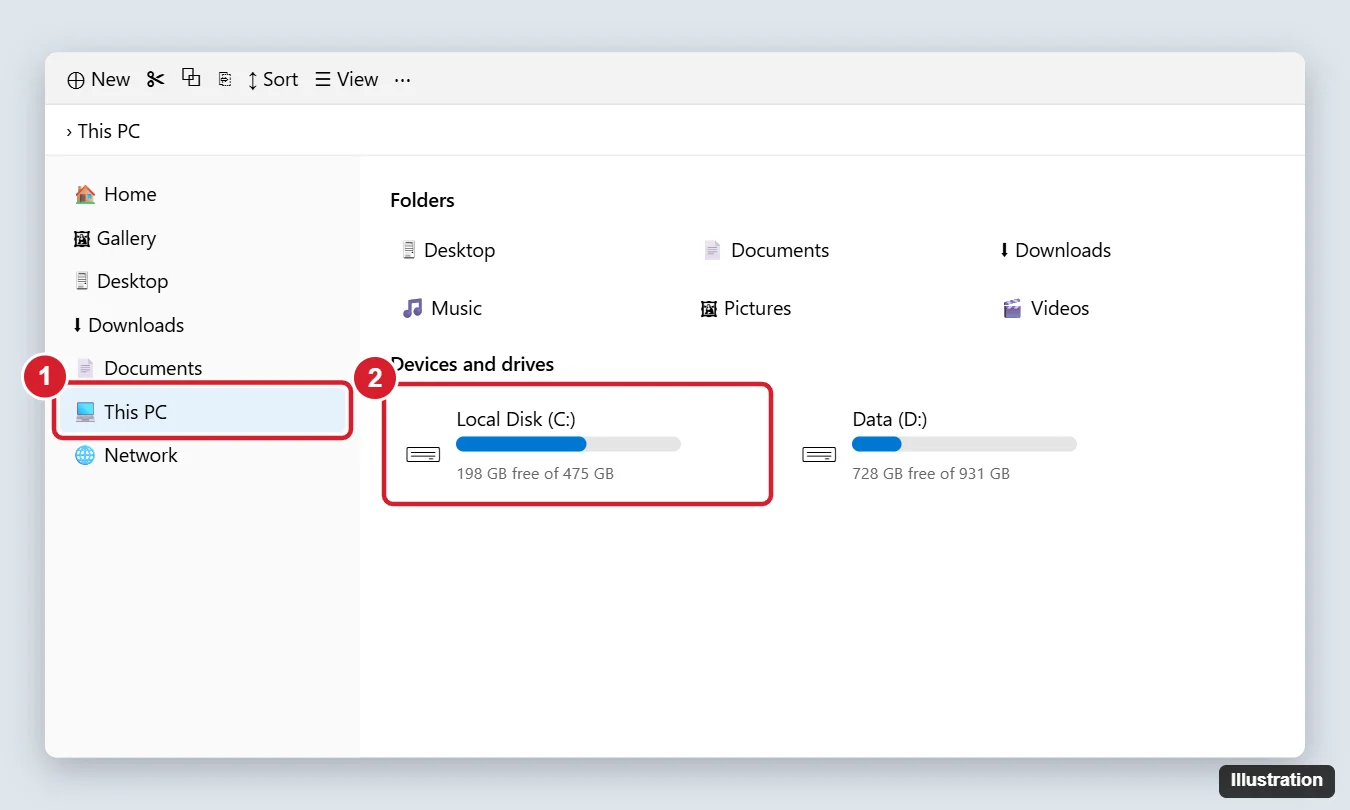
The window now shows the top level of the drive, often written C:\ (the backslash means “the root of the drive”). From Windows 11 22H2 on, This PC no longer lists Desktop, Documents, Downloads, Pictures, Music and Videos above the drives. Microsoft moved those folders to Home so This PC stays focused on drives and network locations. Your files did not move; they still sit inside C:\Users.
If you would rather have a This PC icon sitting on the desktop, see how to show This PC on the Windows 11 desktop. For more ways to launch the app itself, there is also a rundown of how to start File Explorer in Windows 11 and 10.
Faster routes with the keyboard
Typing the drive path skips the clicking entirely. All of these land in the same place.
Run box
- Press Windows logo key + R to open the Run dialog box.
- Type C:\ and press Enter.
File Explorer opens straight at the root of the drive. You can type a longer path the same way, for example C:\Users to see every account folder on the PC.
Address bar in File Explorer
- In any File Explorer window, press Alt + D, Ctrl + L or F4. Each one selects the address bar.
- Type C:\ and press Enter.
Once you are inside a folder, Alt + Up arrow moves up one level, so pressing it a few times also brings you back to C:\.
Command Prompt
If you work in Command Prompt and another drive is current, type cd /d C:\ and press Enter. The /d switch tells the cd command to change the drive as well as the folder. Without it, cd changes the folder but leaves you on the old drive.
| Situation | Quickest route |
|---|---|
| You are at the desktop with nothing open | Windows logo key + R, then C:\ |
| File Explorer is already open on Home or another folder | Alt + D, then C:\ |
| You only use the mouse | Taskbar folder icon, This PC, then the C: drive |
| You are in a Command Prompt window on another drive | cd /d C:\ |
Make File Explorer open on This PC
If you visit the C drive often, change the starting page so File Explorer shows your drives the moment it opens.
- Open File Explorer.
- On the ribbon at the top, select See more (the three dots), then Options.
- Open the Open File Explorer to list and select This PC.
- Select Apply, then close the dialog.
The next File Explorer window starts on This PC, with the C drive in view. To go back to the default, repeat the steps and choose Home. Another option is to open the C drive, right-click a folder you use often (Documents or a project folder, say) and choose Pin to Quick access. It then appears in Home and in the navigation pane.
What you will find on the C drive
A fresh Windows install puts a handful of main folders at the top of C:\. Knowing what each one holds tells you where your own files are and which folders to leave alone.
| Folder | What it holds | Safe to change? |
|---|---|---|
| Users | One folder per account (C:\Users\<name>) with Desktop, Documents, Downloads, Pictures and more, plus a Public folder shared by all accounts | Yes, inside your own folder |
| Program Files | Installed 64-bit apps | No. Uninstall apps from Settings instead of deleting folders |
| Program Files (x86) | Installed 32-bit apps | No, same as above |
| Windows | The operating system itself | No |
| ProgramData (hidden) | Settings and data that apps share across accounts | Only if an app’s own instructions tell you to |
A good rule of thumb: anything under C:\Users\<name> is yours to organize, rename or delete. Everything else belongs to Windows or to your apps. Deleting a folder from Program Files does not uninstall an app cleanly, and removing files from the Windows folder can stop the PC from starting.
On a PC with several accounts, opening another person’s folder under Users triggers a permission prompt unless you are an administrator. That is expected behavior, covered in the troubleshooting section below.
Some folders, such as ProgramData and each account’s AppData folder, are hidden by default so they are not changed by accident. In Windows 11, select View > Show, then select Hidden items. Turn the option off the same way when you are done.
For the full walkthrough, see how to view hidden files on Windows 11. If you are after app settings or cache files in particular, the guide to finding the AppData folder goes straight there with a single typed shortcut.
Check free space and clear room
This PC shows a bar under each drive with the free space written below it. Windows needs free room on the system drive for updates and temporary files, so a full C drive often shows up as slow performance or failed updates.
- Open Start > Settings > System > Storage to see how the space is used by category.
- Select Cleanup recommendations. Windows groups suggestions into Temporary files, Large or unused files, Files synced to the cloud and Unused apps.
- Check the items you no longer need and select Clean up.
On the same Storage page you can turn Storage Sense on. It clears temporary files automatically, and Microsoft notes that it works on the system drive, usually referred to as C:. To see other drives, use Advanced storage settings > Storage used on other drives.
More ideas for a crowded drive are in ways to get more storage on Windows. If you would like new apps to go somewhere other than C:, see changing the default install location in Windows 11.
On a Windows 10 PC
Windows 10 is past its end of support date, but the C drive works the same way there. The keyboard routes (Run box, address bar, cd /d C:\) are identical. The differences are in File Explorer’s layout:
- File Explorer opens to Quick access rather than Home. Select This PC to see your drives, then open the C: drive.
- This PC still lists Desktop, Documents, Downloads and the other known folders above the drives.
- To start on This PC, go to the View tab and select Options. In the Open File Explorer to list, select This PC, then Apply.
- To show hidden folders, select View > Options > Change folder and search options. On the View tab, under Advanced settings, select Show hidden files, folders, and drives and then OK. There is also a dedicated post on seeing hidden files and folders on Windows 10.
To put a This PC icon on a Windows 10 desktop, follow adding a This PC shortcut in Windows 10.
When the C drive will not open or is not listed
A folder says you do not have permission
Folders that belong to Windows, to other accounts or to the system can show a permission prompt. If you are signed in with an administrator account, Windows may let you continue after a confirmation; with a standard account, an administrator has to approve access. As a general caution, do not change ownership or permissions on the Windows or Program Files folders; apps and updates expect the original settings.
The C drive is missing from This PC
- Make sure you selected This PC and not Home. Home never lists drives.
- Right-click (or long-press) the Start button and select Disk Management. The window lists every disk and the letter each volume uses, so you can see whether the system volume still has the letter C.
- On a work or school PC, an administrator can hide drives from File Explorer. If Disk Management shows the drive but File Explorer does not, ask your IT department.
Microsoft recommends not changing the drive letter of a drive that contains Windows or apps, because apps might have trouble running or finding the drive (Change a drive letter).
Windows asks for a BitLocker recovery key
If the C drive is encrypted with BitLocker, you might be prompted for the 48-digit BitLocker recovery key during startup, for example after a hardware change or a security event. Microsoft lists where to look in Find your BitLocker recovery key: your Microsoft account, your work or school account, a printout or a USB drive. Microsoft Support cannot recover a lost key. There is more help in where to look for a BitLocker recovery key.
C drive questions
Where are my Desktop and Documents folders on the C drive?
They are in C:\Users\<name>, where <name> is your account folder. If you back up those folders with OneDrive, they may point to a folder inside your OneDrive folder instead, which also lives under C:\Users\<name>.
Can I open the C drive without File Explorer?
Yes. The Run box and Command Prompt both reach it, and most apps’ Open and Save dialogs let you type C:\ into the file name or address field to jump there.
Is it safe to delete files from the C drive to free space?
Files you created in your own user folder are fine to delete. For everything else, use Cleanup recommendations in Settings rather than deleting by hand, since Windows knows which temporary and system files are safe to remove.

Kermit Matthews runs Live2Tech from just outside Philadelphia. He is an IT specialist with over 20 years of experience, from a university help desk to small-business IT, IT management and his own consulting practice, and has written tech guides full time since 2020. Steps are checked against the current software on a real device or the maker’s official documentation. More about Kermit.