To make new apps install on another drive in Windows 11, go to Settings > System > Storage > Advanced storage settings > Where new content is saved, set New apps will save to to another drive, and click Apply. That setting changes where Microsoft Store apps install. For desktop programs, choose Custom or Advanced install in the installer and pick a folder on the other drive. Installing on a second drive (such as D:) keeps space free on a C: drive that’s filling up.
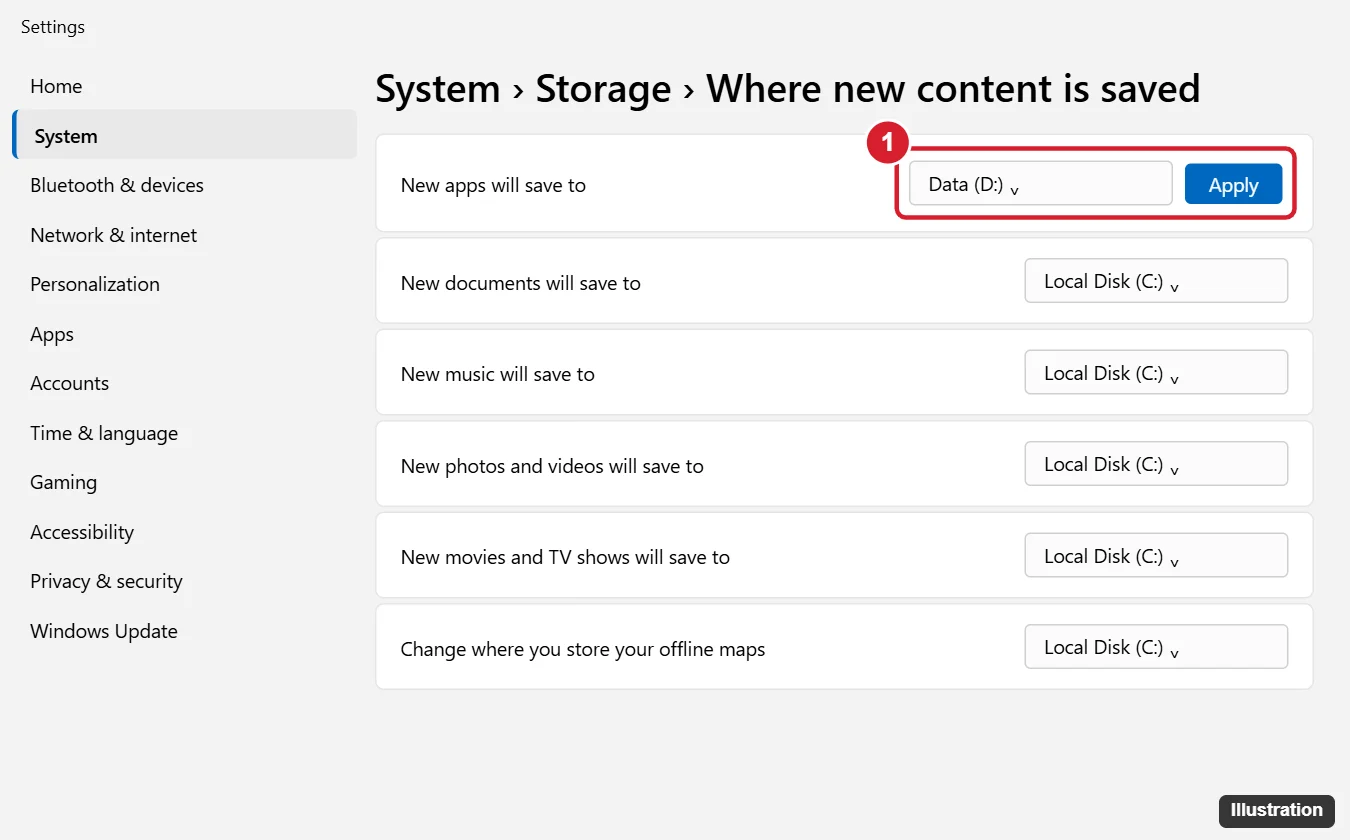
Change Where Microsoft Store Apps Install
- Press Windows key + I to open Settings.
- Go to System > Storage.
- Click Advanced storage settings, then Where new content is saved.
- Under New apps will save to, choose a drive.
- Click Apply.
Windows creates a WindowsApps folder on that drive. The same page lets you change where new documents, music, photos, videos and offline maps are saved. The drive must be an internal drive or an external drive formatted as NTFS; removable drives that are unplugged will make those apps unavailable.
Choose the Install Folder for Desktop Programs
Most programs you download from a website (.exe or .msi installers) ignore the Settings option and install to C:\Program Files by default. To put them elsewhere:
- Run the installer.
- Choose Custom, Advanced or Options instead of Express or Recommended.
- Click Browse or Change next to the destination folder.
- Pick or create a folder on the other drive, for example
D:\Programs. - Finish the installation.
Some installers don’t offer a choice. For those, the program must go on C:.
Move Apps You’ve Already Installed
- Go to Settings > Apps > Installed apps.
- Click the ⋯ next to an app and choose Move. (If you see Modify instead, the app can’t be moved this way.)
- Select the new drive and click Move.
The Move option works for most Store apps. For desktop programs, uninstall and reinstall them to the new location, or use the program’s own move feature if it has one.
Game Launchers
- Xbox app / PC Game Pass: open the Xbox app, click your profile > Settings > Install options, and change the default install folder.
- Steam: go to Settings > Storage, add a drive, and set it as default. You can move existing games there too.
- Other launchers: look for Library, Downloads or Install settings; most let you choose a default folder. See how to move games to another drive on Windows 11.
Don’t Change the Program Files Registry Value
You’ll find guides suggesting you change ProgramFilesDir in the registry to make every program install on D:. Microsoft doesn’t support this, and it can break Windows updates, apps and future feature upgrades. Use the installer’s Custom option instead.
When an App Won’t Go on the Other Drive
- Drive isn’t listed: it may be formatted as FAT32 or exFAT, or be a removable card. Format it as NTFS (this erases it) or use another drive.
- Apps stopped working: if you unplugged the drive where apps were installed, plug it back in. Store apps on external drives only work while it’s connected.
- “Can’t install to this location”: some Store apps and games must be on the system drive. Change the setting back to C: for those.
Other Questions About Installing Apps on Another Drive
Does this work on Windows 10?
Yes. In Windows 10, go to Settings > System > Storage > Change where new content is saved.
Will apps run slower from another drive?
Only if the other drive is slower. An SSD performs about the same as your C: drive; a hard drive or USB drive is slower.
Where are Store apps stored?
In a hidden, protected folder named WindowsApps on the chosen drive. Don’t change its permissions.

Kermit Matthews runs Live2Tech from just outside Philadelphia. He is an IT specialist with over 20 years of experience, from a university help desk to small-business IT, IT management and his own consulting practice, and has written tech guides full time since 2020. Steps are checked against the current software on a real device or the maker’s official documentation. More about Kermit.