Match the zoom to what you need. To enlarge the whole screen for a moment, turn on Magnifier with Windows key + Plus (+). To enlarge one web page or document, press Ctrl + Plus inside that app. If you want everything bigger every day, change the display Scale, and if only the words feel small, raise Text size instead.
The steps below lead with current versions of Windows 11; Windows 10 differences are at the end.
Pick the zoom that fits
All four tools are built into Windows, so there is nothing to download. They differ in what gets bigger and how long it stays that way.
| You want to | Use | What gets bigger | How long it lasts |
|---|---|---|---|
| Read small print or a detail for a minute | Magnifier (Windows key + Plus) | Everything on screen, or a lens around the pointer | Until you turn it off |
| Enlarge one web page, document or window | App zoom (Ctrl + Plus, Ctrl + Minus) | Only that app’s content | Usually remembered by that app |
| Make menus, apps and icons larger all the time | Display Scale | Everything on that display | Until you change it back |
| Make only words easier to read | Text size | Text across Windows and many apps | Until you change it back |
A quick example: someone reading a long recipe online needs app zoom, not Magnifier. Someone who squints at every menu on a new high-resolution laptop wants Scale, and someone who only struggles with the small labels under icons is better served by Text size.
Magnify the whole screen for a moment
Magnifier is Windows’ built-in screen enlarger. Microsoft lists these shortcuts on its Magnifier keyboard shortcuts page:
- Press Windows key + Plus (+). Magnifier opens and zooms in.
- Press Windows key + Plus again to zoom further, or Windows key + Minus (-) to zoom out. Holding Ctrl + Alt while you turn the mouse scroll wheel does the same thing.
- To look around the enlarged screen, pan with Ctrl + Alt + arrow keys.
- Press Windows key + Esc when you are done. Magnifier closes and the screen returns to normal size.
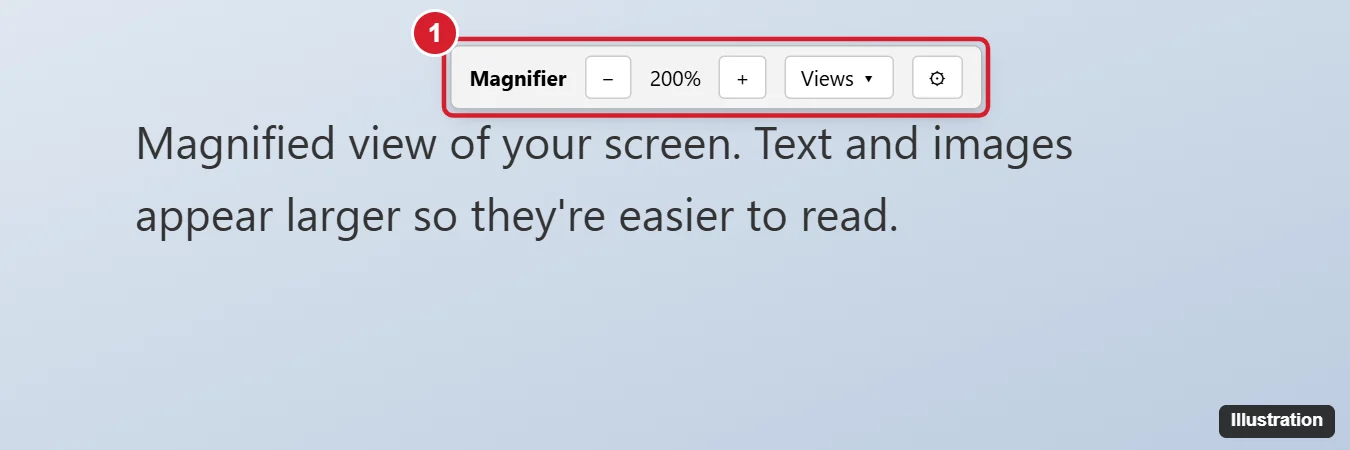
Magnifier has three views, and the right one depends on the job:
- Full screen (Ctrl + Alt + F) enlarges the entire screen. Good for reading.
- Lens (Ctrl + Alt + L) enlarges only the area around the pointer, like a magnifying glass. Good for checking one detail.
- Docked (Ctrl + Alt + D) shows an enlarged strip at the top of the screen while the rest stays normal. Good when you need to see the whole layout too.
Two more shortcuts save time. Ctrl + Alt + M cycles through the views, and Ctrl + Alt + Minus toggles between your set magnification and normal size, which is handy when you need a quick look at the full screen. Holding Ctrl + Alt + Spacebar also shows the whole desktop briefly.
To change how much each press zooms, press Windows key + Ctrl + M or go to Settings > Accessibility > Magnifier. Microsoft’s zooming and panning chapter describes the Zoom level buttons and the Zoom increments drop-down. A smaller increment, such as 25%, gives finer steps.
Zoom a single window or page
Most browsers and many apps share the same keys. In Microsoft Edge, Microsoft documents Ctrl + Plus (+) to zoom in, Ctrl + Minus (-) to zoom out and Ctrl + 0 to reset the page zoom level on its Edge keyboard shortcuts page. In most apps, holding Ctrl while you turn the mouse wheel zooms as well.
- Browsers: the zoom is usually saved per site. Chrome’s options, including a default zoom for every site, are in changing the page zoom in Google Chrome, and making text bigger in Chrome covers its font size setting.
- Word and Excel: both also have their own zoom controls, so a document can sit at a different zoom from the rest of the screen.
- Touchpads and touchscreens: in apps that support it, pinching outward zooms in and pinching inward zooms out.
App zoom is the most common reason a screen “suddenly” looks huge: a resting hand on Ctrl plus a nudge of the scroll wheel. If Excel keeps doing this, see stopping Excel from zooming when you scroll.
Make Windows bigger permanently with Scale
Scale enlarges text, apps and icons together on one display. Microsoft’s page on screen resolution and layout gives the route:
- Press Windows key + I to open Settings.
- Select System > Display.
- Scroll to Scale & layout and select Scale.
- Pick a larger percentage than the current one. The option marked (Recommended) is Windows’ suggestion for that screen.
Microsoft notes that you may need to sign out and back in before some apps pick up the change. Typing a custom percentage and picking a DPI for a 4K monitor are covered in changing DPI (display scaling) in Windows 11.
Make only the text bigger
If icons and windows look fine and only the words are hard to read, leave Scale alone:
- Press Windows key + U, or go to Start > Settings > Accessibility.
- Select Text size.
- Drag the slider next to Text size until the preview is comfortable, then select Apply.
Microsoft gives this path on its page about changing the size of text in Windows. The slider changes text across Windows, File Explorer included; changing the font size in File Explorer on Windows 11 shows the other options there. A pointer that’s hard to find is a separate setting, explained in making the mouse pointer bigger.
Zoom back out and switch it all off
- Magnifier: press Windows key + Esc.
- One app or page: press Ctrl + 0 in browsers, or use Ctrl + Minus until it looks right.
- Scale: return to Settings > System > Display and pick the (Recommended) value.
- Text size: drag the slider back to the left end and select Apply.
If colors, orientation or resolution also look wrong, the cause isn’t zoom; work through returning your screen to normal in Windows 11.
On a Windows 10 PC
Microsoft says “Windows 10 has reached the end of support on October 14, 2025,” and PCs outside the Extended Security Updates program no longer get security updates. Zoom still works much the same:
- The Magnifier shortcuts above are identical. Its settings are at Settings > Ease of Access > Magnifier.
- Text size is at Settings > Ease of Access > Display, using the slider under Make text bigger; Scale is the drop-down under Make everything bigger. Changing font size in Windows 10 explains when to pick each.
- If everything is too large rather than too small, see making the screen smaller in Windows 10.
Windows zoom answers
Why does only one app look zoomed in?
App zoom belongs to that app, so a browser can stay at 150% while everything else is normal. Press Ctrl + 0 in it, or check its View menu for a zoom or reset option.
Can I stop Magnifier from starting when I sign in?
Yes. In Settings > Accessibility > Magnifier, expand the Magnifier setting and clear Start Magnifier after sign-in and Start Magnifier before sign-in.
Should I raise Scale or Text size first?
Start with Text size if buttons and icons are a comfortable size. Raise Scale when small click targets are the problem too.
Why doesn’t Ctrl + scroll do anything in my app?
Not every app supports it. Look for zoom controls in the app’s View menu, or use Magnifier, which works over any app.

Kermit Matthews runs Live2Tech from just outside Philadelphia. He is an IT specialist with over 20 years of experience, from a university help desk to small-business IT, IT management and his own consulting practice, and has written tech guides full time since 2020. Steps are checked against the current software on a real device or the maker’s official documentation. More about Kermit.