What looks wrong: is the picture sideways, too big, zoomed in or oddly colored? The most common case, a sideways or upside-down screen, is fixed in Settings > System > Display: open the drop-down list next to Display orientation and pick the normal landscape option. For the other symptoms, find yours in the table below and jump to its section; each fix is a setting or shortcut built into Windows 11.
Find your symptom
| What you see | Likely cause | Fastest fix |
|---|---|---|
| Screen sideways or upside down | Display orientation changed | Settings > System > Display > Display orientation |
| Everything huge, tiny or blurry | Scale or resolution changed | Pick the (Recommended) Scale and Display resolution |
| Part of the screen magnified and following the pointer | Magnifier is on | Windows logo key + Esc |
| One web page too big or small | Browser zoom | Ctrl + minus or Ctrl + plus |
| Gray, black and white or odd colors | Color filters | Settings > Accessibility > Color filters |
| Black background with bright text | Contrast theme | Left Alt + Left Shift + Print Screen |
| Orange or yellow tint | Night light | Settings > System > Display > Night light |
| Black or frozen screen | Graphics driver hung | Windows logo key + Ctrl + Shift + B |
| Picture cut off at the edges on a TV | TV picture size setting | The TV’s own menu |
Screen is sideways or upside down
- Open Start > Settings > System > Display. If more than one display is connected, select the one that looks wrong at the top of the page first.
- Under Scale & layout, open the drop-down list next to Display orientation.
- Choose the landscape option that is not marked as flipped.
- If Windows asks whether to keep the new display settings, confirm it. If you do nothing, Windows may switch back to the previous layout.
If the mouse moves the wrong way on an upside-down screen, the keyboard can carry you there instead; fixing an upside-down screen walks through a keyboard-only route. Older advice to press Ctrl + Alt + Up arrow is unreliable: Dell notes that on its PCs with 6th generation or newer Intel graphics the Ctrl + Alt + arrow rotation shortcut no longer works, and rotation is done in Display settings. On a 2-in-1 laptop that keeps turning the picture as you move it, a rotation lock and the case of a greyed-out Display orientation setting are covered in rotating the screen in Windows 11.
Everything is too big, too small or blurry
Two settings control size: Scale makes text and apps bigger or smaller, and Display resolution sets how many pixels the screen uses. Microsoft recommends keeping both on the values marked (Recommended).
- Open Start > Settings > System > Display and select the right display if you have more than one.
- Under Scale & layout, set Display resolution to the value marked (Recommended).
- Set Scale to the percentage marked (Recommended).
- Close and reopen any app that still looks fuzzy.
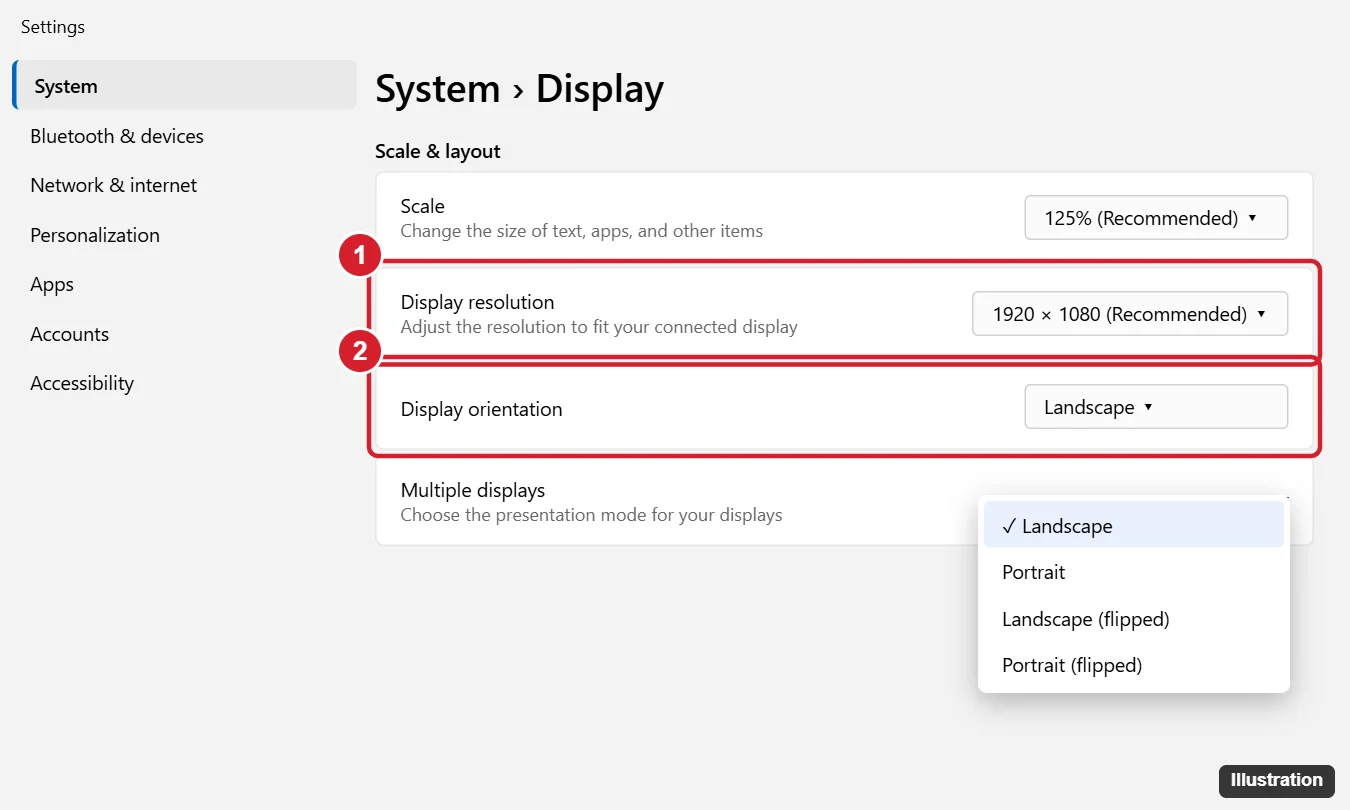
Older version shown; current screens may look different.
A resolution below the recommended value is the usual reason for a picture that looks small and centered, has black bars at the edges, or appears stretched. If the recommended value is missing or the list is short, the graphics driver is the next suspect (see the driver section below).
If only the text is too large while everything else looks right, go to Settings > Accessibility > Text size and drag the slider back to the left. If only desktop icons are huge, changing desktop icon size is the quicker fix. For custom scaling values and blurry individual apps, see changing DPI in Windows 11.
Screen is zoomed in
Magnifier is on
Magnifier enlarges part or all of the screen and follows the pointer. It is easy to start by accident with Windows logo key + Plus.
- Windows logo key + Esc closes Magnifier.
- Windows logo key + Minus zooms out one level at a time if you want to keep it running.
- Ctrl + Alt + Minus switches between your magnification level and normal size.
- Ctrl + Alt + Spacebar briefly shows the whole screen while you are zoomed in, which helps you find where you are.
A web page or app is zoomed
If only one page is too big, the browser zoom changed, not Windows. Hold Ctrl and press minus or plus until it looks right; in Chrome and many other browsers Ctrl + 0 resets the zoom to its default. More zoom methods, including Magnifier views, are in zooming in and out on Windows.
Colors look wrong
Gray or black and white: color filters
- Press Windows logo key + U, or open Start > Settings > Accessibility.
- Select Color filters.
- Turn the Color filters switch off.
The shortcut Windows logo key + Ctrl + C turns color filters on or off only if that shortcut has been turned on in Settings. If pressing it does nothing, use the switch instead.
Black background and bright text: contrast themes
Press Left Alt + Left Shift + Print Screen to turn High Contrast off. Or go to Settings > Accessibility > Contrast themes, choose the option in the drop-down that turns contrast themes off instead of Aquatic, Desert, Dusk or Night sky, and select Apply.
Everything looks like a photo negative
This is usually Magnifier’s inverted colors. Press Ctrl + Alt + I while Magnifier is running to switch inversion off, or close Magnifier with Windows logo key + Esc.
Orange or yellow tint
That is Night light. Turn it off in Settings > System > Display > Night light, or select the Network or Speakers icon on the taskbar and switch Night light off there. If it comes back every evening, check Schedule night light on the same page, and lower the Strength slider if you like a milder tint.
On an HDR monitor, washed-out color can also come from HDR settings; Microsoft offers the Windows HDR Calibration app for tuning them.
Screen is black, frozen or cut off
- Press Windows logo key + Ctrl + Shift + B. Windows resets the graphics driver; you may hear a beep and see the screen flicker.
- Check that the cable is firmly connected at both ends and that the monitor is on and set to the right input.
- Press Windows logo key + P, then press P again and Enter to cycle through display modes, in case Windows is sending the picture to a display you are not looking at. Repeat a few times if needed.
- Press Ctrl + Alt + Del, open Task Manager and restart Windows Explorer if the desktop is frozen.
- As a last resort, hold the power button for about 20 seconds to force a restart.
If the picture is cut off at the edges on a TV, or a second monitor is not showing at all, the cause is often outside Windows. Check the TV or monitor menu for a picture size, aspect ratio or fit to screen setting. For a display Windows does not see, go to Settings > System > Display > Multiple displays and select Detect.
Stuck in full screen or the taskbar is missing
- Full screen: in Chrome, press F11 or press and hold Esc to leave full screen; many other browsers use F11 too. For apps and games, see getting out of full screen on Windows.
- Taskbar hidden: move the pointer to the bottom edge. To keep it visible, right-click the taskbar, select Taskbar settings, expand Taskbar behaviors and clear Automatically hide the taskbar.
Fix the graphics driver
If resolution keeps changing on its own, the recommended value is missing or the screen is stretched after an update, the graphics driver is the likely cause. Open Start > Settings > Windows Update and select Check for updates. If the problem started right after a driver update, rolling back to the previous driver is covered in updating drivers in Windows 11. To see which driver you have, read checking your graphics driver in Windows 11.
Windows 10 differences
Windows 10 reached end of support on October 14, 2025, but many of the same fixes apply. Scale, Display resolution and Display orientation are on Settings > System > Display, and the Magnifier, black screen and High Contrast shortcuts are the same. Accessibility settings such as color filters are grouped differently; Windows logo key + U opens them. For Windows 10 specifics, see resetting display settings in Windows 10 and resetting color settings on Windows 10.
Still looks wrong?
Why did my screen change without me touching the settings?
Several changes have keyboard shortcuts that are easy to hit by accident: Windows logo key + Plus starts Magnifier, Left Alt + Left Shift + Print Screen toggles High Contrast, and Windows logo key + Ctrl + C toggles color filters when that shortcut is on. Driver updates and connecting a new monitor or TV can also change resolution and scale.
Is the Windows logo key + Ctrl + Shift + B shortcut safe to use?
Yes. It is Microsoft’s documented shortcut for waking a blank or black screen, and it resets the graphics driver rather than restarting the PC.
The settings look right but the picture is still off. What next?
Use the monitor’s own buttons to open its menu and look for a reset or factory settings option; monitors keep their own picture settings, separate from the ones in Windows. Then restart the PC so every change takes effect.
Once the screen looks normal, it is worth noting which shortcut caused the change so it does not catch you again. Microsoft’s screen resolution and layout page and its accessibility keyboard shortcuts list are good references to keep.

Kermit Matthews runs Live2Tech from just outside Philadelphia. He is an IT specialist with over 20 years of experience, from a university help desk to small-business IT, IT management and his own consulting practice, and has written tech guides full time since 2020. Steps are checked against the current software on a real device or the maker’s official documentation. More about Kermit.