If your screen suddenly turned upside down or sideways, open Settings > System > Display, set Display orientation to Landscape, and select Keep changes. To flip it on purpose (for a monitor mounted upside down, for example), pick Landscape (flipped) instead. The same setting exists in Windows 11 and Windows 10, and unlike the Ctrl + Alt + arrow shortcuts, it doesn’t depend on Intel graphics software.
Fix or flip the screen in Windows 11
Display orientation is a per-monitor setting in the Settings app, so it is the most reliable route on current versions of Windows 11. Microsoft’s own instructions for changing the screen layout in Windows point to the same drop-down.
- Right-click an empty part of the desktop and choose Display settings. You can also press Windows + I and go to System > Display.
- If more than one monitor is connected, select the one you want to change in the diagram at the top of the page.
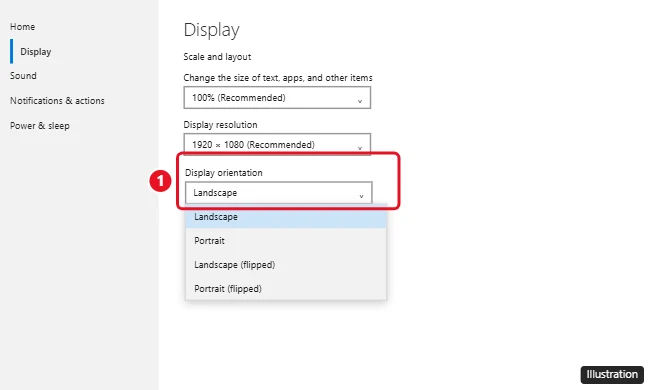
- Scroll to Scale & layout and open the Display orientation drop-down.
- Choose Landscape to put an upside-down screen back to normal, or Landscape (flipped) to turn it upside down.
- A prompt asks whether to keep the new display settings. Select Keep changes. If you select Revert or do nothing, Windows switches back to the previous orientation after about 15 seconds.
The four options mean the following:
- Landscape: the normal, wide layout.
- Landscape (flipped): the same layout rotated 180 degrees, so it looks upside down.
- Portrait: rotated 90 degrees for a monitor turned on its side.
- Portrait (flipped): rotated 90 degrees the other way.
That 15-second countdown is a safety net. If you pick the wrong option and can’t find the button, just wait and the old layout comes back. Portrait modes are mainly for vertical monitors; the separate walkthrough on rotating the screen in Windows 11 covers sideways layouts and mounting a monitor vertically in more depth.
Flip the screen in Windows 10
Windows 10 uses nearly the same path. The page is laid out a little differently, but the setting has the same name.
- Right-click the desktop and choose Display settings, or open Start > Settings > System > Display.
- With two or more monitors, click the numbered box for the screen you want under Rearrange your displays. Select Identify if you aren’t sure which number is which.
- Under Display orientation, choose Landscape to fix an upside-down screen or Landscape (flipped) to flip it.
- Select Keep changes before the countdown runs out.
Older guides tell you to click Apply first. Windows 10 and Windows 11 apply the change as soon as you pick it from the list, so the only button left to press is Keep changes. For a sideways layout on Windows 10, see turning your screen sideways in Windows 10.
When the screen is upside down and the mouse goes the wrong way
On a flipped display, moving the mouse up sends the pointer down, which makes clicking through Settings awkward. The keyboard avoids the problem entirely:
- Press the Windows key, type display settings, and press Enter.
- Press Tab until the Display orientation drop-down is highlighted. On some layouts you will also use the arrow keys to move between items.
- Press Space or Enter to open the list (Alt + Down Arrow also works in many lists), use the arrow keys to select Landscape, and press Enter.
- When the prompt appears, press Tab if needed until Keep changes is highlighted, then press Enter. If you can’t reach it, wait about 15 seconds and Windows reverts on its own.
If you prefer the mouse, move it slowly and remember that every direction is reversed. Trying Ctrl + Alt + Up Arrow first is also reasonable, but it only helps on PCs where the Intel hotkeys described next are turned on.
The Ctrl + Alt + arrow shortcuts only work with some Intel graphics
These shortcuts are not part of Windows. They come from Intel’s graphics software, which is why they do nothing on many PCs, especially those that use NVIDIA or AMD graphics or where the feature is switched off or removed.
| Shortcut | Result |
|---|---|
| Ctrl + Alt + Up Arrow | Normal (landscape) |
| Ctrl + Alt + Down Arrow | Upside down |
| Ctrl + Alt + Left Arrow | Rotated 90 degrees |
| Ctrl + Alt + Right Arrow | Rotated 90 degrees the other way |
Pressing Ctrl + Alt + Down Arrow by accident is a common reason a screen flips on its own. Intel notes that the Command Center hotkeys act only on the main display, so a second monitor won’t respond to them.
To turn them on or off on a PC with 6th Gen Intel Core or newer graphics, follow Dell’s documented steps for Intel Graphics Command Center hotkeys:
- Press Windows + Q, type intel, and open Intel Graphics Command Center.
- Select System, then the Hotkeys tab.
- Choose Enable or Disable. Where offered, a drop-down lets you use Ctrl + Alt or Ctrl + Shift as the modifier.
Older Intel systems (5th Gen or earlier) use the Intel Graphics Control Panel instead, and some PCs don’t offer the hotkey options at all. Newer versions of Intel Graphics Command Center dropped the rotation hotkeys entirely, so if the Hotkeys tab has no rotation option, the shortcuts are simply not available on that PC. On a shared or classroom PC, disabling the hotkeys is the simplest way to stop accidental or prank flips.
Rotate from the NVIDIA, AMD or Intel control panel
Graphics software can also change orientation. This is handy when Windows Settings is behaving oddly, but the result is the same, so use it only if you already work in that app.
- NVIDIA: open NVIDIA Control Panel (right-click the desktop and select Show more options on Windows 11, or find it in Control Panel under Hardware and Sound), select Rotate display under Display, and choose 180 degree rotation (Inverted Landscape) for upside down, as described in NVIDIA’s rotation help.
- AMD: current AMD Software doesn’t document a rotation control, so on AMD graphics use the Windows Display orientation setting.
- Intel: older versions of Intel Graphics Command Center had a Rotation setting under Display, but Intel removed rotation and the rotation hotkeys from newer versions, so use Windows Settings instead.
Labels in these apps change between driver versions, so if a name doesn’t match, the Windows setting above always works.
Flip just one monitor
Orientation is stored separately for each display. Select the monitor first in Display settings, then change its orientation; the others stay as they are. Microsoft notes that if you change a monitor’s orientation, you also need to physically rotate the screen to match, which matters when a screen is mounted upside down on an arm or ceiling bracket. If the wrong screen keeps getting the taskbar and Start, see changing the primary monitor in Windows 10.
Tablets, 2-in-1s and rotation lock
Devices with a rotation sensor turn the picture automatically as you turn the hardware. To freeze the current orientation:
- Windows 11: press Windows + A to open Quick Settings and select the Rotation lock tile, or turn on Rotation lock under Settings > System > Display.
- Windows 10: press Windows + A to open Action Center and select Rotation lock, or use the same Display page.
Rotation lock may be grayed out or missing when a keyboard is attached to a 2-in-1, or on PCs without a sensor.
If Display orientation is grayed out or the screen keeps flipping
- Auto-rotation is active: on a tablet or 2-in-1, Windows can gray out Display orientation while the sensor controls rotation. Turn Rotation lock on, then choose the orientation.
- Outdated or generic driver: if the display adapter uses a basic Microsoft driver, orientation options may be limited. Install the current driver from your PC or graphics maker; the steps are in updating your graphics driver in Windows 10.
- Flips keep happening: disable the Intel hotkeys as shown above. On a work or school PC, an organization’s policy may control these settings, so ask IT.
- Picture looks stretched or blurry afterward: set the resolution back to the one marked (Recommended), or reset your display settings.
Screen flip questions
Does flipping the screen harm the monitor or the PC?
No. Orientation only changes how Windows draws the picture. Nothing about the hardware changes.
My webcam image is mirrored. Is that the same setting?
No. Display orientation affects the whole screen, not the camera feed. Camera mirroring is a camera or app setting, explained in flipping or mirroring a webcam in Windows.
Will the screen stay flipped after a restart?
Yes. Once you select Keep changes, Windows remembers the orientation for that monitor until you change it again.
What about older versions such as Windows 7 or 8?
Those versions used Control Panel’s Screen Resolution page with an Orientation list and an Apply button. Microsoft no longer supports them, so moving to a supported version is the better fix.
If the screen is the right way up but text or icons still look wrong, check the resolution and scaling on the same Display page before reaching for driver tools.

Kermit Matthews runs Live2Tech from just outside Philadelphia. He is an IT specialist with over 20 years of experience, from a university help desk to small-business IT, IT management and his own consulting practice, and has written tech guides full time since 2020. Steps are checked against the current software on a real device or the maker’s official documentation. More about Kermit.