To see every printer driver installed on your PC, open Printer server properties and select the Drivers tab: in current versions of Windows 11, go to Settings > Bluetooth & devices > Printers & scanners and find it under Related settings. There are faster routes too, a printui command and the PowerShell cmdlet Get-PrinterDriver, and Windows 10 uses the same dialog, reached from its own Printers & scanners page.
Which tool shows what
“Printer drivers” can mean two different questions: which drivers are installed on the PC, and which driver one particular printer is using. Pick the tool that answers yours.
| Tool | What it shows | Best for |
|---|---|---|
| Printer server properties, Drivers tab | Every installed printer driver, with processor and driver type | A quick full list |
| Get-PrinterDriver (PowerShell) | Every installed printer driver, with all its details | Versions, exporting a list, remote PCs |
| pnputil | Third-party printer driver packages in the Windows driver store | Finding packages left behind after a printer was removed |
| Print Management | Drivers, printers and ports in one console | Pro and business PCs, print servers |
| Printer properties, Advanced tab | The driver one printer uses | Checking or switching a single printer’s driver |
| Device Manager | Driver version and date for devices it lists | USB printers; not a full printer driver list |
View printer drivers in Windows 11 with Printer server properties
Microsoft’s printer driver help page reaches the Drivers tab through this same window.
- Select Start > Settings > Bluetooth & devices > Printers & scanners.
- Scroll down to Related settings and select Printer server properties. Some versions of Windows label this link Print server properties; it opens the same window.
- In the window that opens, select the Drivers tab. The list under Installed printer drivers: shows every printer driver on the PC.
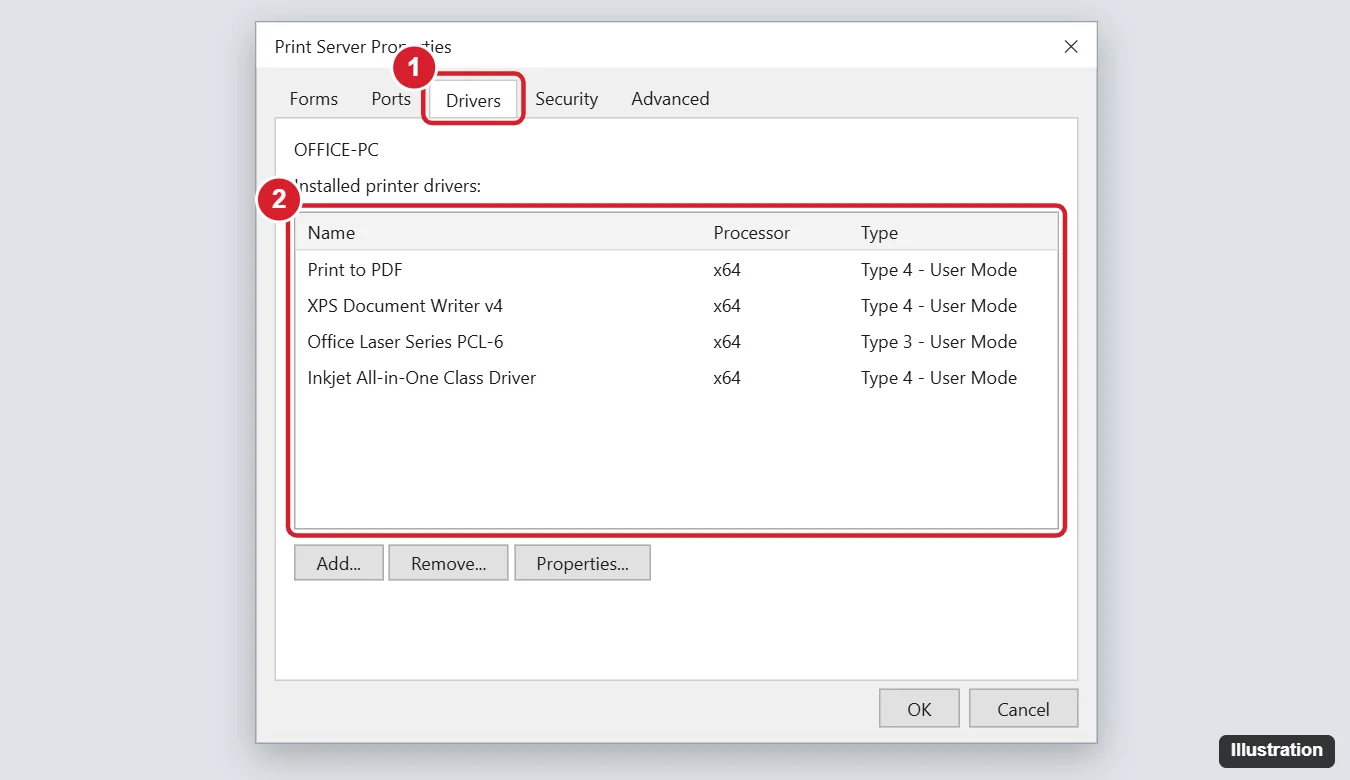
The illustration above shows the Windows 10 version of this dialog; the Windows 11 window may look slightly different.
Each row shows a driver name, the processor it is built for (x64 on most current PCs, ARM64 on Arm-based PCs) and its type. To see more, select a driver and look for a Properties button, which shows details such as the driver’s files and version. The Add… button opens the Add Printer Driver Wizard; Microsoft notes that wizard only adds drivers to Windows and does not install the printer itself, and calls it a last resort for installing drivers.
Seeing a driver you do not recognize is normal. Windows includes some of its own, such as drivers for its built-in print-to-PDF and document writer printers, and a printer you set up once and later removed can leave its driver behind.
Open the Drivers tab with a command
If you check drivers often, a command saves the clicks. Microsoft’s rundll32 printui.dll reference documents the print server properties switch (/s) and a tab switch (/t) that picks which tab opens, counting from zero:
- Press Windows + R to open Run.
- Type
rundll32 printui.dll,PrintUIEntry /s /t2and press Enter. Note that PrintUIEntry is case sensitive. - The server properties window should open on the Drivers tab. If it opens on a different tab, select Drivers yourself.
The shorter form printui /s /t2 is widely used for the same thing, but Microsoft’s reference documents the rundll32 form, so use that one if the short version does nothing.
List printer drivers with PowerShell
PowerShell gives the most detail and lets you save the list. Microsoft’s Get-PrinterDriver reference describes it as retrieving the list of printer drivers installed on the specified computer.
- Right-click Start and open Terminal (on Windows 10, open Windows PowerShell from the Start menu).
- Run
Get-PrinterDriverto see a table of installed printer drivers. - Run
Get-PrinterDriver | Format-Listto see every property for each driver, including version and manufacturer information. - To look at one driver, use its name, for example
Get-PrinterDriver -Name "Microsoft XPS Document Writer" | Format-List.
Two useful variations:
- To check another PC on the network you have rights to, add
-ComputerNamefollowed by its name. - To save the list for later, add
| Out-File "$env:USERPROFILE\Desktop\printer-drivers.txt"to the end of the command. A text file appears on your desktop.
To see which driver each printer uses in one view, run Get-Printer | Format-Table Name, DriverName, PortName. That is handy when two printers share a driver or a printer is using a generic driver you did not expect.
Check the driver store with pnputil
Windows keeps driver packages in a protected area called the driver store, so it can reinstall a printer without downloading the driver again. A package can stay there after the printer and its entry in the Drivers tab are gone. Microsoft’s PnPUtil command syntax page documents a class filter for listing them. The /class filter needs Windows 11, and the command lists third-party driver packages only, not drivers built into Windows:
- Right-click Start and open Terminal (Admin) or another administrator command window.
- Run
pnputil /enum-drivers /class Printer. - Each entry shows details such as the published name (for example oem12.inf), provider and driver version.
Use this as a read-only check unless you know exactly which package to remove; deleting the wrong one can stop a printer from working.
Use Print Management (Pro and business PCs)
Print Management is a console for managing printers, drivers and ports, including on print servers. It is aimed at Pro and business editions and may not be available on Windows 11 Home; on some PCs it is not installed by default.
- Press Windows + R, type
printmanagement.mscand press Enter. - In the left pane, expand Print Servers, then your PC’s name.
- Select Drivers. The middle pane lists each driver with columns for details such as version and environment.
If Windows says it cannot find printmanagement.msc, your edition does not include it or the optional feature is not installed. Printer server properties and PowerShell show the same list without it.
See which driver one printer uses
When a single printer misbehaves, the useful question is which driver that printer is set to use.
- Go to Settings > Bluetooth & devices > Printers & scanners and select the printer.
- Select Printer properties.
- Open the Advanced tab. The Driver list shows the driver this printer uses.
Leave the driver list and the New Driver button alone unless you mean to switch drivers. Picking a different driver from the list and selecting Apply or OK switches that printer to it, and a mismatched driver can cause garbled or blank prints. If the printer works but you want a newer version, updating drivers in Windows 11 covers the safe options, starting with Windows Update. Windows Update also lists driver updates it installed under its update history.
What Device Manager shows for printers
Device Manager is the usual place to check drivers for other hardware, and checking drivers on Windows 10 covers it in detail. For printers it is less complete:
- USB printers often appear under Print queues or Printers. Right-click the entry, select Properties and open the Driver tab to see the driver version and date.
- Network printers, especially ones added by IP address, often do not appear there at all.
- Drivers for printers that are no longer installed are not listed.
- The same Driver tab may offer Roll Back Driver if a recent update caused problems.
So use Device Manager to inspect a connected printer’s driver details, and the Drivers tab or Get-PrinterDriver for the full list. If you need it, opening Device Manager in Windows 11 lists several ways in.
Remove a printer driver you no longer need
An old driver can cause trouble when you reinstall the same model or set up a replacement. Remove it in this order, signed in as an administrator:
- Remove every printer that uses the driver first. Windows will not remove a driver that a printer is still using. Removing a printer from Windows 11 covers printers that will not delete.
- Open Printer server properties and select the Drivers tab.
- Select the driver and select Remove.
- Windows asks whether to remove only the driver or the driver and its driver package. Choosing the package option also clears it from the driver store, which is usually what you want for a clean reinstall. Confirm, then select Yes if asked.
PowerShell can do the same job. Microsoft’s Remove-PrinterDriver reference notes that you need administrator credentials, and it has a -RemoveFromDriverStore parameter for the package. For example, in an administrator Terminal:
- Run
Remove-PrinterDriver -Name "Exact driver name" -WhatIfto preview what would happen. - If the preview is right, run it again without
-WhatIf, adding-RemoveFromDriverStoreif you also want the package gone.
Copy the driver name exactly from Get-PrinterDriver, including spaces and capital letters.
Windows 10 differences
On Windows 10, open Settings > Devices > Printers & scanners and look under Related settings for the print server properties link; the Drivers tab, the printui command, PowerShell and Print Management work the same way. On Windows 10, pnputil /enum-drivers works without the /class filter, so it lists every third-party driver package. Windows 10 is past its end of support date (October 14, 2025, per Microsoft’s notice), so driver updates for it may stop coming from some printer makers.
When the list does not look right
- The printer works, but its driver is not in the Drivers tab. Some printers use a driver Windows provides automatically, which may appear under a generic name rather than the model. Check the Advanced tab of that printer to see which one it uses.
- Remove is greyed out or Windows says the driver is in use. A printer still uses it, or a print job is stuck. Remove the printer, clear any waiting print jobs, restart the PC and try again. Some guides also suggest restarting the Print Spooler service before retrying.
- The same driver appears twice. Check the processor column: one entry may be for x64 and another for a different architecture, which is normal on PCs that share printers.
- A printer is missing from Printers & scanners entirely. That is a connection or setup issue rather than a driver list issue; adding a USB, Wi-Fi or Bluetooth printer to Windows 11 walks through each connection type.
Printer driver questions
Can I see the driver version without PowerShell?
Yes. Select the driver on the Drivers tab and open its properties, or, for a USB printer, use the Driver tab in Device Manager. PowerShell is simply faster when you want every driver at once.
Does removing a driver delete my printer?
No. Windows will not let you remove a driver a printer is still using, so you remove the printer first. Removing the driver afterwards only clears the leftover software.
Which printer prints by default after I clean up drivers?
Removing a driver does not change your default printer, but removing the printer that was the default does. To choose a new one, see setting a default printer in Windows 11 and 10.
Once you have the driver list in front of you, compare the version with the one Windows Update or the printer maker offers before replacing anything; a working driver is usually best left alone.

Kermit Matthews runs Live2Tech from just outside Philadelphia. He is an IT specialist with over 20 years of experience, from a university help desk to small-business IT, IT management and his own consulting practice, and has written tech guides full time since 2020. Steps are checked against the current software on a real device or the maker’s official documentation. More about Kermit.