Gmail normally shows a short preview of each message’s text, called a snippet, after the subject line in your inbox. If you’d rather keep message content off screen, for privacy in an office or a cleaner list, you can turn snippets off so only senders and subjects show. This guide covers Gmail on the web, the reading pane, notifications on phones, and related privacy settings.
Quick Answer
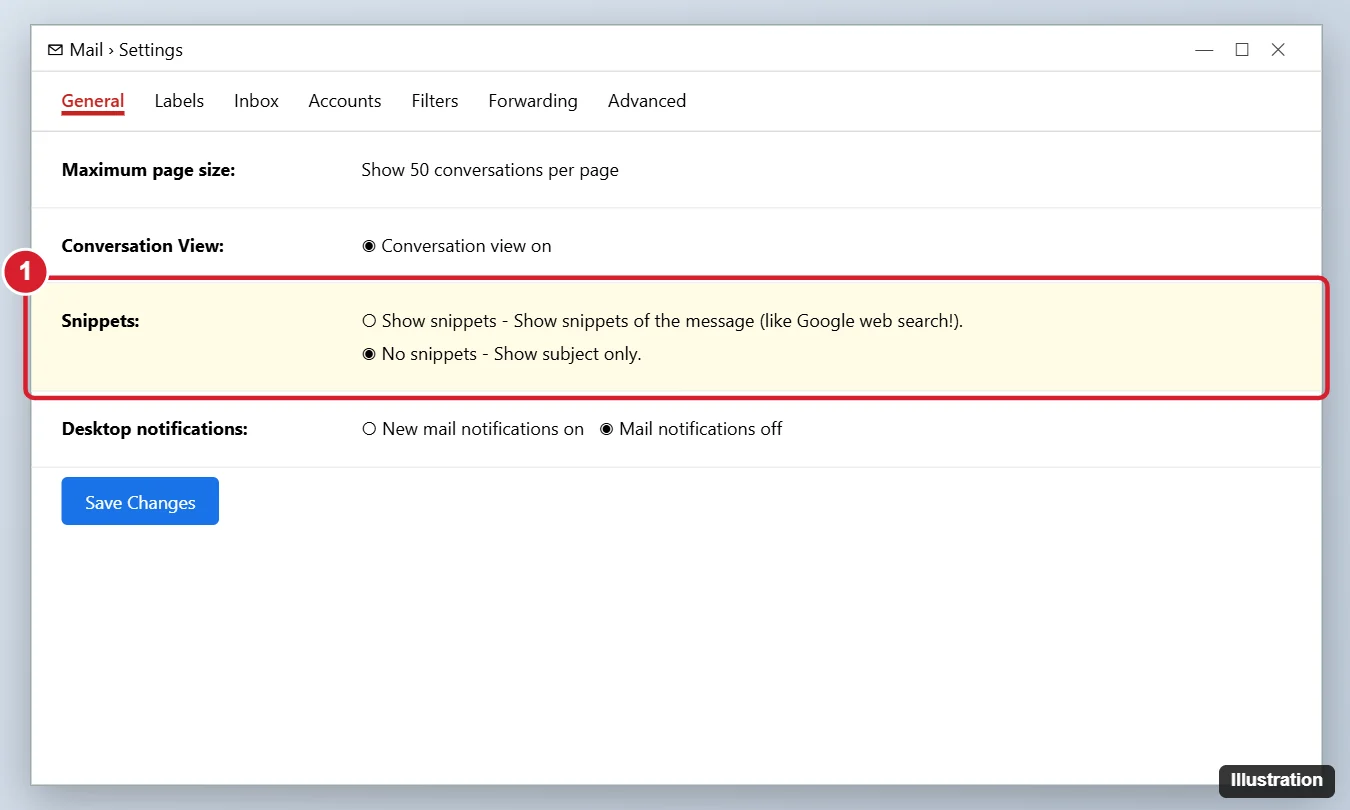
In Gmail on a computer, click the gear icon > See all settings. On the General tab, set Snippets to No snippets, then click Save Changes.
Turn Off Snippets on the Web
- Open Gmail in a browser.
- Click the gear icon, then See all settings.
- On the General tab, find Snippets.
- Choose No snippets – Show subject only.
- Scroll to the bottom and click Save Changes.
The setting applies to Gmail on the web for your account on any computer.
Turn Off the Reading Pane Too
If messages open in a split view as you click through the inbox, the reading pane shows full message content. Set it to No split in Quick settings. See how to remove the email preview window in Gmail.
Gmail App on Android and iPhone
The Gmail app always shows a preview line in the inbox list and doesn’t offer a setting to hide it. You can limit what appears elsewhere:
- Android lock screen: Settings > Notifications > Notifications on lock screen and choose to hide sensitive content.
- iPhone lock screen: Settings > Notifications > Gmail > Show Previews and choose When Unlocked or Never.
- Gmail notifications: in the app’s settings, set notifications to High priority only or None.
Other Privacy Settings to Consider
- Desktop notifications: See all settings > General > Desktop notifications can show message previews on screen. Choose Mail notifications off or Important mail only.
- Density: choose Compact in Quick settings for a list without attachment chips.
- Confidential mode: for sensitive messages you send, use confidential mode to set expiration and disable forwarding.
Frequently Asked Questions
Does turning off snippets hide attachments in the list?
No. Attachment chips follow the Density setting: they appear in Default density. Choose Comfortable or Compact to hide them.
Why do I still see previews in Outlook or Apple Mail?
Other email apps have their own preview settings. In Apple Mail on iPhone, set Settings > Mail > Preview to None.
Summary
- Gear icon > See all settings > General.
- Set Snippets to No snippets and save.
- Set the reading pane to No split.
- Hide lock screen and desktop notification previews for extra privacy.

Kermit Matthews is a freelance writer based in Philadelphia, Pennsylvania with more than a decade of experience writing technology guides. He has a Bachelor’s and Master’s degree in Computer Science and has spent much of his professional career in IT management.
He specializes in writing content about iPhones, Android devices, Microsoft Office, and many other popular applications and devices.