Podcasts on iPhone can keep going after an episode ends, or start by themselves when headphones or a car connect. What plays next comes from the Podcasts queue: Apple says the next episode in the queue plays immediately after the previous one finishes, so clearing the queue is the documented way to make listening stop at the end of an episode. For cars and headphones, Apple documents no switch, but a few habits help.
What starts playing, and what stops it
| What happens | Why | What to do |
|---|---|---|
| Another episode starts when one ends | It was waiting in the queue or in Continue Playing | Clear the queue on the Now Playing screen |
| The same show keeps rolling on | Episodes you play in a row land in Continue Playing | Check Continue Playing on Now Playing, or set a sleep timer |
| A podcast starts when the car connects | Not documented by Apple | Apple documents no setting; pause from the car or the iPhone |
| A podcast starts when headphones connect | Not documented by Apple | Apple documents no setting; pause from Control Center |
| New episodes keep appearing | Automatically Download is on | Change it in Settings > Apps > Podcasts |
| The autoplay is in a different app | That app has its own playback settings | Check that app’s settings |
Clear the queue so playback stops
Apple’s Play podcasts on iPhone page explains the order. Episodes you add with Play Next or Add to Queue sit in the Queue section of the Now Playing screen and play first. If you listen to several episodes of a show in a row, more episodes show up in a Continue Playing section and play after the queue. With both empty, nothing is lined up to play after the current episode.
- Open the Podcasts app and tap the MiniPlayer near the bottom of the screen to open the Now Playing screen.
- Tap the Playing Next button to show the queue.
- To remove one episode, swipe left on it, then tap Remove.
- To remove everything, tap Clear.
- Look at the Continue Playing section too. If an episode there offers the same swipe to remove, use it for anything you don’t want to hear next.
You can also drag an episode’s handle to reorder the list if you only want to change what comes next.
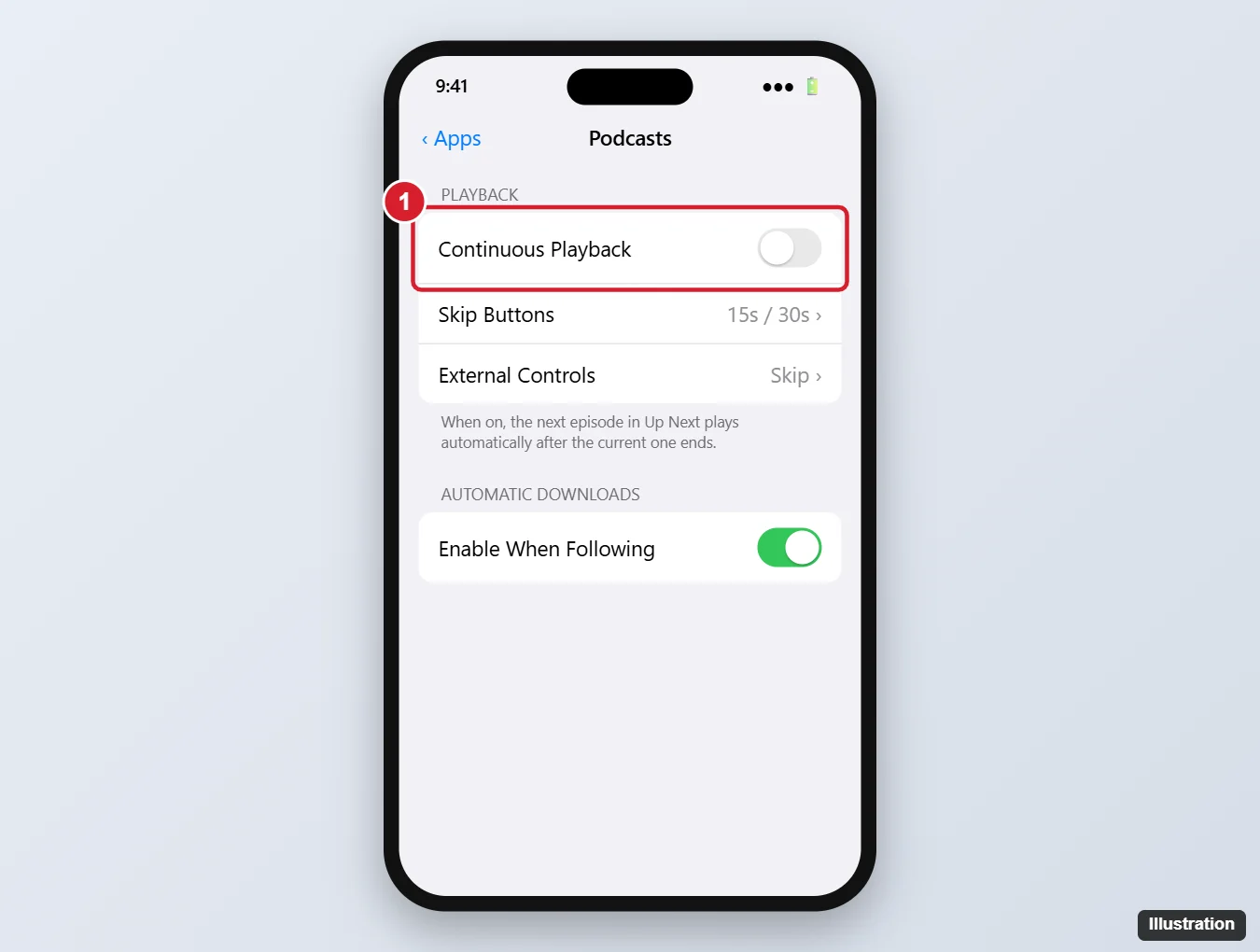
The illustration above is from an older version of this page. Apple’s current iPhone guide does not list a playback switch under Settings > Apps > Podcasts, so your screen may not show one. If your iPhone does show a switch about continuing playback after an episode ends, turning it off fits the same goal. On a Mac, Apple does document a Continuous Playback setting with a Stop when an episode ends option (Change settings in Podcasts on Mac).
Stop after this episode with the sleep timer
If you only want tonight’s listening to end on time, the sleep timer is quicker than editing the queue. On the Now Playing screen, tap the Sleep Timer button, then choose an option. Apple does not list the options on its page, so pick the one that matches when you want playback to end. More timer options are in using the sleep timer on iPhone.
When it starts in the car or on headphones
Apple’s Podcasts and CarPlay pages describe how to listen in the car, but they document no setting that stops a podcast from starting when CarPlay, a car’s Bluetooth or headphones connect. A few things still help:
- Empty the queue before you drive. Apple says queued episodes play one after another, so with an empty queue nothing new is lined up after the current episode.
- Pause from the car or the iPhone. Use the car’s media controls, the headphone controls, or open Control Center and tap Pause.
- Look at the car’s own media settings. Some cars have their own playback options. Check the car’s manual, since Apple doesn’t document them.
- Change which apps CarPlay shows. Apple lets you add, remove and reorder CarPlay apps in Settings > General > CarPlay: select your car, then tap Customize (Apple’s CarPlay article). Apple doesn’t say this changes what plays when you connect, so treat it as tidying up, not a fix.
Settings that look like autoplay but aren’t
Two settings in Settings > Apps > Podcasts can make it feel as if episodes keep coming, even though neither one starts playback. Apple describes both on its download settings for Podcasts page.
- Automatically Download controls whether new episodes download on their own. To keep the count down, see limiting downloaded podcast episodes on iPhone.
- Remove Played Downloads deletes downloads after you finish them. If you would rather keep them, see stopping the Podcasts app from deleting played episodes.
Using a different podcast app
Settings in Apple Podcasts don’t affect other apps. If you listen somewhere else, check that app’s own playback settings. For Spotify, see turning off autoplay in the iPhone Spotify app. And if it’s video previews that keep moving, stopping videos and Live Photos from auto-playing in Photos covers that separate setting.
Podcast playback questions
Why did another episode start after I cleared the queue?
Apple lists two places that feed playback: the Queue section and the Continue Playing section. Clearing one leaves the other, so check both on the Now Playing screen.
Does clearing the queue delete episodes?
Apple describes Remove and Clear as taking episodes out of the queue. Downloads are handled by the separate download settings above.
How do I stop a podcast that is playing right now?
Open Control Center and tap Pause, use the play and pause control on your headphones, or tap Pause on the Now Playing screen.
Start with the queue: once it and Continue Playing are empty, an episode that finishes has nothing left to hand off to.

Kermit Matthews runs Live2Tech from just outside Philadelphia. He is an IT specialist with over 20 years of experience, from a university help desk to small-business IT, IT management and his own consulting practice, and has written tech guides full time since 2020. Steps are checked against the current software on a real device or the maker’s official documentation. More about Kermit.