Every tap on the iPhone SE keyboard plays a small click sound by default. If the clicks bother you or the people around you, you can turn them off in Settings without muting your ringtone or other alerts. The setting name changed in recent iOS versions, so look for Keyboard Feedback rather than Keyboard Clicks.
Quick Answer
Open Settings, tap Sounds and Haptics, tap Keyboard Feedback, and turn off Sound. On older iOS versions, turn off Keyboard Clicks on the Sounds and Haptics screen.
How to Turn Off Keyboard Clicks on an iPhone SE
- Open the Settings app.
- Tap Sounds and Haptics (called Sounds on very old iOS versions).
- Tap Keyboard Feedback.
- Turn off the Sound switch. You can leave Haptic on if you like a light vibration when typing.
- On older iOS versions without Keyboard Feedback, scroll down and turn off Keyboard Clicks instead.
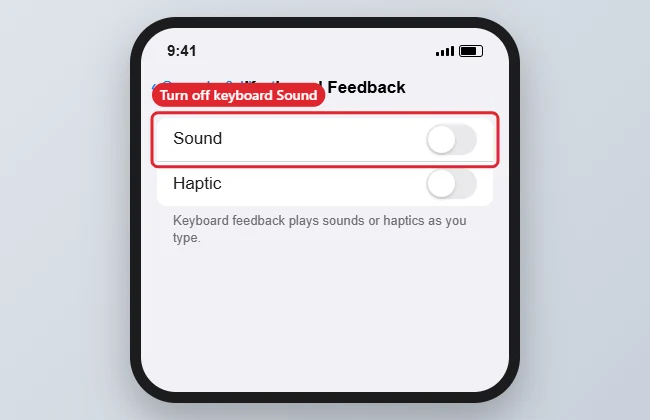
Keyboard Feedback Settings
| Setting | Effect |
|---|---|
| Sound | Plays a click on every key press |
| Haptic | Gives a light vibration on every key press |
| Ring/Silent switch | Silent mode also mutes keyboard clicks |
| Lock Sound | Separate setting for the lock click |
Troubleshooting
- Clicks still play: check that you changed Sound under Keyboard Feedback, not just the ringer volume.
- Clicks stop only sometimes: the Ring/Silent switch mutes them, so they return when the phone is back in ring mode.
- On a tablet, follow how to turn off keyboard clicks on an iPad.
- To quiet other interruptions, see how to manage Do Not Disturb on iPhone.
Frequently Asked Questions
Does this affect third-party keyboards?
Third-party keyboards may have their own sound setting inside their app, so check there if clicks continue.
Will turning off clicks save battery?
The saving is tiny. Turning off haptic feedback may save slightly more.
Can I turn clicks off only temporarily?
Yes. Flip the Ring/Silent switch to silent, and clicks stop until you switch it back.
Summary
- Open Settings.
- Tap Sounds and Haptics, then Keyboard Feedback.
- Turn off Sound.
- Use Keyboard Clicks on older iOS versions.

Kermit Matthews is a freelance writer based in Philadelphia, Pennsylvania with more than a decade of experience writing technology guides. He has a Bachelor’s and Master’s degree in Computer Science and has spent much of his professional career in IT management.
He specializes in writing content about iPhones, Android devices, Microsoft Office, and many other popular applications and devices.