To set up Netflix on an iPhone 7, open the App Store, tap your profile picture, go to Purchased (or Apps > Purchased), and tap the download icon next to Netflix. Because the current Netflix app requires iOS 18 or later and the iPhone 7 can only run up to iOS 15, the App Store will offer the last compatible version; tap Download. This only works if the Netflix app was downloaded with your Apple Account before. Then open Netflix, sign in, and choose a profile.
This guide explains what works on an iPhone 7 today, how to install and sign in, how to set up profiles, downloads, and playback settings, and what to do if the App Store won’t let you install Netflix at all. Netflix’s device requirements change over time, so check the Netflix Help Center if anything here looks different.
Can you still use Netflix on an iPhone 7?
- According to Netflix’s Help Center, the latest Netflix app needs iOS or iPadOS 18 or later.
- The iPhone 7 and iPhone 7 Plus max out at iOS 15, so they can’t install the latest version.
- Netflix says that if you’ve downloaded the app before, you can redownload it on devices running iOS 12 or later, which means an older compatible version.
- Older app versions may lose features or stop working in the future, since Netflix can end support for them.
Step 1: Update your iPhone 7 as far as it goes
- Go to Settings > General > Software Update.
- Install the latest iOS 15 update available.
Step 2: Install the last compatible Netflix app
- Open the App Store and tap your profile picture in the top-right corner.
- Tap Purchased (then My Purchases if you use Family Sharing).
- Tap Not on this iPhone and find Netflix.
- Tap the cloud download icon.
- When asked to download an older version, tap Download.
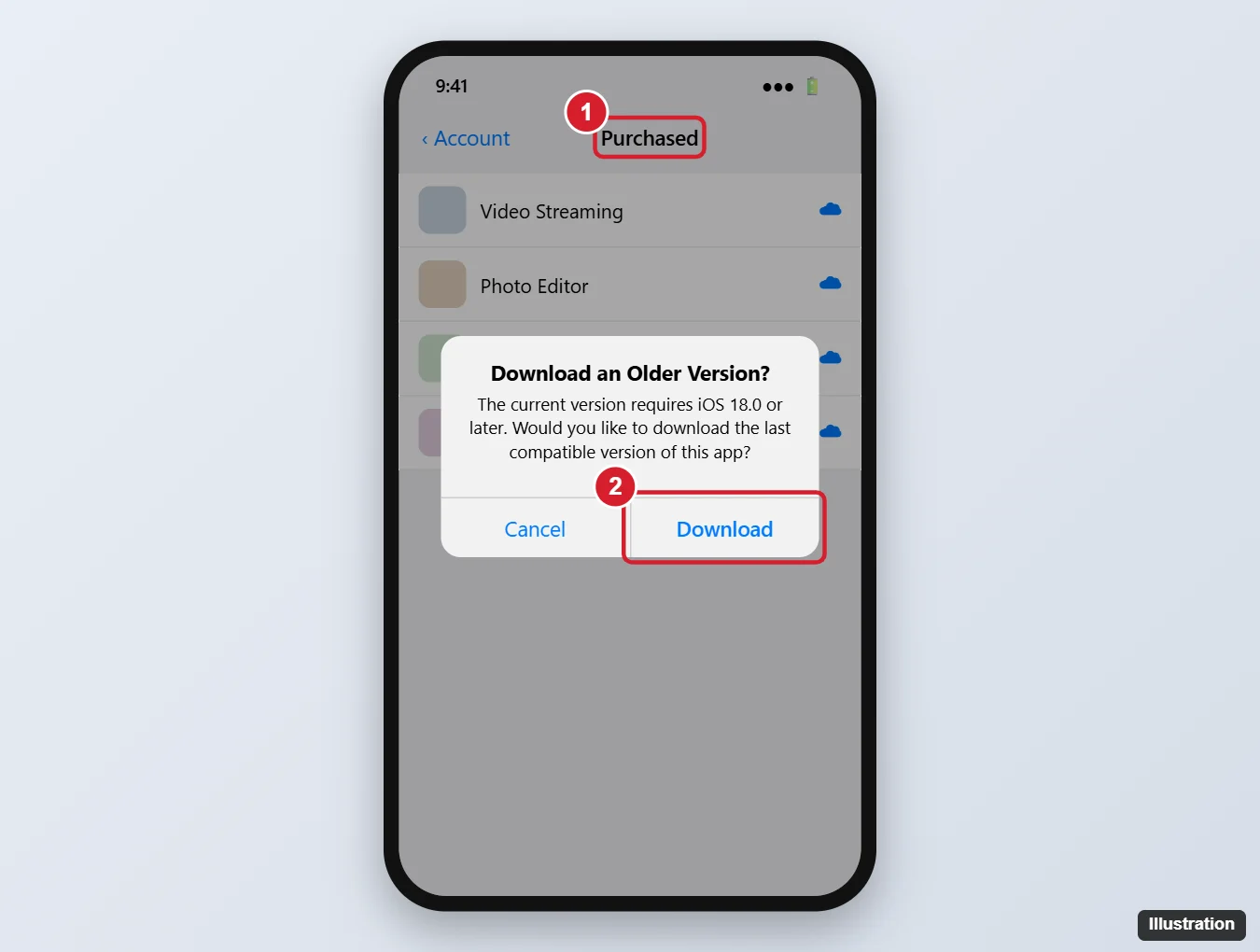
If Netflix isn’t in your Purchased list, you’ve never downloaded it with this Apple Account. One workaround some people use is to “get” Netflix on a newer iPhone, iPad, or Mac signed in to the same Apple Account, which adds it to your purchases, and then download it on the iPhone 7 from Purchased. Results can vary.
Step 3: Sign in and pick a profile
- Open the Netflix app.
- Tap Sign In and enter the email address or phone number and password for your Netflix account. If you don’t have an account, you’ll usually need to sign up on the Netflix website, because signing up in the app isn’t always available.
- Choose your profile, or tap Add Profile to create one.
Step 4: Set up playback and downloads
- Cellular data usage – in the app, tap your profile icon > App Settings > Mobile Data Usage and choose Save Data or Wi-Fi Only to avoid using up your data plan.
- Downloads – tap the download icon on a supported show or movie to watch offline. The iPhone 7’s storage is limited, so set Download Video Quality to Standard in App Settings.
- Downloads for You – turn it off if you don’t want Netflix automatically downloading shows and using storage.
- Subtitles and audio – while watching, tap the screen and tap Audio & Subtitles.
Step 5: Watch on a TV (optional)
Use AirPlay to a compatible Apple TV or smart TV from the playback screen if your app version supports it, or connect the iPhone with an Apple Lightning Digital AV Adapter and HDMI cable. Some content may not play over a cable connection because of copy protection.
If you can’t install Netflix on your iPhone 7
- “This app is not compatible” with no older version offered – you haven’t downloaded it before with this Apple Account. Try the workaround above.
- The app installs but won’t play – Netflix may have ended support for that app version. Check the Netflix Help Center for any error codes.
- Safari – Netflix doesn’t support watching in a web browser on iPhone, so the website isn’t an alternative.
- Other options – watch on a smart TV, streaming stick, computer, or a newer phone or tablet. An iPhone that supports iOS 18 can run the latest app.
Troubleshooting
- App crashes or freezes – close it by swiping it away in the app switcher (double-press the Home button), restart the iPhone, and free up storage in Settings > General > iPhone Storage.
- Video won’t load – test your Wi-Fi or cellular connection, and turn off any VPN.
- Signed out unexpectedly – someone may have signed out all devices from the account settings, or the account may be limited by the plan’s device rules.
Frequently asked questions
Can an iPhone 7 update to iOS 18?
No. The last supported version for the iPhone 7 and iPhone 7 Plus is iOS 15.
Will the older Netflix app keep working?
For now it may, but Netflix can stop supporting older app versions at any time. There’s no way to know in advance.
Is it safe to download Netflix from other sources?
No. Only install apps from the App Store. Other sources can install malware or steal your account details.

Kermit Matthews is a freelance writer based in Philadelphia, Pennsylvania with more than a decade of experience writing technology guides. He has a Bachelor’s and Master’s degree in Computer Science and has spent much of his professional career in IT management.
He specializes in writing content about iPhones, Android devices, Microsoft Office, and many other popular applications and devices.