“Safari cannot open the page because the address is invalid” appears when Safari can’t understand the web address it was given. Usually it’s a typo or a broken link, so tap the address bar and check for typos, extra spaces, missing dots, or a doubled “https://”, then retype it or copy the link again. If the error keeps coming from a link in another app, open Safari and paste the address manually. Content blockers, restrictions, network settings and old software can cause it too, on iPhone, iPad, and Mac.
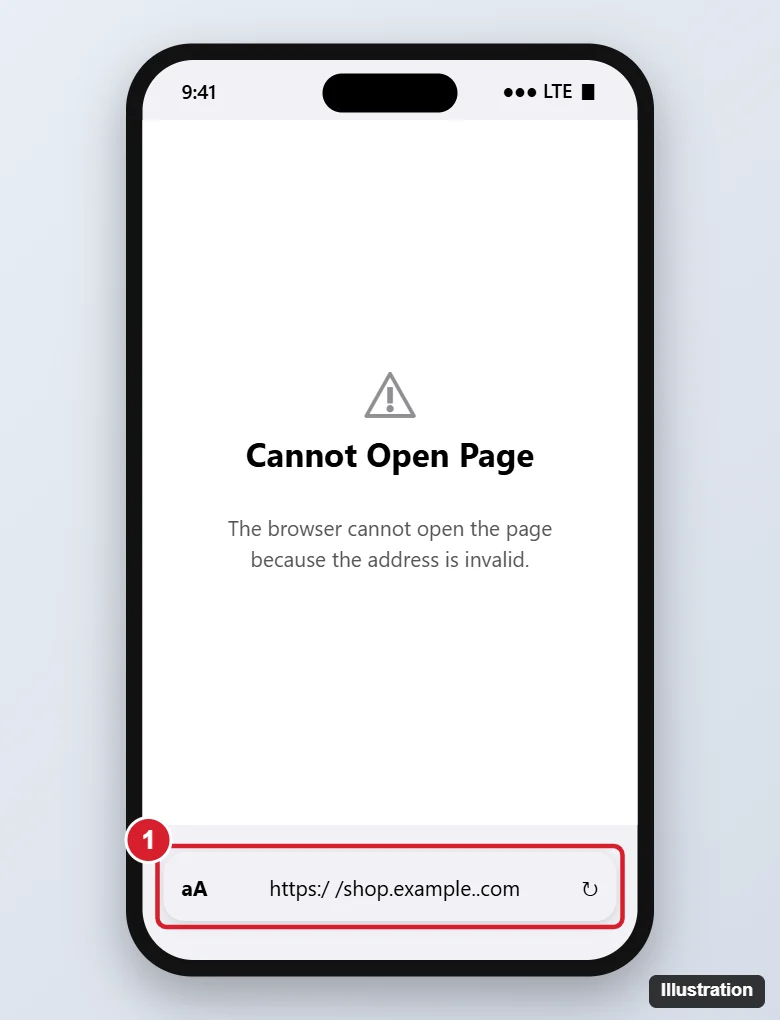
1. Check the Web Address
- Look for spaces, doubled dots (..), missing letters, or characters like commas.
- Make sure it starts with https:// (or just type the domain, like example.com).
- Remove extra text that was copied along with the link, such as a trailing parenthesis or punctuation.
Does this error mean the website is down?
No. A down website shows a different error. “Invalid address” means Safari couldn’t interpret the URL itself.
2. Open the Link a Different Way
- Press and hold the link in the original app and choose Copy Link, then paste it into Safari.
- Some links use special schemes (like
mailto:,tel:, or app-specific links) that only open in a certain app. Install or open that app. - Links inside PDFs or emails can be broken by line wraps. Retype the address.
Why does it happen only with links from one app?
That app may be sending malformed links. Copy the link and paste it into Safari, or update the app.
3. Clear Safari History and Website Data
On iPhone or iPad, go to Settings > Apps > Safari (or Settings > Safari on iOS 17 and earlier) and tap Clear History and Website Data. On Mac, choose Safari > Clear History. This removes corrupted cached entries that can cause repeated errors.
4. Turn Off Content Blockers and Extensions
Ad blockers and privacy extensions can rewrite or block addresses. In Safari, tap the page menu (aA or the page icon) and choose Turn off Content Blockers, or disable extensions in Settings > Apps > Safari > Extensions.
5. Check Screen Time Restrictions
Go to Settings > Screen Time > Content & Privacy Restrictions > App Store, Media, Web & Games > Web Content. If it’s set to limit websites, the page may be blocked. Choose Unrestricted or add the site to Always Allow.
6. Check Your Network
- Turn Airplane Mode on and off, or switch between Wi-Fi and cellular.
- Disconnect any VPN or DNS/content-filter profile (Settings > General > VPN & Device Management).
- Reset network settings as a last resort: Settings > General > Transfer or Reset iPhone > Reset > Reset Network Settings (this removes saved Wi-Fi passwords).
7. Update and Restart
Restart your device and install updates in Settings > General > Software Update (or System Settings > General > Software Update on Mac). Bugs in older versions can cause link-handling errors.

Kermit Matthews runs Live2Tech from just outside Philadelphia. He is an IT specialist with over 20 years of experience, from a university help desk to small-business IT, IT management and his own consulting practice, and has written tech guides full time since 2020. Steps are checked against the current software on a real device or the maker’s official documentation. More about Kermit.