To remove a drop-down list in Excel, select the cells with the drop-down, go to Data, Data Validation, click Clear All, then OK. The list comes from a Data Validation rule, and clearing that rule leaves your existing cell values in place. The steps below use Excel on Windows 10, and they are the same in Windows 11. Windows 10 reached end of support on October 14, 2025. Consumer Extended Security Updates (ESU) now run until October 12, 2027.
To build a new list from scratch, see how to create a drop-down list in Excel.
How to Remove a Drop-Down List in Excel
- Select the cell or range that has the drop-down arrow. To catch every one on the sheet, use Home, Find and Select, Data Validation.
- Open the Data tab.
- Click Data Validation in the Data Tools group.
- If Excel asks whether to extend validation to other cells, choose Yes to clear the whole rule or No to affect only your selection.
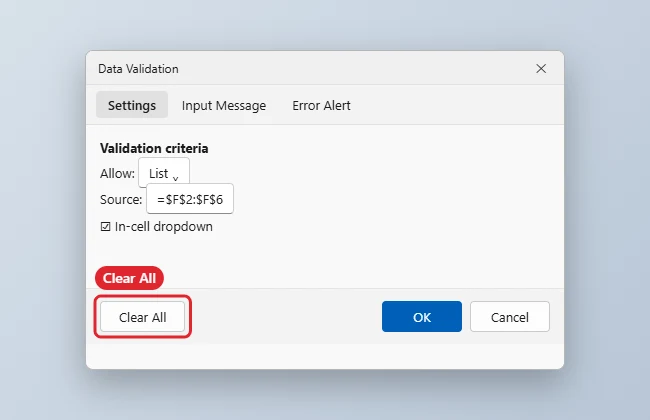
- Click Clear All in the lower-left corner of the dialog.
- Click OK. The arrow is gone, and the value already in each cell stays.
Can I undo it?
Yes, press Ctrl and Z straight away. After saving and closing, you would need to rebuild the list.
Remove, Edit or Keep
| Goal | Action |
|---|---|
| Remove the list completely | Data Validation, Clear All, OK |
| Keep the list but change the choices | Edit the Source box in Data Validation |
| Remove the value but keep the list | Select the cell and press Delete |
| Remove every rule on the sheet | Find and Select, Data Validation, then Clear All |
Is this different in a Word document?
Yes. Word uses content controls. See how to edit a drop-down list in Word.
Word handles this differently, because its lists are content controls; see removing a drop-down arrow in Word.
If the Arrow Won’t Go Away
- If Data Validation is greyed out, the sheet may be protected or shared. Unprotect it on the Review tab first.
- If the arrow still shows, the list could be a form control or combo box rather than validation. Right-click it and choose Cut or Delete, or turn on Design Mode under the Developer tab.
- If other cells still have lists, they were set up with a separate rule. Repeat the steps on those cells.
- Stray formatting left behind can be reset with Clear Formats.
Related: Fix the Excel data validation error.

Kermit Matthews runs Live2Tech from just outside Philadelphia. He is an IT specialist with over 20 years of experience, from a university help desk to small-business IT, IT management and his own consulting practice, and has written tech guides full time since 2020. Steps are checked against the current software on a real device or the maker’s official documentation. More about Kermit.