When a color printer prints only black on a Windows 10 PC, the cause is usually a grayscale choice somewhere between the app and the printer, not a broken printer. Check three places in order: the color choice in the app’s print screen, the printer’s default Printing preferences, and which printer actually receives the job. An empty color cartridge can also make some printers fall back to black only, in the way the printer maker describes for your model.
Narrow it down with one test print
Before changing anything, find out whether the problem follows one app or every app. It saves you from resetting printer settings that were never wrong.
- Open a web page with obvious color, such as a news site with color photos, in Microsoft Edge.
- Press Ctrl + P to open the print dialog.
- Make sure your color printer is selected at the top, and set Color to Color.
- Select Print.
Read the result like this:
| Test result | What it points to | Where to look next |
|---|---|---|
| The Edge page prints in color, your document doesn’t | The other app or the document itself | The app’s print settings, then the document |
| Nothing prints in color, from any app | A printer default, the driver or the ink | Printing preferences, then the driver, then the cartridges |
| The color option is missing in Edge | The wrong printer or a basic driver | Which printer gets the job, then the driver |
| Colors print faded or streaky rather than gray | Print quality, not a setting | The maker’s maintenance tools |
Check the color choice in the app you print from
Many apps have their own color choice on the print screen, and a grayscale choice there can leave a page gray even when the printer’s default is color.
- Microsoft Edge: Microsoft’s Edge printing help lists a Color option with two values, Color and Black and White. It also lists Background graphics under More settings; when that box is unchecked, Edge leaves out the web page background, which can look like a color failure.
- Office and other desktop apps: the print screen usually has a link or button to the printer’s properties. Open it from there and look for the same color or grayscale choice.
- PDF readers: many have their own “print in grayscale” or “print as image” boxes in the print dialog. Clear them before you print.
If the app was the culprit, you are done. If the app says Color and the page still comes out gray, move on to the printer’s defaults.
Look for a grayscale default in Printing preferences
The printer’s own defaults live in Printing preferences, which every app starts from. On Windows 10:
- Select Start > Settings > Devices > Printers & scanners.
- Select the printer, then select Manage > Printing preferences. (Microsoft also opens it from the Devices and Printers window: Settings > Devices > Devices and printers, then right-click the printer and select Printing preferences.) On Windows 11, the printer list is under Start > Settings > Bluetooth & devices > Printers & scanners instead.
- Find the color setting. Its tab depends on the printer’s driver (Epson’s driver, for example, uses a Main tab), so check each tab.
- Choose the color option instead of grayscale or black and white, then select OK.
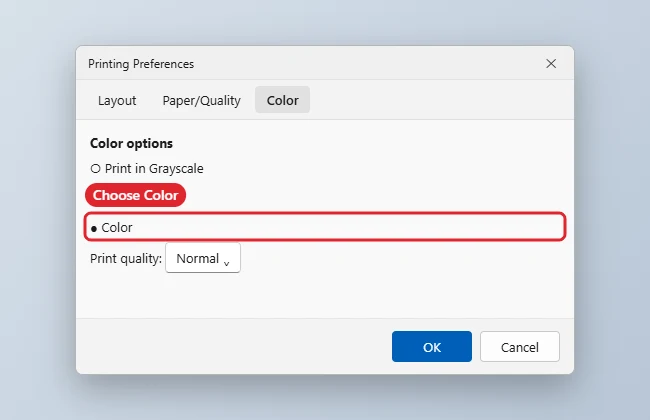
Some drivers name the setting in a way that is easy to miss. Epson’s Windows driver, for example, has a Black/Grayscale check box on its Main tab, according to Epson’s support answer. Epson gives it as the setting for printing with black ink when a color cartridge is expended. If the box is checked, clear it to print in color again.
Shared work or school printers are a special case: their settings may be managed centrally. If the color option is grayed out on an office or school PC, ask whoever manages the printers.
Make sure the job goes to the color printer
Sometimes the job is simply going to a different printer. Check for these:
- A second printer. If the office also has a black-and-white laser printer, the app may still have it selected from the last time you printed.
- A duplicate entry. The same printer can appear twice, for example once over USB and once over Wi-Fi, each with its own preferences. Set color on the copy you actually use, or remove the extra one and add the printer again if needed, as in adding a USB, Wi-Fi or Bluetooth printer.
- A virtual printer. Microsoft Print to PDF and similar entries create files instead of paper.
- The default changed by itself. When Let Windows manage my default printer is selected, Windows makes the last printer you used the default, so it may not be the printer you expect. Setting a default printer in Windows 11 and 10 shows how to turn that behavior off and pick the color printer.
No color option at all: the driver
If Printing preferences offers no color choice anywhere, Windows may be using a basic driver rather than the printer maker’s full driver, and some basic drivers expose only a few settings. Microsoft’s printer driver page calls Windows Update the recommended method, and says the preferred way to get the maker’s printer software and drivers is to download the latest version directly from the manufacturer’s website.
- Note your printer’s exact model number from the label on the printer.
- Download the Windows 10 driver or full software package from the maker’s support site.
- Run the installer, then open Printing preferences again and look for the color setting.
If the maker no longer offers a Windows 10 package for your model, Microsoft’s page also lists Windows Update and, as a last resort, the Add Printer Driver Wizard.
Windows 10 has reached the end of support on October 14, 2025, according to Microsoft’s end-of-support notice, so makers may stop adding new Windows 10 drivers. If your model already has one, keep a copy of the installer.
An empty color cartridge
Printers handle a low or empty color cartridge in different ways, and the behavior can differ between models from the same maker, so check your model’s manual or the maker’s support page rather than assuming.
Epson documents one common pattern: when a color cartridge is expended, you can temporarily keep printing from your computer using black ink, on plain paper or envelopes with Black/Grayscale selected, and Epson says to replace the expended cartridge as soon as possible. That means an Epson printer in this state prints black on purpose until the new cartridge goes in.
For HP, Canon and Brother printers, look up your model on the maker’s own support site (support.hp.com, support.usa.canon.com or support.brother.com) for what it does when a color cartridge runs out. Use only the steps the maker gives for your model.
If colors print but look faded or streaked, the cartridges are probably fine and the print head needs attention. The maker’s printer software or the printer’s own menu usually has cleaning and alignment tools.
When the document itself has no color
Sometimes everything is set correctly and the file is the problem:
- A page scanned or photocopied in grayscale stays gray, whatever the printer does.
- A PDF that someone saved or exported in grayscale has no color left to print.
- Web pages often use background colors that browsers leave out unless Background graphics is checked.
A quick check is to print a different, clearly colorful file from the same app. If that one comes out in color, the original document is the reason.
Color printing questions
Why does Edge print in color but my document app prints gray?
Many apps have their own color choice on the print screen. Check that choice and the printer properties link inside the app’s print screen.
Can I keep grayscale as the default and print color only sometimes?
Yes. Leave Printing preferences on grayscale and choose color in the app’s print dialog when a page needs it, for example Color in Edge’s print dialog.

Kermit Matthews runs Live2Tech from just outside Philadelphia. He is an IT specialist with over 20 years of experience, from a university help desk to small-business IT, IT management and his own consulting practice, and has written tech guides full time since 2020. Steps are checked against the current software on a real device or the maker’s official documentation. More about Kermit.