Exported driver packages let a new or freshly reset PC print without hunting for installers again. On Windows 11 and on Windows 10 version 1607 or later, open Command Prompt as administrator, export the printer’s package with pnputil /export-driver, copy the folder to a USB drive, then load it on the other PC with pnputil /add-driver. Maker apps, scan software and the printer entry itself do not travel with the driver, so plan to add the printer again afterward.
Why keep a copy of a printer driver
For years, Windows Update quietly supplied a driver for almost any printer you plugged in. That is changing. Microsoft’s end-of-servicing plan for third-party printer drivers sets these dates:
- January 15, 2026: for Windows 11 and Windows Server 2025, no new printer drivers are published to Windows Update.
- July 1, 2026: Windows prefers its built-in IPP class driver when it ranks drivers for a printer.
- July 1, 2027: apart from security fixes, third-party printer driver updates are no longer allowed. Existing drivers can still be installed from Windows Update or from the maker’s installation package.
Microsoft says Windows supports Mopria-compliant printers over a network or USB through the Microsoft IPP Class Driver, which is part of Windows and never needs a backup. The ones worth saving are older models that only work properly with the maker’s own driver, especially when the maker has stopped offering an installer. A saved copy also helps when the replacement PC has no internet connection yet, or when you reset a PC and want printing back before you sort out downloads.
Find the driver package your printer uses
Windows keeps drivers in the driver store, which Microsoft describes as a trusted collection of inbox and third-party driver packages; only packages in the driver store can be installed on a device. pnputil refers to each third-party package by an oem#.inf name (for example oem12.inf), and that name is what you export.
To see which drivers are installed, open the Drivers tab of Printer server properties. On Windows 11 it is under Related settings in Settings > Bluetooth & devices > Printers & scanners; on Windows 10 it is under Related settings in Settings > Devices > Printers & scanners.
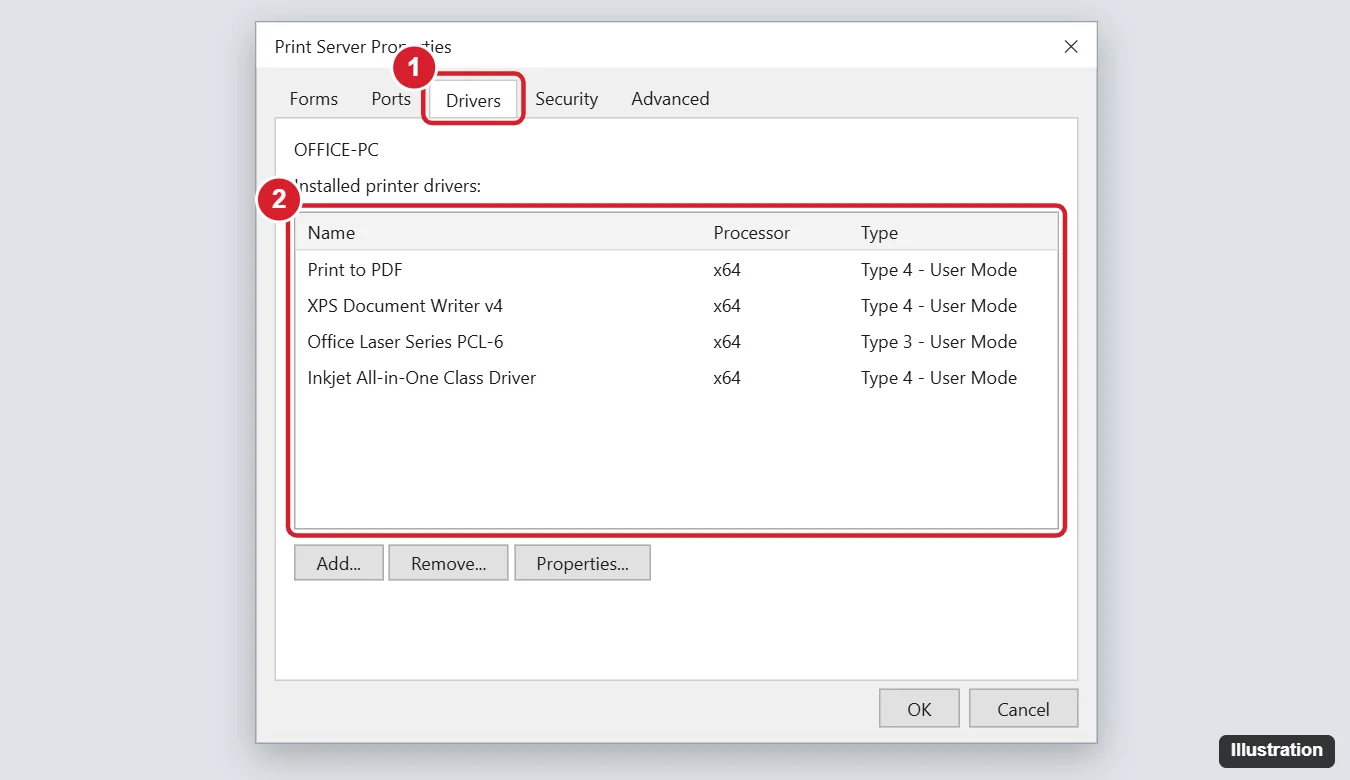
To match a driver to its package:
- On Windows 11, press Windows key + X, select Windows Terminal (Admin) and approve the prompt. On Windows 10, open PowerShell as an administrator from the Start menu.
- Run
Get-PrinterDriver -Name * | Format-List. Note the exact name of your printer’s driver; Microsoft describes Format-List as showing the detailed information for each driver. - On Windows 11, run
pnputil /enum-drivers /class Printerto list only printer packages. Find the entry that matches your printer’s driver from step 2 and note itsoem#.infname (for exampleoem12.inf). On Windows 10, the/classfilter is not available: runpnputil /enum-driversand look for the printer entries (Printer is Microsoft’s class name for printers).
Microsoft notes that /enum-drivers lists third-party packages only. If your printer’s driver is not in the list, it is most likely a driver built into Windows, and the other PC already has it.
Export printer driver packages with pnputil
Microsoft’s PnPUtil command reference describes /export-driver as exporting driver packages from the driver store into a target folder, available starting in Windows 10, version 1607. It must run from an administrator command prompt.
- Plug in a USB drive or pick a folder you can copy later, for example
C:\PrinterDrivers. Create the folder first. - Open Command Prompt as administrator: type cmd in the Start search box, right-click Command Prompt and choose Run as administrator.
- Export one package with
pnputil /export-driver oem12.inf C:\PrinterDrivers, using theoem#.infname you found earlier. - Repeat for each printer you want to keep. If more than one package seems to come from your printer’s maker and you can’t tell which belongs to the printer, export each of them.
- Copy the folder to the USB drive or a cloud folder.
Microsoft’s PnPUtil examples also show pnputil /export-driver * c:\backup, which exports every third-party package on the PC, not only printers. That is handy before a reset, but the folder will include graphics, audio and other drivers that you should not load onto a different model of PC.
Bring the drivers onto the new or reset PC
Importing has two parts: put the package in the driver store, then tell the print system to use it.
- Copy the backup folder to the new PC, for example to
C:\PrinterDrivers. - In an administrator Command Prompt, run
pnputil /add-driver C:\PrinterDrivers\*.inf /subdirs /install. The/subdirsswitch looks inside each package’s subfolder, and/installinstalls the driver on any matching device that is already connected. - Open an administrator PowerShell window and run
Add-PrinterDriver -Name "Exact driver name", using the name you noted from Get-PrinterDriver on the old PC. Microsoft’s Add-PrinterDriver reference says it needs administrator credentials and does not accept wildcards, so copy the name exactly, including spaces. - Run
Get-PrinterDriverto confirm the driver now appears. - Add the printer. A USB printer usually appears on its own once it is plugged in; a network printer can be added from Printers & scanners, as shown in adding a USB, Wi-Fi or Bluetooth printer to Windows 11. When Windows asks for a driver, pick the one you just installed.
If you prefer to script the last step for a printer with a fixed port, Microsoft’s Add-Printer reference uses this pattern: Add-Printer -Name "Office printer" -DriverName "Exact driver name" -PortName "PortName". Microsoft describes -PortName as the name of the port that is used or created for the printer. For most people, the Printers & scanners route is simpler. After the printer is back, check which one is the default; setting a default printer in Windows 11 and 10 covers the toggle that lets Windows switch it for you.
Intel, AMD and Arm PCs need different packages
A driver package is built for a processor type. A package exported from an Intel or AMD PC is usually an x64 package, and Microsoft’s FAQ on Arm-based PCs says drivers for hardware only work if they are designed for a Windows 11 Arm-based PC. The same FAQ says Arm-based PCs support most printers, including those that support Mopria, through Windows itself.
So if the new laptop has an Arm processor, skip the import, add the printer, and let Windows use its built-in driver. If that driver lacks a feature you need, check the maker’s site for an Arm version. The Add Printer Driver Wizard in Printer server properties includes a Processor Selection page for the same reason.
What a driver backup does not include
Exporting a package saves driver files, nothing more. It does not save:
- The printer entries. Names, sharing settings and default print settings stay on the old PC. Write down any custom names and preferences first.
- Ports and network addresses. A printer added by IP address needs that address again on the new PC.
- Maker apps. Scan utilities, ink monitors and companion apps are separate programs. Reinstall them from the maker’s site if you use them.
- Printer queues as a set. Microsoft documents a Printer Migration tool (Printbrm) that exports queues and drivers together, but its backup and restore article applies to Windows Server, and Microsoft does not document it for Windows 11 or Windows 10 Home and Pro PCs. For a home or office PC, the pnputil route is the documented one.
If the import fails
- “Access is denied” or nothing happens. The command prompt is not elevated. Close it and reopen it with Run as administrator.
- pnputil does not recognize /export-driver. The PC runs a Windows 10 build older than version 1607. Update Windows or reinstall the driver from the maker’s installer.
- The package installs but Add-PrinterDriver says the driver does not exist. The name does not match exactly, or the package was built for a different processor type. Compare the name character by character with Get-PrinterDriver on the old PC.
- The printer still prints garbage or blank pages. A driver from an older Windows version may not suit the new one. Try the maker’s current package or the built-in driver, and see updating Windows 11 drivers for the Windows Update route.
- A leftover printer blocks the new one. Old entries with the same name can confuse things; removing a printer from Windows 11 covers entries that refuse to go.
For drivers that are not for printers, checking drivers on Windows 10 and opening Device Manager in Windows 11 show where to look. Some older printers have their own story: the HP LaserJet 1320 setup on Windows 10 and Canon’s LBP2900B driver on Windows 11 are both models where a saved package can spare you a long search. Keep the backup folder somewhere you will find it next time, and label it with the printer model and the date.
Printer driver backup questions
Can I copy the driver folders from C:\Windows by hand instead?
No. Windows installs printer drivers from packages staged in the driver store, and loose files copied from system folders are not staged. The export and add commands handle that for you.
Does a backup from Windows 10 work on Windows 11?
Often, as long as the driver supports Windows 11 and the processor type matches. Windows 10 reached the end of support on October 14, 2025, so the move is common; if the old driver misbehaves on Windows 11, use the maker’s current package instead.
Do I need to back up the Microsoft IPP Class Driver?
No. It is part of Windows, so every Windows 11 PC already has it.
Is this the same as backing up the whole PC?
No. A system image or a reset recovery covers apps and files; this backup only covers the driver packages you export.

Kermit Matthews runs Live2Tech from just outside Philadelphia. He is an IT specialist with over 20 years of experience, from a university help desk to small-business IT, IT management and his own consulting practice, and has written tech guides full time since 2020. Steps are checked against the current software on a real device or the maker’s official documentation. More about Kermit.