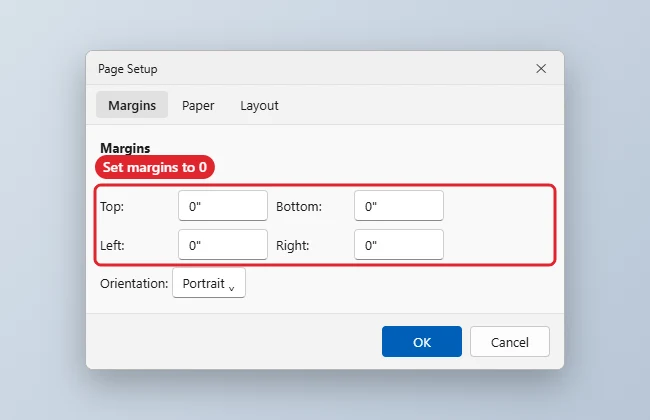
To print without margins in Word, set Layout, Margins, Custom Margins to 0 on all sides, choose Ignore when Word warns you, then in the Print dialog open Printer Properties and turn on Borderless printing if your printer supports it. Most printers cannot print right to the edge of the paper, so Word warns you when margins are smaller than the printer allows.
How to Print Without Margins in Word
- Open Layout, Margins, and choose Custom Margins.
- Set Top, Bottom, Left, and Right to 0 and click OK.
- When Word warns that margins are outside the printable area, click Ignore.
- Choose File, Print, then Printer Properties, and turn on Borderless or Edge-to-edge printing (the name varies by printer).
- Print a test page. If the edges are still white, the printer does not support borderless printing on that paper size.
Borderless Printing Requirements
| Requirement | Notes |
|---|---|
| Printer support | Many photo and inkjet printers; few laser printers |
| Supported paper size | Often photo sizes and letter or A4 |
| Borderless setting on | In Printer Properties |
| Margins at 0 | In Word’s Page Setup |
| Background elements | Extend images past the page edge |
Can I get borderless prints on a laser printer?
Usually not. Print larger and trim the edges instead.
Does borderless printing enlarge the content?
Some printers slightly enlarge the image to avoid white edges.
If the paper in the tray is A4 but the file is Letter, first switch the document to A4 in Word.
Before printing, size the artwork to the paper itself, as shown in how to make a picture fill a page in Word.
When borderless printing falls short
- Word keeps resetting margins: click Ignore instead of Fix on the warning.
- White edges remain: enlarge background images so they extend past the page edges, and confirm borderless is on.
- To add a full-page blank sheet first, see how to add a blank page in Word.
Related: Use different margins on different pages in Word.
The same layout carries over when you save the page as a PDF instead of printing it.

Kermit Matthews runs Live2Tech from just outside Philadelphia. He is an IT specialist with over 20 years of experience, from a university help desk to small-business IT, IT management and his own consulting practice, and has written tech guides full time since 2020. Steps are checked against the current software on a real device or the maker’s official documentation. More about Kermit.