Working in a browser and missing the page number options you remember from desktop Word? In Word for the web, page numbers go in through the Insert tab and sit in the header or footer of every page, and the browser also handles a page count (Page 3 of 10), no number on the first page and removal. Starting at a number other than 1 or numbering sections differently still needs desktop Word, reached with Open in Word.
What the browser version can and cannot do
Check this table before you start, so you know whether the job can be finished in the browser.
| Task | In Word for the web? | Where |
|---|---|---|
| Number every page | Yes | Insert > Page Numbers |
| Show the total (Page X of Y) | Yes | Include Page Count in the same gallery |
| No number on the first page | Yes | Insert > Header & Footer, Different First Page |
| Words next to the number (a name or title) | Yes | Insert > Header & Footer |
| Remove all page numbers | Yes | Remove Page Numbers in the gallery |
| Start at a different number | Desktop Word | Format Page Numbers, Start at |
| Different numbering in different sections | Desktop Word | Open in Word |
Microsoft’s own page numbers help for Word for the web covers the browser rows; the desktop rows come from its desktop pages.
Put numbers on every page
- Open the document in Word for the web. If you are not already in Editing view, select Editing. (When you type and nothing happens, you are in Reading view; Microsoft’s fix is Edit Document > Edit in Word for the web.)
- Select the Insert tab, then Page Numbers. Note the plural: the desktop button is Page Number.
- In the gallery that opens, choose where you want the numbers to appear by selecting the page number layout you want.
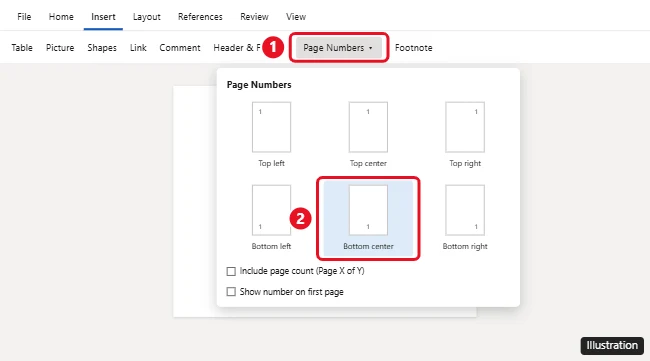
Word places the number in the header or footer of every page. Scroll to the top or bottom of a page to check it. If the layout is not the one you wanted, open the gallery again and choose another.
Add the total: Page X of Y
A page count helps readers of a printed handout spot a missing sheet.
- Select Insert > Page Numbers.
- Select Include Page Count.
- Pick a layout. Microsoft says Word for the web then adds the total page count to each page, such as Page 3 of 10.
Custom wording, such as a total for one section only, is built with fields in desktop Word; adding Page 1 of 2 numbering in Word explains that version.
Keep the number off a title page
For a cover sheet or title page, Microsoft’s browser route goes through headers and footers, not the Page Numbers gallery. Its start page numbering later page gives these steps for the web:
- Go to Insert > Header & Footer.
- Select the Different First Page checkbox (it is among the header and footer Options).
- Check page 1. Microsoft says the page number is automatically hidden on the first page.
The second page still counts as page 2. To make it read 1, the desktop app is needed (next sections). More first-page and skip-a-page cases are in skipping page numbers in Word.
Put words next to the number
Microsoft also points to Insert > Header & Footer instead of Insert > Page Numbers when you want the document title, the author’s name or other text alongside the number. A common school example is a surname before each page number; adding your last name and page number in Word walks through it.
Take the numbers off
- Select Insert > Page Numbers.
- Select Remove Page Numbers at the bottom of the gallery.
This is Microsoft’s documented route, and it clears the numbers from every page in one step, which is safer than deleting a number by hand in one footer. Check a page or two afterward.
When to switch to Open in Word
Microsoft’s browser help says that for more options, for example different page numbering in different sections, you should edit the document in Word instead of Word for the web. Its desktop pages document these, with no browser equivalent:
- Start at a different number: in desktop Word, Insert > Page Number > Format Page Numbers, then set Start at. Microsoft uses this to start at 0 so that, with a different first page, page 2 shows 1.
- Section-by-section numbering: restarting numbers after a cover, a contents page or each chapter depends on section breaks and on how sections link; linking sections in Word explains how headers, footers and numbers carry between sections.
- Number style, such as Roman numerals for front matter: chosen in the same Format Page Numbers box in desktop Word. Microsoft does not document it for the browser.
To get there, use the Open in Word command (Microsoft’s wording for opening the file in desktop Word; it needs the Word app installed on your computer). The document opens in desktop Word, where you make the changes and save; when you reopen the file in the browser, the numbering you set is part of the document.
Microsoft’s browser help does not cover changing the font or size of the numbers either. If a footer edit in the browser does not give you the look you want, desktop Word is the documented place for that change.
Page numbers in other apps
The same ideas carry over elsewhere with different menus. Slides use slide numbers, covered in adding page numbers in PowerPoint, and a shared document in Google’s editor works its own way, shown in adding Google Docs page numbers.
Browser page number questions
Why does nothing happen when I try to add numbers?
You are probably in Reading view, where typing does nothing. Select Editing (or Edit Document > Edit in Word for the web) and try again. A file shared with you as view-only cannot be edited at all; ask the owner for edit access.
Is Include Page Count the same as Page X of Y?
Yes. Microsoft describes it as showing the current page number along with the total number of pages, so a ten-page document reads Page 1 of 10 through Page 10 of 10.
Can I start numbering at 2 without the desktop app?
Not with any setting Microsoft documents for Word for the web. Hiding the number on page 1 with Different First Page is the closest browser option; the count itself still starts at 1.
Will numbers I add in the browser still be there in desktop Word?
Yes. It is the same document, so desktop Word shows the numbers and lets you adjust them with its fuller set of options.
For a typical report, the browser covers everything: add the numbers, include the page count if you want it, and hide the first one if there is a title page. Switch to desktop Word only for custom starting numbers or section-by-section numbering.

Kermit Matthews runs Live2Tech from just outside Philadelphia. He is an IT specialist with over 20 years of experience, from a university help desk to small-business IT, IT management and his own consulting practice, and has written tech guides full time since 2020. Steps are checked against the current software on a real device or the maker’s official documentation. More about Kermit.