PowerPoint calls them slide numbers, not page numbers. To add them, go to Insert > Slide Number (or Insert > Header & Footer), check Slide number on the Slide tab, and select Apply to All. To keep the number off your opening slide, also check Don’t show on title slide before you apply. The rest of this page covers numbers that refuse to appear, starting at a number other than 1, and page numbers on printed notes.
Add slide numbers to every slide (Windows)
These steps match PowerPoint for Microsoft 365, PowerPoint 2024 and PowerPoint 2021 on Windows.
- Open the presentation in Normal view and select the first slide thumbnail on the left.
- Select the Insert tab.
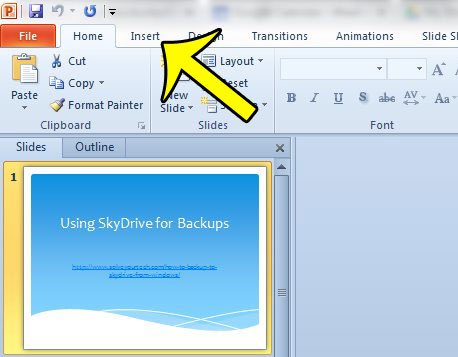
PowerPoint 2010 shown; the current ribbon looks different. - In the Text group, select Header & Footer or Slide Number. Both open the same Header and Footer dialog box.
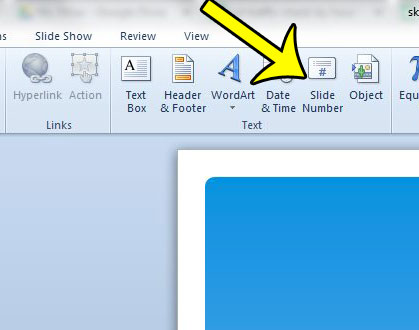
PowerPoint 2010 shown; current versions keep Slide Number on the Insert tab. - On the Slide tab, check Slide number.
- Check Don’t show on title slide if the cover slide should stay clean.
- Select Apply to All.
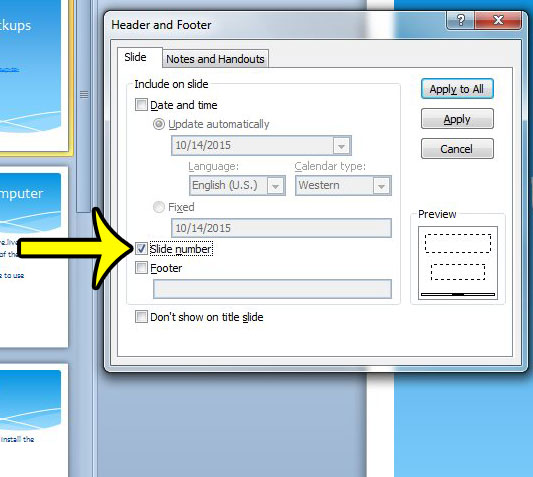
PowerPoint 2010 shown; the current dialog has the same check boxes.
The number lands wherever your theme puts it, usually a bottom corner. If you see nothing after Apply to All, skip ahead to the Slide Master fix below. The same Slide tab also has Date and time and Footer boxes if you want those on the slides too.
Number one slide or a few slides only
Select the slide, open Insert > Slide Number, check Slide number, and select Apply instead of Apply to All. Only that slide gets a number, and the number is still the slide’s real position in the deck. A presenter who wants numbers only on the agenda and the data slides of a 30-slide deck would repeat this on each of those slides.
Start numbering at a number other than 1
Handy when a deck continues another one, or when a cover slide plus an agenda should not count.
- On the Design tab, in the Customize group, select Slide Size > Custom Slide Size.
- In the Number slides from box, enter the starting number (for example, 0 so the slide after the cover reads 1).
- Select OK.
Be careful in this dialog: it is also where the slide width, height and orientation are set, so leave those values alone unless you mean to resize. If PowerPoint asks whether to Maximize or Ensure Fit, the slide size has changed; select Cancel and check the width and height. The full set of size choices is covered in the steps to change the slide size in PowerPoint.
Microsoft’s Mac instructions describe the starting number differently (see the Mac section), and its PowerPoint for the web instructions do not mention a starting number at all, so open the desktop app if you need one.
Slide numbers not showing? Fix the layout in Slide Master
When the box is checked and Apply to All does nothing, the slide layout usually has its footers turned off. Microsoft’s footer troubleshooting page gives this fix:
- Select a slide where the number is missing.
- On the View tab, select Slide Master. The layout used by that slide is highlighted in the thumbnail pane.
- On the Slide Master tab, in the Master Layout group, check Footers.
- If that is not enough, select the large slide master thumbnail at the top of the pane, select Master Layout, turn on Date, Slide number and Footer, and select OK. Then repeat step 3 for each layout your slides use.
- Select Close Master View, then run Insert > Slide Number > Apply to All again.
Other causes worth checking:
- Something covers the number. A picture or shape placed over the corner hides it. Open Home > Select > Selection Pane (or press Alt+F10) and hide objects one at a time to find the one in the way.
- Slides pasted from another deck. They can bring their own slide master, so the number sits in a different spot or font, or is missing. Fix that master’s layouts as above, or reapply one of your own layouts to those slides.
- The title slide is blank but you wanted a number. Clear Don’t show on title slide and apply again.
Move or restyle the number on every slide
Change the number once on the master instead of slide by slide. Go to View > Slide Master, select the slide master thumbnail at the top of the pane, then drag the page number placeholder to a new spot once the four-headed arrow appears. With the placeholder selected you can also change its font, size and color on the Home tab. Select Close Master View when you are done. If a layout still shows the old position, select that layout thumbnail and adjust its placeholder too.
Want “Slide 4 of 18”? Microsoft has a separate page on showing the slide number and total number of slides. Keep in mind that a total you type yourself does not change when slides are added or removed.
Remove slide numbers
Open Insert > Slide Number, clear the Slide number box on the Slide tab, and select Apply to All. To remove the number from one slide, select that slide, clear the box and select Apply.
Page numbers on printed notes and handouts
Printed speaker notes have their own numbering. Go to Insert > Header & Footer, open the Notes and Handouts tab, check Page number (Microsoft says it is on by default), and select Apply to All. Preview the result with View > Notes Page, and when you are ready, print the slides with their notes.
Handout pages (several slides per sheet) are controlled from View > Handout Master, where the Page Number check box in the Placeholders group shows or hides the number. If you print handouts often, see how to print multiple slides on one page.
PowerPoint for Mac and PowerPoint for the web
Mac
Go to Insert > Header & Footer (or Insert > Slide Number), check Slide number on the Slide tab, add Don’t show on title slide if needed, and select Apply to All. To start from another number, go to Insert > Slide Number and enter the starting slide number. Hidden slides are included in the count, so a hidden slide 3 still makes the next visible slide read 4.
PowerPoint for the web
Select Insert > Footer > Slide Number. In the Footer pane, check Slide Number, optionally check Don’t show on title slide, then select Apply to All (or Apply to Selected Slides) and close the pane. Microsoft’s web footer instructions list these labels.
PowerPoint 2010 to 2019
Older Windows versions use the same idea: Insert tab, Slide Number (in the Text group), then the Slide number check box, Don’t show on title slide, and Apply or Apply to All, which is what the PowerPoint 2010 screenshots above show. Microsoft’s current pages list PowerPoint 2016 and later, so exact labels in 2010 and 2013 may differ slightly.
Slide number troubleshooting Q&A
Why does my second slide say 2 when the title slide has no number?
Don’t show on title slide hides the number but does not renumber the deck, so the title slide is still slide 1 and the next one reads 2. To make the second slide read 1, set Number slides from to 0 as described above.
Do hidden slides change the numbering?
Yes, according to Microsoft’s Mac documentation, hidden slides are included in the count. If the audience must see an unbroken sequence, Microsoft suggests numbering the visible slides yourself with text boxes.
Why do the numbers look different on a few slides?
Those slides probably use another layout or a second slide master, often after pasting from another deck. Check them in Slide Master view.
Can I number slides like this in other apps?
Yes. Google Slides has its own option, explained in how to add slide numbers in Google Slides, and documents use page numbers instead: see how to add page numbers in Word for the web.
Next step: run Slide Show from the second slide and check the corner of each slide, then check one printed notes page in Print Preview. If you also hand out spreadsheets, a related print fix is to print the top row on every page in Excel so each printed page keeps its column labels.

Kermit Matthews runs Live2Tech from just outside Philadelphia. He is an IT specialist with over 20 years of experience, from a university help desk to small-business IT, IT management and his own consulting practice, and has written tech guides full time since 2020. Steps are checked against the current software on a real device or the maker’s official documentation. More about Kermit.