To delete a slide in PowerPoint, click its thumbnail in the pane on the left side of the window and press Delete, or right-click the thumbnail and select Delete Slide. You can remove several slides in one go, bring a slide back with Undo right after, or use Hide Slide when you only want PowerPoint to skip it during the show. The steps below are for PowerPoint in Microsoft 365 on Windows, with sections for Mac, the web and the mobile apps.
Delete one slide in PowerPoint for Windows
Everything here happens in Normal view, the standard editing view with the column of slide thumbnails on the left. Microsoft’s instructions for deleting a slide use the thumbnail’s right-click menu, so start there rather than hunting through the ribbon.
- Open the presentation in PowerPoint.
- In the thumbnail pane on the left, find the slide you want to remove.
- Right-click that thumbnail.
- Select Delete Slide.
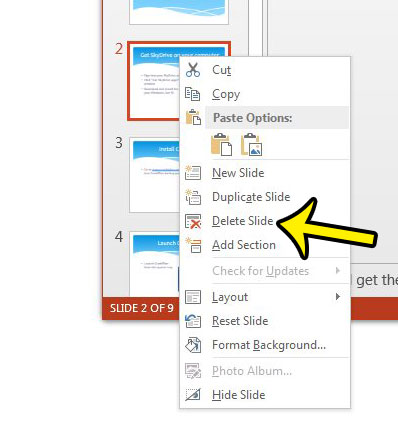
PowerPoint 2013 is shown above; the current menu looks different, but Delete Slide is still on the thumbnail’s right-click menu.
The keyboard route is just as quick. Click the thumbnail once so it has a highlighted border, then press the Delete key. Microsoft documents this for screen reader users too: move to the thumbnail pane, use the Up or Down arrow key to reach the slide, and press Delete.
One thing to watch: the Delete key acts on whatever has focus. If you last clicked inside a text box on the big slide in the middle of the screen, pressing Delete removes text, not the slide. Click the thumbnail first so the selection is in the left pane.
Don’t expect a confirmation prompt. The slide disappears the moment you choose the command, the slides after it move up one place, and if you added slide numbers to the presentation, the remaining slides renumber on their own. That is why the Undo section below matters.
If you might want the slide somewhere else later, cut it instead: select the thumbnail, press Ctrl+X, then click where it belongs and press Ctrl+V. The slide leaves its old spot but stays on the clipboard until you paste it.
Remove several slides at once
Deleting slides one at a time gets tedious in a long deck. PowerPoint lets you select a group first and delete them together.
Slides that are not next to each other
- Click the first slide you want to remove in the thumbnail pane.
- Hold down Ctrl and click each of the other slides. Each one gets a highlight.
- Right-click any of the selected thumbnails and select Delete Slide.
A run of slides in a row
- Click the first slide of the run.
- Hold down Shift and click the last slide of the run. Everything between them is selected.
- Right-click the selection and select Delete Slide.
Use Slide Sorter for big clean-ups
The narrow thumbnail pane makes it hard to judge a 60-slide deck. Slide Sorter view lays every slide out in a grid, which is easier when you are trimming a lot.
- Select View on the ribbon, then Slide Sorter. You can also switch views from the buttons on the task bar at the bottom of the window.
- Use Ctrl-click or Shift-click to select the slides to remove.
- Right-click one of the selected slides and choose Delete Slide, or press Delete.
- Select View > Normal to go back to editing.
A quick check before you delete a big batch: scroll the selection once more. A stray Ctrl-click on the wrong slide is easy to miss in a grid of small pictures.
Delete a whole section and its slides
If your deck is split into sections (named groups of slides), you may want to drop an entire part, such as an old appendix. Microsoft’s sections page covers this from Slide Sorter: select View > Slide Sorter, then right-click the section name and select Delete.
If some slides seem to be missing before you start deleting, the sections may just be folded, so first expand all sections in PowerPoint.
That page does not say whether the slides inside go with the section, so the safest route is to do it in two steps:
- In Slide Sorter, click the first slide in the section, hold Shift and click the last slide in it.
- Right-click the selection and choose Delete Slide.
- Right-click the now-empty section name and select Delete.
To tidy section names instead of deleting them, see how to rename a section in PowerPoint.
Undo a deletion or get an older copy back
Deleted the wrong slide? Act right away. Microsoft’s Undo page says to press Ctrl+Z on your keyboard or select Undo on the Quick Access Toolbar. Press it again to step further back, and use Ctrl+Y (or F4) to redo if you undo one step too many.
Undo works best straight away, while the presentation is still open. If you have already saved and closed the file, there are two other ways back:
- Version history. For a file stored in OneDrive or SharePoint in Microsoft 365, open the file, click its title at the top of the window and select Version history. Open an earlier version that still has the slide, then copy the slide back into the current deck or restore that version.
- Another copy. An email attachment, a copy someone else has, or a backup can still hold the slide. Open it, copy the slide from the thumbnail pane and paste it into your presentation.
For a deck you plan to cut heavily, a simple habit helps: save a copy under a new name first, then trim the working copy. The untouched copy is your safety net if Undo is no longer available.
Hide a slide instead of deleting it
Sometimes a slide is only wrong for one audience. A trainer may skip the pricing slide for an internal group but need it for customers next week. Hiding keeps the slide in the file and skips it when you run the show.
- In the thumbnail pane, right-click the slide.
- Select Hide Slide.
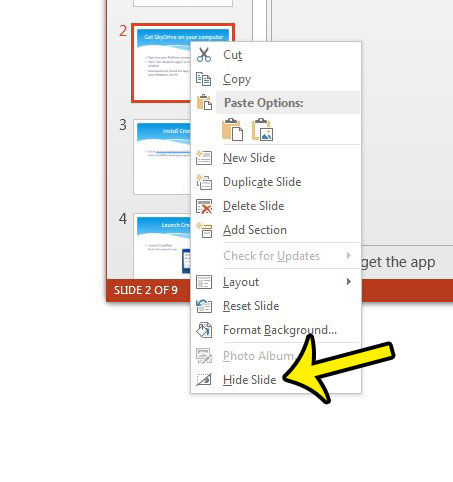
PowerPoint 2013 is shown above; current versions put Hide Slide on the same right-click menu with a different look.
A hidden slide shows a slash through its slide number in the thumbnail pane. To show it again, right-click it and select Unhide Slide. If you need a hidden slide during a presentation, right-click the screen in Slide Show, select See All Slides, and pick it.
Keep the privacy side in mind. Microsoft notes that a hidden slide remains in the file and is only hidden while Slide Show runs. Anyone you send the file to can unhide it, so delete (not hide) anything the recipient should not see.
Delete slides on a Mac, on the web and on your phone
PowerPoint for Mac
Microsoft’s steps for the Mac match Windows: right-click the slide’s thumbnail and click Delete Slide, or simply select the slide and press Delete.
PowerPoint for the web
PowerPoint in a browser also shows a thumbnail pane on the left. Microsoft’s slide page does not give separate steps for the web, so right-click the slide’s thumbnail and look for Delete Slide there. If the editing commands are missing in a shared file, ask the owner for edit permission.
PowerPoint on Android, iPhone and iPad
- Open the presentation in the PowerPoint app.
- In the thumbnail pane (along the bottom or the left side, depending on your device), tap the thumbnail of the slide you want to remove.
- On the pop-up menu that appears, tap Delete.
When Delete Slide is greyed out or the thumbnails are missing
- A yellow bar across the top. Files from email or the internet often open in Protected View, which is read-only. Select Enable Editing on the message bar if you trust the file. If the bar is red, Microsoft says to select File > Edit Anyway, but only do that when you are sure the file is safe.
- No thumbnail pane. You may be in a different view, such as Reading View or Outline View. Select View > Normal, or use the view buttons on the task bar at the bottom of the window.
- A slide show is running. Press Esc to leave the show, then delete from the thumbnail pane.
- Someone else’s shared file. If you were given view-only access, the editing commands stay unavailable until the owner grants edit permission.
Deleting slides: common questions
How do I delete a slide I already hid?
Hidden slides still sit in the thumbnail pane, marked with a slash through the number. Right-click the thumbnail and select Delete Slide exactly as you would for any other slide; you don’t need to unhide it first.
I’m cutting slides to get the file small enough to email. What else helps?
Large pictures are usually what makes a deck heavy, so trimming slides only goes so far. Once the unwanted slides are gone, compress the pictures in PowerPoint to shrink what is left.
Can I delete just a picture or text box instead of the whole slide?
Yes. Click the object on the slide itself (not the thumbnail) and press Delete. Pictures work the same way; see how to delete a picture in PowerPoint.
Do these steps work in older PowerPoint versions?
Microsoft’s delete and hide pages apply to PowerPoint for Microsoft 365 and to PowerPoint 2024, 2021, 2019 and 2016. Older versions such as PowerPoint 2013, shown in the screenshots here, use the same right-click Delete Slide command, though the menus look different.
Going the other way and need a new slide with the right layout? Here is how to add a formatted slide to a slideshow. And if you build decks in Google Slides as well, it has its own method to delete more than one slide at a time in Google Slides. For the full list of Microsoft’s slide commands, see its page on how to add, rearrange, duplicate and delete slides.

Kermit Matthews runs Live2Tech from just outside Philadelphia. He is an IT specialist with over 20 years of experience, from a university help desk to small-business IT, IT management and his own consulting practice, and has written tech guides full time since 2020. Steps are checked against the current software on a real device or the maker’s official documentation. More about Kermit.