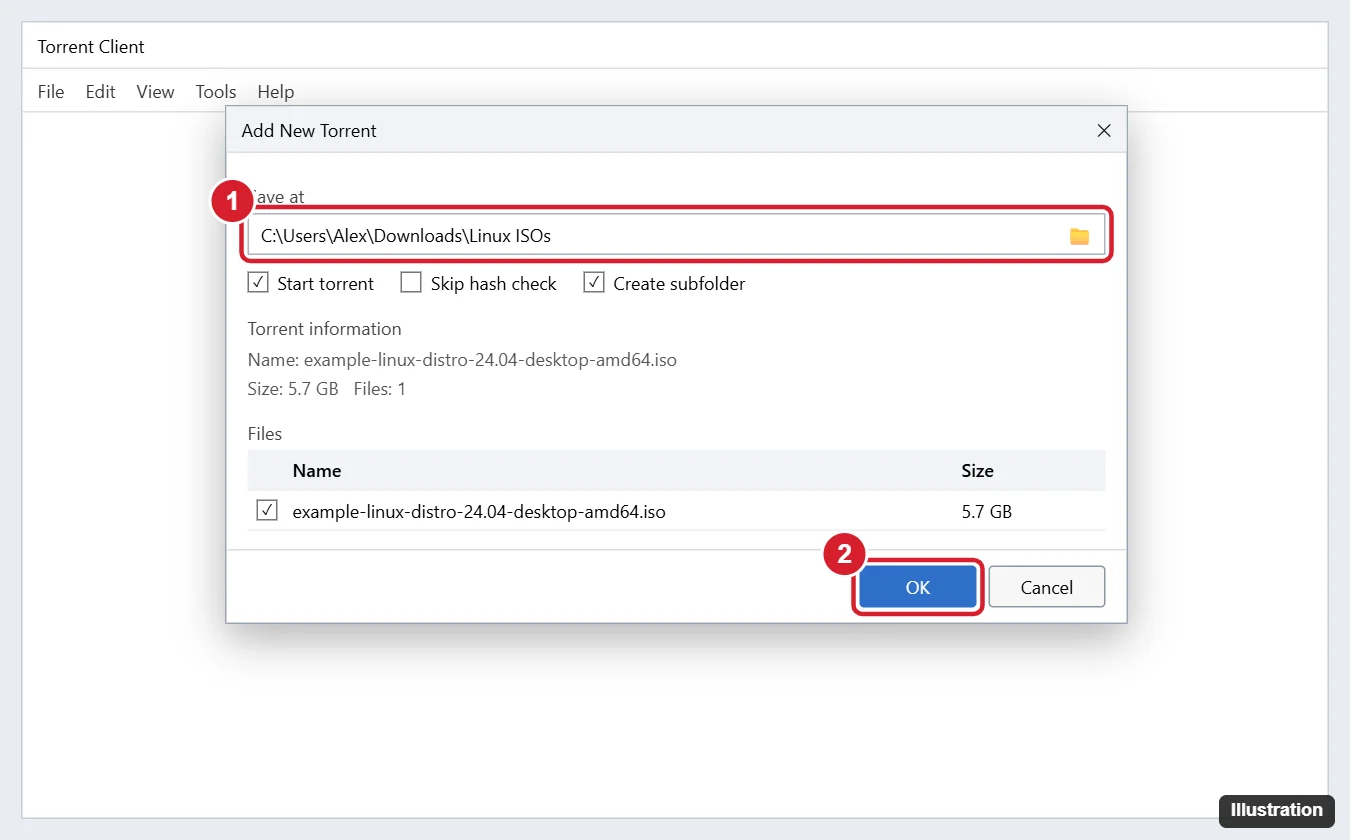
A .torrent file doesn’t contain the actual download. It’s a small file that tells a BitTorrent program where to find the pieces of the real files from other computers. Windows 10 has no built-in torrent support, so install a reputable client (for example, the free, open-source qBittorrent). Then double-click the .torrent file, or open the client and choose File > Add Torrent File. Pick a save location, click OK, and the download starts.
Use torrents legally and safely: BitTorrent is widely used for legitimate files such as Linux distributions, open-source software, public-domain media, and game patches. Downloading or sharing copyrighted material without permission is illegal in many countries. Only open torrents from sources you trust, and scan downloaded files with Windows Security.
Step 1: Choose and Install a BitTorrent Client
Look for a client that’s open source or well established, with no bundled adware. Popular choices include qBittorrent, Transmission, and Deluge. Download only from the project’s official website.
- Go to the client’s official site and download the Windows 64-bit installer.
- Run the installer. Read each screen and decline any extra offers, toolbars, or antivirus trials.
- When asked, allow the installer to associate .torrent files and magnet links with the client, so double-clicking opens them automatically.
- If Windows Defender Firewall asks, allow the app on Private networks.
Can I open a torrent file without installing anything?
Not in Windows 10 itself. Some web-based services can download torrents for you, but they have privacy and security tradeoffs; a local client is more reliable.
Step 2: Open the .torrent File
- Double-click the .torrent file in File Explorer (usually in your Downloads folder). If Windows asks which app to use, choose your torrent client and check Always use this app.
- Or open the client and choose File > Add Torrent File (or drag the file onto the client window).
- In the Add New Torrent dialog, check the file list and uncheck any files you don’t want.
- Set Save at to the folder where you want the download, and click OK.
Open a Magnet Link Instead
Many sites offer magnet links instead of .torrent files. Click the link in your browser and allow it to open your torrent client, or copy the link and use File > Add Torrent Link in the client. The client fetches the torrent information and shows the same Add dialog.
Step 3: Manage the Download
- Progress: the main window shows percentage, speed, peers, and estimated time.
- Pause or resume: right-click the torrent and choose Pause or Resume.
- Limit speed: set upload and download limits in the client’s options if torrents slow your internet.
- Seeding: after finishing, the client keeps uploading to others. You can stop by right-clicking and choosing Pause or Remove.
- Remove without deleting files: choose Remove and make sure Also delete the files is unchecked.
Step 4: Open the Downloaded Files
Right-click the finished torrent and choose Open destination folder. Scan files with Windows Security (right-click > Scan with Microsoft Defender) before opening them. Compressed archives may need extracting: Windows 10 opens ZIP files natively; for .7z or .rar, use a free tool like 7-Zip.
If a Torrent Won’t Download
- Stuck at 0% or “Stalled”: the torrent may have few or no seeders. Wait, or find a better-seeded source.
- “Metadata” loading forever for a magnet link: check your internet connection and firewall; the torrent may also be dead.
- Very slow downloads: check the client’s speed limits, allow it through the firewall, and see if your internet provider or network (work, school) blocks torrent traffic.
- Double-clicking opens the wrong app: go to Settings > Apps > Default apps > Choose default apps by file type, find .torrent, and pick your client.
- Windows Security flags the file: delete it. Don’t override security warnings for files from unknown sources.

Kermit Matthews runs Live2Tech from just outside Philadelphia. He is an IT specialist with over 20 years of experience, from a university help desk to small-business IT, IT management and his own consulting practice, and has written tech guides full time since 2020. Steps are checked against the current software on a real device or the maker’s official documentation. More about Kermit.