Icons for Netflix on the Windows desktop come from either the Netflix app or a browser shortcut, and each is made a different way. Before you start, check which one you have: if Netflix appears in your Start menu app list, the app is installed; if you always watch at netflix.com, you need a browser shortcut or an installed web app. The table below matches each kind of icon to its steps.
Which Netflix icon do you want?
| You want | How it opens | Make it with |
|---|---|---|
| The Netflix app | In the Netflix app for Windows | The Microsoft Store, then pin it or put it on the desktop |
| Netflix in its own window, like an app | In a separate Edge or Chrome window without tabs | Edge “Install this site as an app” or Chrome “Install page as app” |
| A shortcut that opens a browser tab | In Chrome, or in your default browser | Chrome “Create shortcut” or the desktop’s New > Shortcut |
All three put a Netflix icon on the desktop. The app and the installed web app also show up in the Start menu, which makes them easy to pin to the taskbar.
Pin or place the Netflix app
Netflix says its app runs on Windows 10 and later, and that the Netflix app for Windows requires the Microsoft Edge browser to be installed. Windows 10 has reached the end of support on October 14, 2025, according to Microsoft’s Windows 10 end of support page, so a Windows 10 PC no longer gets security updates unless it is enrolled in Extended Security Updates.
If the app isn’t installed yet, the Netflix help page for Windows gives the Store route: open the Microsoft Store, search for Netflix, select it, and select Install. Installing the app, and what it can and cannot do offline, is covered in downloading Netflix on Windows.
Once it is installed:
- Open Start and find Netflix in the app list, or type Netflix in the search box.
- Right-click it and select Pin to Start. On the same menu (or under More), you can pin it to the taskbar.
- For an icon on the desktop itself, drag Netflix from the Start menu app list onto an empty part of the desktop. Windows creates a shortcut and leaves the app where it is.
The pinned tile and the desktop shortcut use the Netflix logo that comes with the app, so there is nothing to change.
Install Netflix as an app from Microsoft Edge
An installed site opens netflix.com in its own window with its own icon. Microsoft documents the steps on its Edge apps page:
- Open netflix.com in Microsoft Edge.
- Select Settings and more (the three dots) > More tools > Apps > Install this site as an app, and confirm the install.
- Type
edge://appsin the address bar and press Enter. Netflix is listed there. - Select Details on the Netflix card, then choose Create Desktop shortcut. Pin to taskbar and Pin to Start are on the same card.
The same card has an Auto-start on device login switch. Leave it off unless you want Netflix to open every time you sign in to Windows.
If you only want a quick Start menu tile for the site, Edge also offers More tools > Pin to Start from the same Settings and more menu.
Put Netflix on the desktop from Google Chrome
Chrome has two routes, and Google describes both in its help center.
A shortcut that opens a Chrome tab
- Open netflix.com in Chrome.
- At the top right, select More (three dots) > Cast, save, and share > Create shortcut…
- Keep the name Netflix, or type a new one, and select Create.
Google’s website shortcut page covers the dialog. The same pattern works for any site; creating a Chrome shortcut on the desktop shows it for Chrome itself.
Netflix as a Chrome web app
- Open netflix.com in Chrome.
- Select More > Cast, save, and share > Install page as app… On some sites, an Install button also appears at the right of the address bar.
- Confirm. The installed app opens in its own window and can be started from the desktop or Start menu.
Google’s web apps page also explains removal. If a desktop icon is missing after installing, open chrome://apps, right-click Netflix and select Create shortcut. Installing a site this way is the same idea as adding Google Calendar to the desktop.
Make a plain link shortcut with New > Shortcut
This works without installing anything and opens Netflix in your default browser.
- Right-click an empty spot on the desktop and choose New, then Shortcut.
- Type
https://www.netflix.comas the location and select Next. - Type Netflix as the name and select Finish.
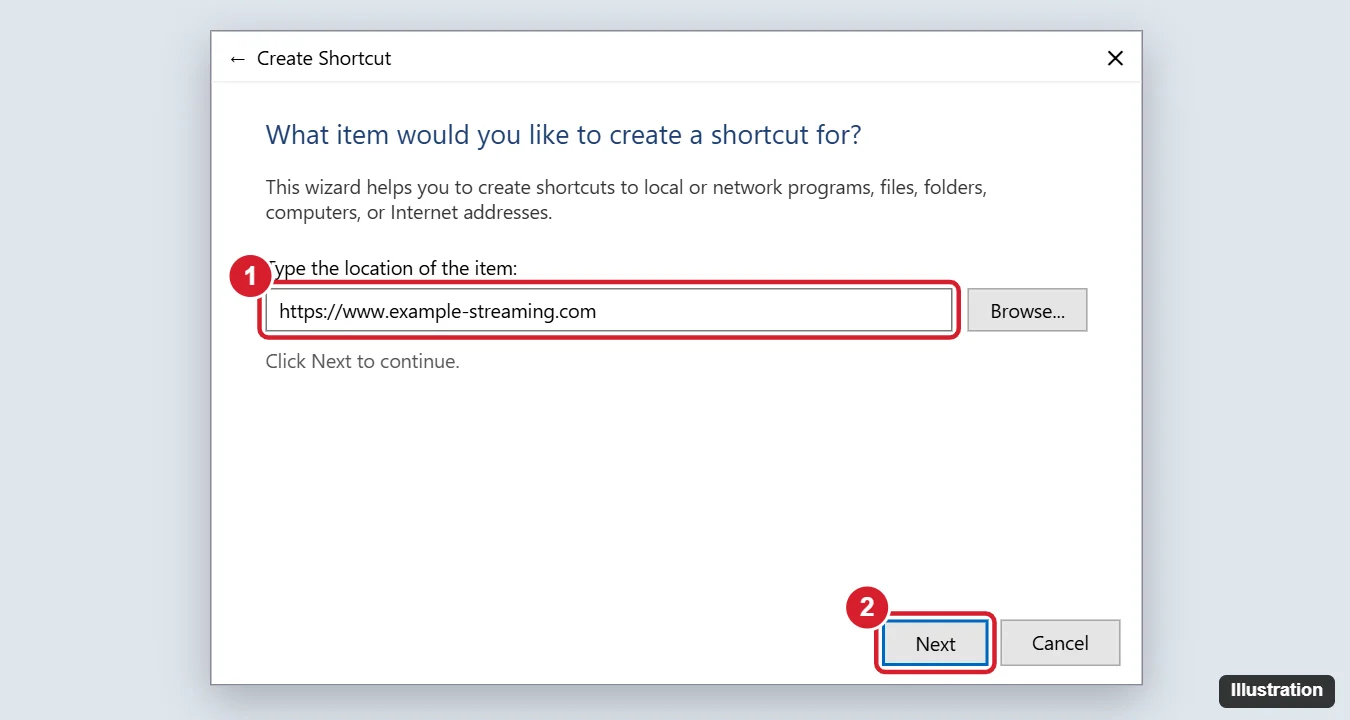
A plain shortcut usually shows your browser’s icon or a generic web icon, not the Netflix logo. If you want the red N, use one of the app or web app routes above, which pick up Netflix’s own icon automatically.
Shortcuts to other places, such as This PC, are made in a similar way; see adding a This PC shortcut to the desktop.
Change or remove the Netflix icon
- Change the picture. Right-click the shortcut and choose Properties. The change-icon button there lets you pick from icons Windows or the program already provides. Changing app and desktop icons walks through it. Skip icon files from download sites; they are not from Netflix or Microsoft.
- Remove a shortcut. Right-click it and choose Delete. That removes only the shortcut, not the app, the web app or your Netflix account.
- Remove an Edge web app. Open
edge://apps, select Details on the Netflix card, and choose Uninstall. - Remove a Chrome web app. Open the app, select More, then Uninstall Netflix, and confirm with Remove.
Netflix desktop icon questions
Is the Edge or Chrome Netflix icon the same as the Netflix app?
No. An installed web app is netflix.com in its own Edge or Chrome window. The Netflix app is a separate program from the Microsoft Store. Both play your account’s shows; Netflix’s browser and system requirements page lists which browsers are supported and what quality they can play.
Can I download shows from a Netflix desktop shortcut?
No. A shortcut or web app only opens Netflix for streaming. Netflix’s list of devices that can download titles does not include Windows computers, as its download help page shows.
Why does my Netflix shortcut open the wrong browser?
A plain New > Shortcut link opens in your default browser. Change the default browser in Windows Settings under Apps > Default apps, or use the Edge or Chrome route so the icon always opens in that browser.

Kermit Matthews runs Live2Tech from just outside Philadelphia. He is an IT specialist with over 20 years of experience, from a university help desk to small-business IT, IT management and his own consulting practice, and has written tech guides full time since 2020. Steps are checked against the current software on a real device or the maker’s official documentation. More about Kermit.