The fastest way to get a Google Chrome icon on a Windows 11 desktop is to open Start, select All to see every installed app, and drag Google Chrome onto an empty part of the desktop. If what you really want is one click to a favorite website, Chrome’s own menu can make a desktop shortcut for any page, and that is the route most people end up using.
Pick the kind of shortcut first
A “Chrome shortcut” can mean three different things, and each one is made in a different place:
| You want the icon to… | Make it with | Section |
|---|---|---|
| Open Chrome to its normal start page | Windows Start menu or File Explorer | Put the Chrome browser on the desktop |
| Open one website, such as a work dashboard or webmail | Chrome’s Cast, save, and share menu | Make a desktop shortcut to a website |
| Open an installed web app in its own window | chrome://apps | Shortcuts for installed web apps |
A desktop shortcut is only a pointer. Deleting it never uninstalls Chrome or removes a website, so you can experiment freely.
Put the Chrome browser on the desktop (Windows 11)
These steps work on current versions of Windows 11. Chrome must already be installed; if Start doesn’t list it, see the troubleshooting section below.
Drag it out of the Start menu
- Select Start on the taskbar, then select All to show the full list of installed apps.
- Scroll to Google Chrome. The All view can be shown as a category, grid or list layout, and the app appears in whichever one you use.
- Drag Google Chrome onto an empty spot on the desktop and let go. Windows creates a shortcut with the Chrome logo and leaves the Start entry where it was.
Use Send to from the shortcut’s folder
If dragging is awkward (on a touchpad, for example), copy the shortcut through File Explorer instead.
- In Start, right-click Google Chrome and look for Open file location. On some builds it sits under More.
- A File Explorer window opens on the folder that holds the Chrome Start menu shortcut. Right-click the Google Chrome item there.
- Select Show more options > Send to > Desktop (create shortcut). Some Windows installs show the full menu right away, so you’ll see Send to without the extra step.
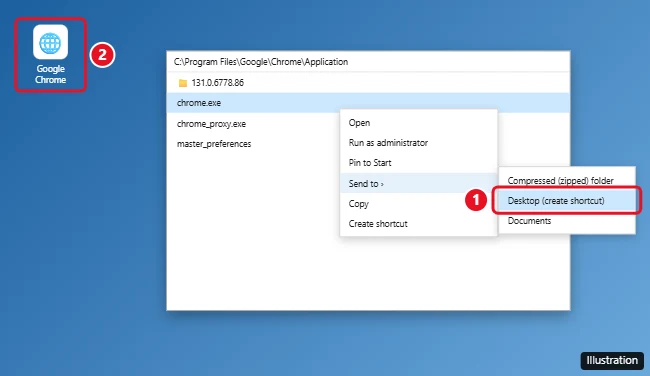
Go straight to chrome.exe
When the Start entry is missing or broken, point a shortcut at the program file itself. A standard install usually puts it in C:\Program Files\Google\Chrome\Application. Open that folder in File Explorer, right-click chrome.exe, and use the same Send to > Desktop (create shortcut) command. If the folder isn’t there, use the Google Chrome entry in Start instead.
A third route, right-clicking the desktop and choosing New > Shortcut, asks you to browse to the same chrome.exe file. That wizard is more useful for files, folders and Settings pages, which making shortcuts on Windows 11 covers in detail.
Windows 10 differences
On Windows 10, the Start menu usually shows the full app list right away, so you may not need to select All first, and the right-click menu may show Send to without Show more options. Microsoft no longer supports Windows 10, but these steps still work on it.
Make a desktop shortcut to a website
This is the option for anyone who opens the same page every morning. Google documents it for Chrome on Windows, Mac and Linux in its help page on creating website shortcuts.
- Open the website in Chrome and go to the exact page you want the icon to open (a specific inbox folder or report, not just the home page).
- Select More (the three dots at the top right) > Cast, save, and share > Create shortcut…
- Keep the suggested name or type a short one that will fit under a desktop icon.
- Select Create. The icon appears on the desktop and opens that page in Chrome.
Older Chrome versions kept this command under More tools > Create shortcut. If your menu still looks like that, Chrome probably needs updating.
Some older versions also showed an Open as window box in this dialog. Google’s current page describes only the name field and the Create button, so don’t count on that box. If you want a site to open in its own window without tabs, install it as a web app instead, as described next.
Microsoft also describes a drag-and-drop shortcut: drag the View site information icon (the padlock or sliders symbol next to the address) onto a visible part of the desktop. Google doesn’t document that gesture for Chrome, so treat it as a handy extra rather than the main method.
Shortcuts for installed web apps
Chrome can install many sites as web apps that open in their own window. According to Google’s guide to using web apps, you install one from More > Cast, save, and share > Install page as app…, or from an install icon at the right of the address bar on sites that support it. To put an installed app on the desktop:
- Type chrome://apps in the address bar and press Enter.
- Right-click the app and select Create shortcut.
- Choose where you want the shortcut (Google’s page mentions the desktop or menus), then select Create.
Calendar and mail services work well this way. Adding Google Calendar to the Windows 11 desktop walks through one full example.
A separate icon for each Chrome profile
People who keep work and personal browsing apart often want two Chrome icons, one per profile. Google’s profiles help page explains Customize profile for the name, photo and color, but it doesn’t describe a desktop shortcut switch. Some Chrome versions have shown a Create desktop shortcut toggle on that customize screen, so look there first: select your profile picture at the top right, then the pencil or Customize profile. If the toggle isn’t there, open a window for the profile you want, create the website shortcut from that window, then double-click the new icon to check which profile it opens. Giving each profile its own Chrome avatar also makes the icons easier to tell apart.
Mac: an alias on the desktop, or the Dock
Macs call a desktop shortcut an alias. Apple’s instructions for creating aliases on a Mac give two ways:
- Open Finder and go to Applications.
- Select Google Chrome, then choose File > Make Alias and drag the new alias to the desktop.
- Or hold Option-Command while you drag Google Chrome to the desktop; that makes the alias and places it in one move.
Many Mac users prefer the Dock, and Google’s own advice is simply to drag the Chrome app to your Dock. Removing an alias or Dock icon never deletes Chrome itself. If an alias you don’t want keeps appearing, see removing the Chrome icon from a Mac desktop.
Prefer the taskbar?
A taskbar pin stays visible even when windows cover the desktop. Google’s Chrome shortcut help says to right-click Chrome and select Pin to taskbar; the full walkthroughs are in pinning Google to the Windows 11 taskbar and adding Chrome to the Windows 10 taskbar.
When the shortcut is missing or doesn’t work
- No icons show on the desktop at all. Right-click an empty area of the desktop, select View, and make sure Show desktop icons is checked. Microsoft’s desktop icon guide covers this setting.
- Chrome isn’t in Start. It may not be installed for your account, or the install may be damaged. A clean reinstall of Chrome restores the Start entry, and then you can drag it out again.
- The shortcut says the item can’t be found. The file it points to moved, usually after a reinstall. Delete the old icon and make a new one.
- You deleted it by mistake. Check the Recycle Bin and restore it, or repeat any method above.
- The icon looks plain or wrong. Right-click it, choose Properties, and use Change Icon; changing app icons explains where to find .ico files.
Chrome desktop shortcut answers
Can I rename the shortcut after making it?
Yes. Right-click the icon, choose Rename (or select it and press F2), and type a new name. Renaming the shortcut doesn’t change Chrome or the website it opens.
Can I add other programs the same way?
Yes. The drag-from-Start and Send to methods work for nearly any installed app; adding an app to the Windows 11 desktop lists four ways.
Once the icon is in place, double-click it to confirm it opens the browser, page or profile you expected, then drag it wherever you like on the desktop.
The same Chrome menu can make an icon for a single site, as in putting a Netflix icon on the desktop.

Kermit Matthews runs Live2Tech from just outside Philadelphia. He is an IT specialist with over 20 years of experience, from a university help desk to small-business IT, IT management and his own consulting practice, and has written tech guides full time since 2020. Steps are checked against the current software on a real device or the maker’s official documentation. More about Kermit.