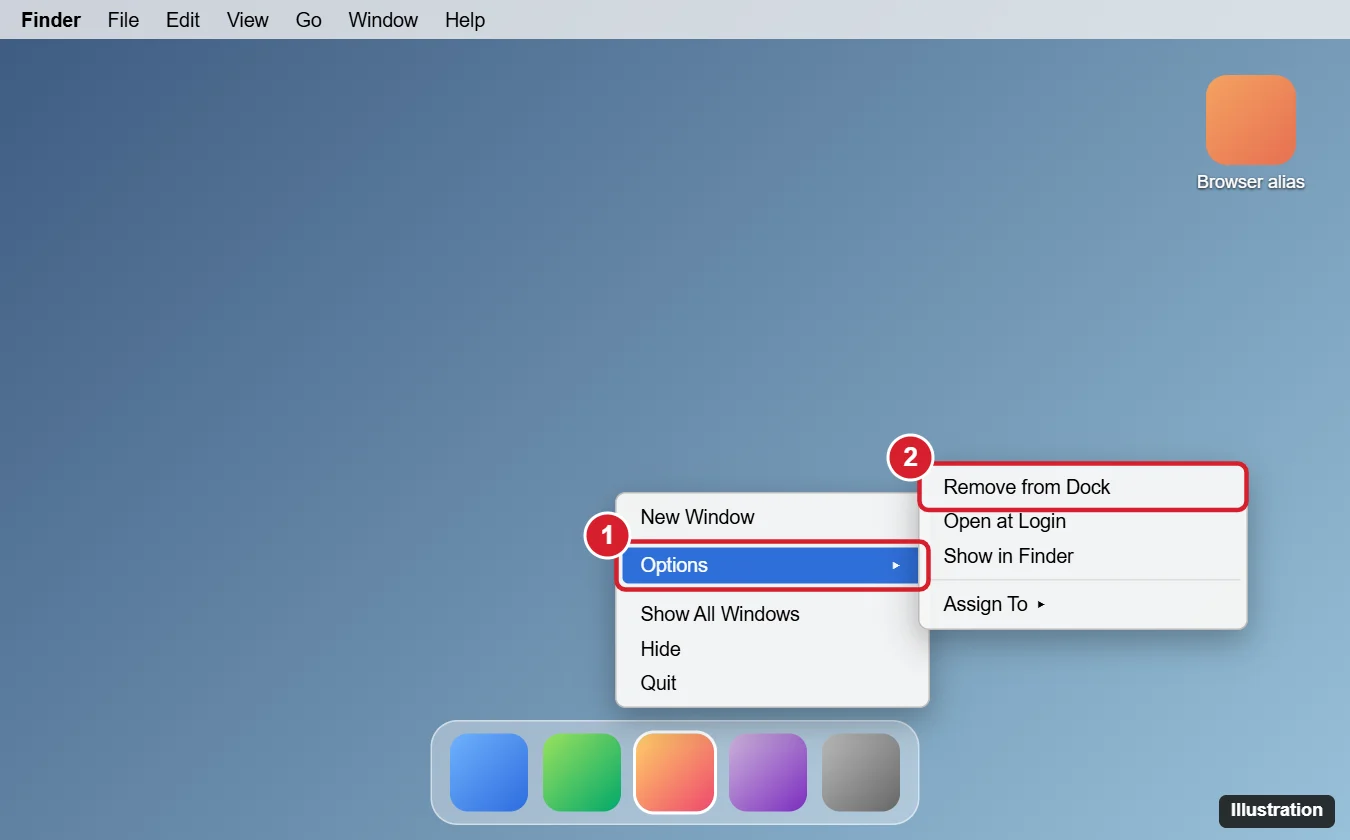
A Google Chrome icon can show up on a Mac in three different places, and none of them requires uninstalling Chrome to remove. Drag a desktop alias to the Trash, or select it and press Command + Delete. Right-click a leftover installer disk and choose Eject, then delete googlechrome.dmg from Downloads. For a Dock icon, right-click it and choose Options > Remove from Dock.
Remove a Chrome Alias from the Desktop
- Look at the icon: an alias has a small curved arrow in the bottom-left corner.
- Drag it to the Trash in the Dock, or click it once and press Command + Delete.
- Empty the Trash if you like. Chrome itself remains in your Applications folder.
If the icon has no arrow and you’re not sure what it is, right-click it and choose Get Info. If Kind says Application and Where is the Desktop, Chrome was installed on the desktop; move it into the Applications folder instead of deleting it.
Will deleting the desktop icon delete my bookmarks?
No. Removing an alias, ejecting the installer, or removing the Dock icon doesn’t touch Chrome’s data.
Eject the Chrome Installer Disk
After installing, macOS may leave the Google Chrome installer disk mounted on the desktop (it looks like a white drive icon).
- Right-click the disk and choose Eject “Google Chrome”, or select it and press Command + E. You can also click the eject button next to it in a Finder window’s sidebar.
- Open Downloads and move googlechrome.dmg to the Trash so it doesn’t get opened again.
- Make sure Chrome is in Applications. If you’ve been running it from the disk, drag Chrome into Applications first.
Remove Chrome from the Dock
- Quit Chrome if it’s open (a dot under the icon means it’s running; the icon stays while it’s open).
- Right-click (or Control-click) the Chrome icon in the Dock.
- Choose Options > Remove from Dock. Or drag the icon up and out of the Dock until you see Remove, then release.
How do I open Chrome after removing the icon?
Use Spotlight (Command + Space, type Chrome), Launchpad, or the Applications folder.
Stop Drives and Disks from Appearing on the Desktop
In Finder, choose Finder > Settings > General and uncheck External disks and CDs, DVDs, and iPods under Show these items on the desktop. Mounted installers won’t appear on the desktop anymore (they’re still in the Finder sidebar).
Want to Uninstall Chrome Completely?
- Quit Chrome.
- Open Finder > Applications, drag Google Chrome to the Trash, and enter your password if asked.
- Optionally delete profile data in ~/Library/Application Support/Google/Chrome (use Go > Go to Folder in Finder).

Kermit Matthews runs Live2Tech from just outside Philadelphia. He is an IT specialist with over 20 years of experience, from a university help desk to small-business IT, IT management and his own consulting practice, and has written tech guides full time since 2020. Steps are checked against the current software on a real device or the maker’s official documentation. More about Kermit.