Signing out of Pokémon GO happens from Settings inside the game, and it doesn’t delete your Trainer: the account and its progress stay attached to the login you used. To get back in later, sign in with the same email address and login method, which is why it pays to check that login before you tap Sign Out.
Sign out, delete the app or delete the account?
These three actions get mixed up, and only one of them is permanent.
| Action | What it removes | How to undo it |
|---|---|---|
| Sign Out in the game’s Settings | Your session on this phone only | Sign in again with the same login method and email |
| Delete the app from the phone | The app and its data on that device | Reinstall and sign in with the same login |
| Delete the Pokémon GO account | The account itself, after a request is processed | Can’t be undone once completed |
Your Trainer is tied to the login you used, not to the phone. The Pokémon GO Help Center’s sign-in page lists the options as Google, Facebook, Apple, Pokémon Trainer Central (PTC) and Kids at Scopely Explore, and says your password is maintained by that provider.
To remove the app on iPhone, Apple’s remove or delete apps guide says to touch and hold the app, tap Remove App, tap Delete App, then tap Delete to confirm. On Android, Google Play’s help covers this under deleting and managing unused apps. Deleting the account is a separate request: according to the Help Center’s account deletion article, you sign in with the account you want to delete and go to the app’s Settings, or use the support form and pick Delete My Account as the issue category. Verified requests may take several weeks and are irreversible once completed.
Sign out of Pokémon GO
- Open Pokémon GO and wait for Map View to load.
- Tap the Main Menu button.
- At the top right, tap Settings.
- Scroll down to the Account section and note the linked email address and login methods shown there.
- Tap Sign Out.
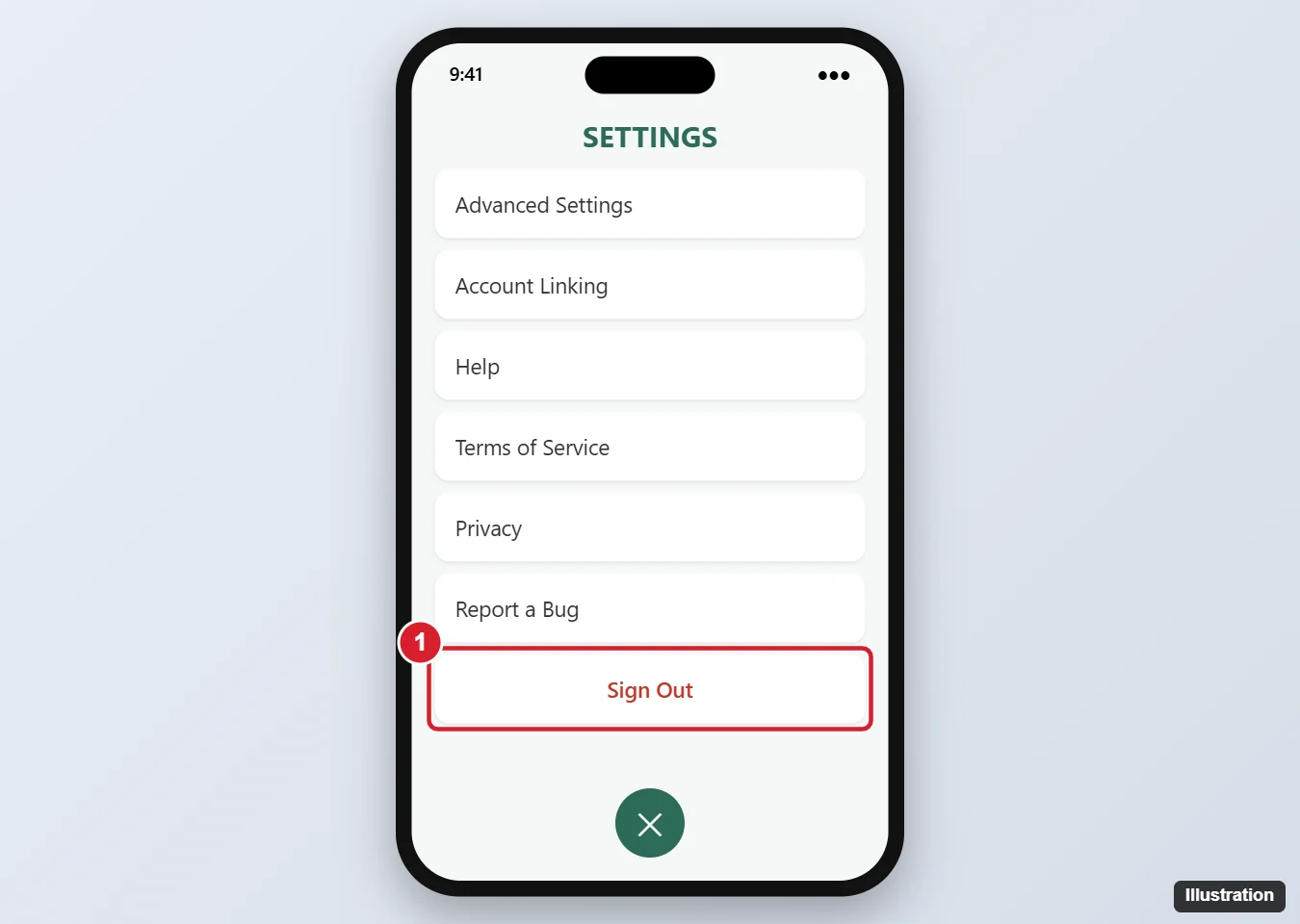
The illustration shows an older layout, so your Settings screen may look different. These steps follow the Help Center’s article on progress that looks reset to level 1, which gives one path without naming a platform.
Step 4 matters more than it looks. The Help Center explains that signing in with a different login method or email address can create another Pokémon GO account. That new Trainer starts at level 1, which can look like lost progress. The Help Center’s answer is that your gameplay progress has not been lost: sign out and sign in with the email address and login method you originally used.
If you see “Unable to authenticate” or “Failed to log in,” the Help Center suggests closing and reopening Pokémon GO, then trying again; its sign-in issues page also covers a forgotten email or login provider.
Two Trainers, one phone
To use a different Trainer on this phone, sign out, then sign in with that account’s own login method and email address. The Help Center describes no separate switch-account feature. Each account also has its own Trainer Code, so check where to find your Pokémon GO Trainer Code before you share one.
Moving between accounts is safer when each one has a backup way in. The Help Center’s linking guide lets you link one account each from Pokémon Trainer Central, Facebook, Google or Apple to the same Trainer.
- In Map View, tap the Main Menu, then tap Settings at the top right.
- Under the Account section, select the Not Linked checkbox next to the provider you want to add.
- Follow the prompts to sign in with that provider.
To remove a provider later, deselect its Linked checkbox. You can’t remove the one you used to sign in to your current session, and linking multiple providers isn’t available for child accounts. Linking applies to all Scopely Explore products, not just Pokémon GO. If you use Sign in with Apple, the Help Center’s Apple sign-in page recommends linking your Apple ID in Settings first to avoid errors or creating a new account by mistake.
Once you’re signed in to the right Trainer, a few settings are worth a look: Adventure Sync and the game’s sound on iPhone. Ready to battle again? See where Team Leader battles happen.

Kermit Matthews runs Live2Tech from just outside Philadelphia. He is an IT specialist with over 20 years of experience, from a university help desk to small-business IT, IT management and his own consulting practice, and has written tech guides full time since 2020. Steps are checked against the current software on a real device or the maker’s official documentation. More about Kermit.