In Windows 11, go to Settings > System > Notifications, select Notifications to expand its options, and clear Show notifications on the lock screen if your PC lists it. In Windows 10, look for the same option under Settings > System > Notifications & actions. If it isn’t there, or you only want some apps private, use the per-app option Microsoft documents, Hide content when notifications are on lock screen, which hides what each app’s notifications say there.
What changes when you turn it off
Notifications can appear in several places: as banners while you work, in the notification center, and on the lock screen that anyone near your PC can see without signing in. The steps below cover only that last place. Turning off lock screen notifications doesn’t silence your apps. Once you sign in, banners, sounds and the notification center behave exactly as before.
That makes it a good fit for a laptop you carry to a shared office, a family PC in the kitchen, or a desktop at a reception desk, where a message preview or a calendar alert could be read by whoever walks past.
Pick the approach that matches what you want:
| Goal | Setting to use |
|---|---|
| Nothing on the lock screen from any app | The global lock screen option (Windows 11 or Windows 10 steps below) |
| Hide only private apps, such as mail or chat | Hide content when notifications are on lock screen, set per app |
| No notifications anywhere | The main Notifications switch (see the last section) |
Turn off lock screen notifications in Windows 11
- Press Windows key + I to open Settings, or select Start > Settings.
- Select System, then Notifications.
- At the top of the page, make sure the Notifications switch is On, then select the word Notifications (not the switch) to expand its options.
- Clear the check box for Show notifications on the lock screen.
Microsoft’s Notifications and Do Not Disturb page confirms the Settings > System > Notifications path and the main Notifications switch, but it doesn’t list this global lock screen check box. If your PC doesn’t show it, the per-app method below, which Microsoft does document, at least hides each app’s notification content.
Turn off lock screen notifications in Windows 10
Windows 10 has reached end of support and no longer receives security updates, but the setting still works on PCs that run it. The screenshots below come from an older Windows 10 version.
- Select the Start button in the bottom-left corner of the screen.

- Select the Settings gear icon. You can also press Windows key + I to skip the first two steps.

- Choose System.
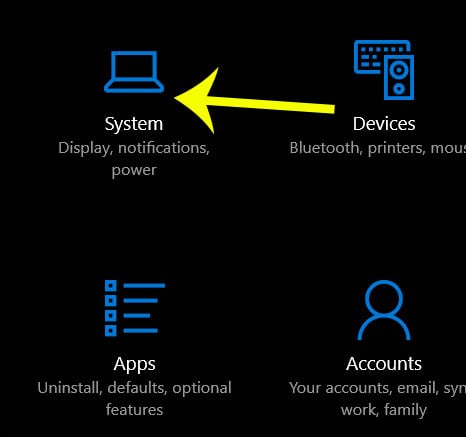
- Select Notifications & actions in the left column.

- Scroll to the Notifications area and turn off (or clear the check box for) Show notifications on the lock screen.

Hide lock screen content for just one app
Sometimes you want calendar reminders on the lock screen but not the text of your messages. Microsoft documents a per-app option for exactly this.
- Open Settings > System > Notifications.
- Under Notifications from apps and other senders, select the app you want to keep private, such as your mail or chat app.
- Turn on Hide content when notifications are on lock screen.
- Repeat for any other private apps.
Microsoft describes this option as a way to prevent sensitive notifications from showing on the lock screen. While you are on an app’s page, you will also see its other options, such as notification banners, the notification center, sound and priority, which affect alerts after you sign in.
In Windows 10, select the app from the list on the Notifications & actions page instead; its page should list the same lock screen option.
Check that it worked, and how to undo it
- Press Windows key + L to lock the PC.
- Wait for a notification to arrive, or ask someone to send you a test message or email.
- Look at the lock screen: nothing should appear (or, with the per-app option, the private app should show no content).
- Sign in and open the notification center. The notification should be there as usual.
To undo the change, go back to the same page and check Show notifications on the lock screen again (Windows 11), turn the option back on (Windows 10), or turn off Hide content when notifications are on lock screen for an app. For more on locking quickly, see how to lock your screen in Windows with Win + L.
If you want fewer notifications everywhere
If alerts bother you while you work, the main Notifications switch on the same Settings page turns off notifications from apps and other senders entirely. For per-app silencing, sounds and the other options on that page, see how to turn off notifications in Windows.
For temporary quiet, Windows 11 has Do not disturb: open the notification center and select the bell icon with zZ on it. Windows 10 PCs use Focus assist instead, and you can change Focus assist settings in Windows 10 to set quiet hours. If pop-ups come from a browser or a source you can’t identify, here is how to stop pop-ups on Windows 10 by where they appear.
Lock screen notification questions
Why can’t I change the lock screen option?
Check the main Notifications switch at the top of Settings > System > Notifications first. With it off, Windows shows no notifications anywhere, so the lock screen option may be unavailable or have no effect. On a work or school PC, your organization may also manage notification settings, so ask your IT team if the option is locked.
Does this apply to every account on the PC?
Microsoft’s notifications page doesn’t say whether the setting covers every account. The safe approach on a shared PC is to sign in to each account and check the setting there. If several people still share one sign-in, giving each person a separate account also keeps their notifications apart: here’s how to create a new user on Windows 10.
Moving between those accounts is quickest from the lock screen, as shown in how to switch users on Windows 11 from the lock screen.
Does this change my lock screen picture or widgets?
No. Background images and lock screen widgets are under Settings > Personalization > Lock screen. To change those, see how to change the lock screen on Windows 11.
Slack has its own sound settings on top of the Windows ones, which Slack notification sound not working covers step by step.

Kermit Matthews runs Live2Tech from just outside Philadelphia. He is an IT specialist with over 20 years of experience, from a university help desk to small-business IT, IT management and his own consulting practice, and has written tech guides full time since 2020. Steps are checked against the current software on a real device or the maker’s official documentation. More about Kermit.