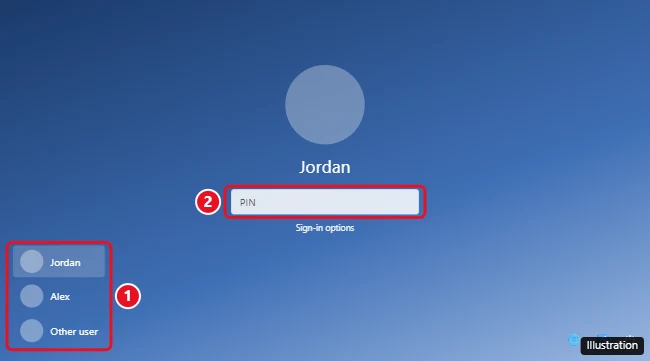
To switch users from the Windows 11 lock screen, press any key or click the lock screen to open the sign-in screen, then click the account you want in the list in the bottom-left corner. Enter that account’s PIN or password to sign in. The other person stays signed in, with their apps still open. If you’re already signed in, press Ctrl + Alt + Delete and choose Switch user, or click Start, your profile picture, and the other account. Lending the PC to someone for an afternoon works best with a separate Visitor account for guests on Windows 11 that they sign out of when finished.
How to switch users from the lock screen
- On the lock screen, press any key, click, or swipe up to dismiss it.
- Look at the bottom-left corner of the sign-in screen for the list of accounts.
- Click the account you want to use.
- Enter that account’s PIN, password, or use Windows Hello.
Other ways to switch users
- Ctrl + Alt + Delete: Press the keys and click Switch user.
- Start menu: Click Start, click your profile picture at the bottom-left, and choose another account.
- Windows + L: Locks your account and shows the lock screen so someone else can sign in.
- Alt + F4 on the desktop: Click an empty part of the desktop, press Alt + F4, and choose Switch user.
Don’t see other accounts on the sign-in screen?
- The account doesn’t exist yet. Add one in Settings > Accounts > Other users > Add account. See how to add a user to Windows 11.
- Use “Other user.” If only Other user appears, click it and type the account’s email or username and password.
- Fast user switching is turned off. On Windows 11 Pro, open gpedit.msc and go to Computer Configuration > Administrative Templates > System > Logon. Set Hide entry points for Fast User Switching to Not configured or Disabled. Work and school PCs may have this set by IT.
- Restart the PC. After a restart, the sign-in screen usually lists all accounts.
Switching vs. signing out
Switching users keeps your apps and files open in the background. It’s quick, but it uses more memory, and the other user can’t shut down the PC without warning that you’ll lose unsaved work. If you’re done for the day, sign out instead: Start > profile picture > Sign out.
Switching to an administrator account is also the first move if you plan to remove an unused account from Windows 11.
Switching keeps your apps running in the background, so when you are finished for the day it is better to sign out of your Windows account instead.
Frequently asked questions
Can two people use Windows 11 at the same time?
Both can stay signed in, but only one can use the screen at a time. Switching users moves between them.
Will switching users close my apps?
No. Your apps stay open until you sign out or restart.
Is this the same on Windows 10?
Yes. Windows 10’s sign-in screen also lists other accounts in the bottom-left corner, and the shortcuts are the same.

Kermit Matthews runs Live2Tech from just outside Philadelphia. He is an IT specialist with over 20 years of experience, from a university help desk to small-business IT, IT management and his own consulting practice, and has written tech guides full time since 2020. Steps are checked against the current software on a real device or the maker’s official documentation. More about Kermit.