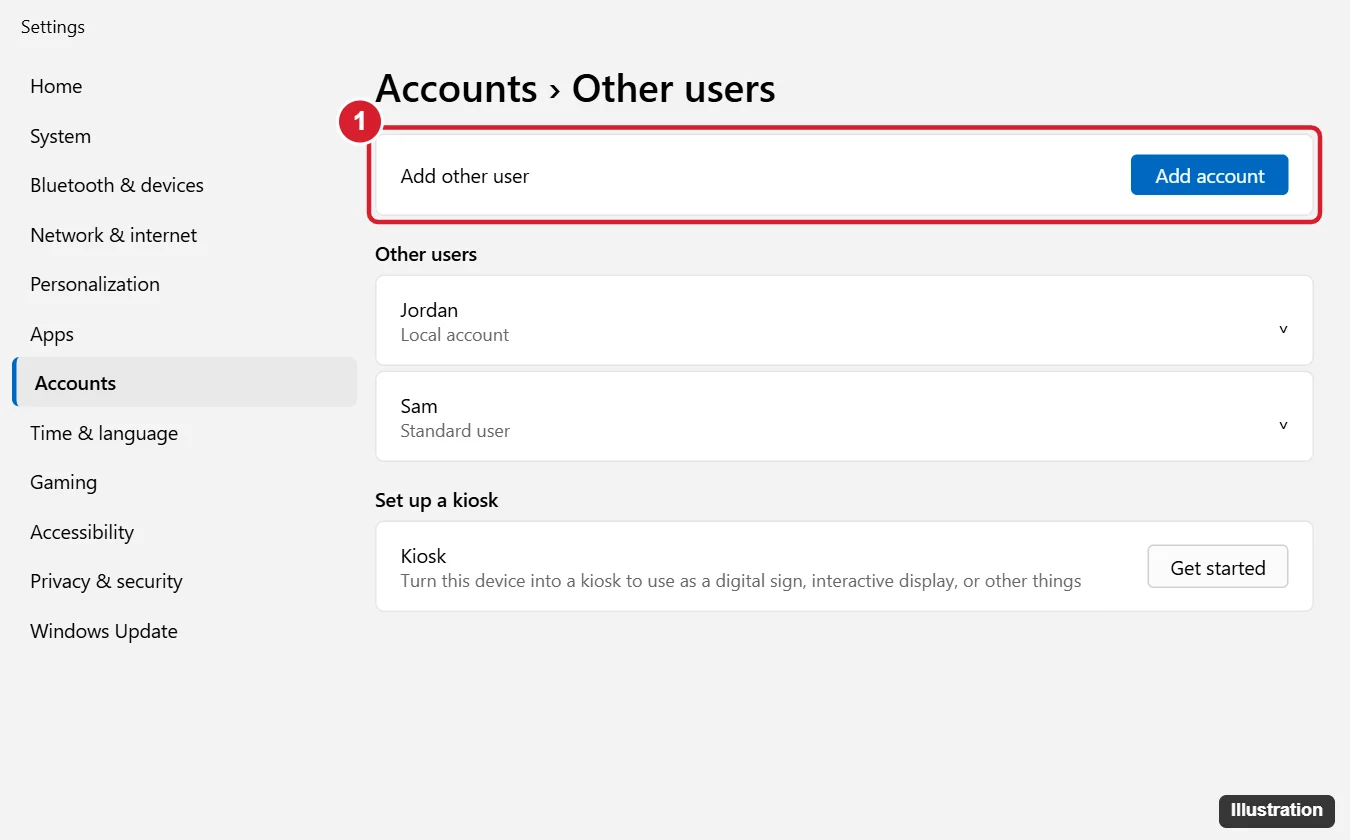
Chrome used to have a “Lock profile” option, but Google removed it (along with the Supervised Users feature it depended on) around 2018, and there’s no built-in password lock for Chrome profiles on Windows or Mac today. The reliable way to lock your Chrome profile is to give each person their own Windows user account (Settings > Accounts > Other users > Add account) and lock your PC with Windows + L when you step away. Your Chrome profile then sits behind your Windows password, PIN, or fingerprint.
Option 1: Separate Windows Accounts (Most Secure)
Each Windows account has its own Chrome installation data, so other users can’t even see your profile.
- Open Settings > Accounts.
- Click Other users (Windows 11) or Family & other users (Windows 10).
- Next to Add other user, click Add account and follow the prompts. To create a local account without a Microsoft account, choose I don’t have this person’s sign-in information, then Add a user without a Microsoft account.
- Make sure your own account has a password, PIN, or Windows Hello sign-in (Settings > Accounts > Sign-in options).
- Press Windows + L whenever you leave the computer.
On a Mac, use System Settings > Users & Groups the same way. On a Chromebook, each Google account signs in separately and the device locks per user. Each profile keeps its own saved tab groups, so groups from a work profile do not appear in a personal one.
Option 2: Protect What Matters Inside Chrome
If separate Windows accounts aren’t practical, reduce what someone could access by opening your profile:
- Saved passwords: Chrome already asks for your Windows password or PIN before showing or copying a saved password. You can also turn on a setting to require it before autofilling passwords (in Google Password Manager > Settings, where available).
- Sign out of Chrome when done: click your profile picture > Sign out (or turn off sync). Signing out removes access to synced data and signs you out of Google sites.
- Delete site data on exit: in Settings > Privacy and security > Site settings, look under the site data or cookies settings for the option to delete data sites save when you close all windows, so websites log you out each time.
- Use Guest mode for others: have visitors use a Guest window (profile picture > Guest). They can’t see your profile, and their activity is deleted when they close it.
- Turn on 2-Step Verification for your Google account, so even a synced session is harder to misuse.
Option 3: Lock Extensions (Use With Caution)
Some extensions in the Chrome Web Store add a password screen when Chrome opens. They can deter casual snooping, but they’re easy to bypass (another profile, Task Manager, or disabling extensions), and a malicious extension can read everything you browse. If you try one, choose a well-reviewed extension with a clear privacy policy, and don’t rely on it for real security.
For Businesses and Schools
Administrators can use Chrome enterprise policies, such as forcing browser sign-in, restricting which accounts can sign in, and disabling Guest mode, to control profiles on managed computers. Combined with separate Windows accounts, this gives strong separation.
What About Mobile?
Chrome on Android and iPhone can lock Incognito tabs behind your fingerprint, face, or device PIN when you leave the app: Settings > Privacy and security > Lock Incognito tabs when you close Chrome (wording varies by version). Your regular tabs rely on your phone’s lock screen.
Other Questions About Locking Chrome
Why did Chrome remove the profile lock?
It was part of the Supervised Users feature, which Google retired in favor of Family Link for managing children’s accounts. Google recommends separate operating-system accounts for privacy on shared computers.
Can I put a password on the Chrome app itself?
Not with Chrome settings. Windows can restrict apps for child accounts through Microsoft Family Safety, but for adults, separate Windows accounts are the practical solution.
Is Guest mode the same as Incognito?
No. Incognito runs inside your profile (with access to your bookmarks). Guest mode is a separate, blank profile, which is better for letting someone else borrow your computer.
Separate profiles also solve a common sign-out problem, as signing out of one Google account shows for browsers shared by work and personal accounts.

Kermit Matthews runs Live2Tech from just outside Philadelphia. He is an IT specialist with over 20 years of experience, from a university help desk to small-business IT, IT management and his own consulting practice, and has written tech guides full time since 2020. Steps are checked against the current software on a real device or the maker’s official documentation. More about Kermit.