To redo on Windows, press Ctrl + Y. It brings back the last action you undid with Ctrl + Z. Some apps, including Photoshop, many code editors, and Google Docs, also use Ctrl + Shift + Z for redo. You can also click the Redo arrow (a curved arrow pointing right) in the app’s toolbar.
Below is a quick reference for popular apps, plus the difference between Redo and Repeat in Microsoft Office.
Redo shortcuts by app
| App | Redo shortcut |
|---|---|
| Word, Excel, PowerPoint, Outlook | Ctrl + Y |
| Google Docs, Sheets, Slides | Ctrl + Y or Ctrl + Shift + Z |
| Chrome, Edge, and Firefox text boxes | Ctrl + Y or Ctrl + Shift + Z (varies by site) |
| File Explorer | Ctrl + Y (redoes an undone rename, move, or delete) |
| Notepad (Windows 11) | Ctrl + Y |
| Photoshop | Ctrl + Shift + Z |
| VS Code | Ctrl + Y or Ctrl + Shift + Z |
How to redo with the toolbar
In Microsoft Office apps, the Redo button is in the Quick Access Toolbar at the top-left corner, next to Undo. Hover over it to see what will be redone. In other apps, look for a right-curving arrow near the top of the window or in the Edit menu.
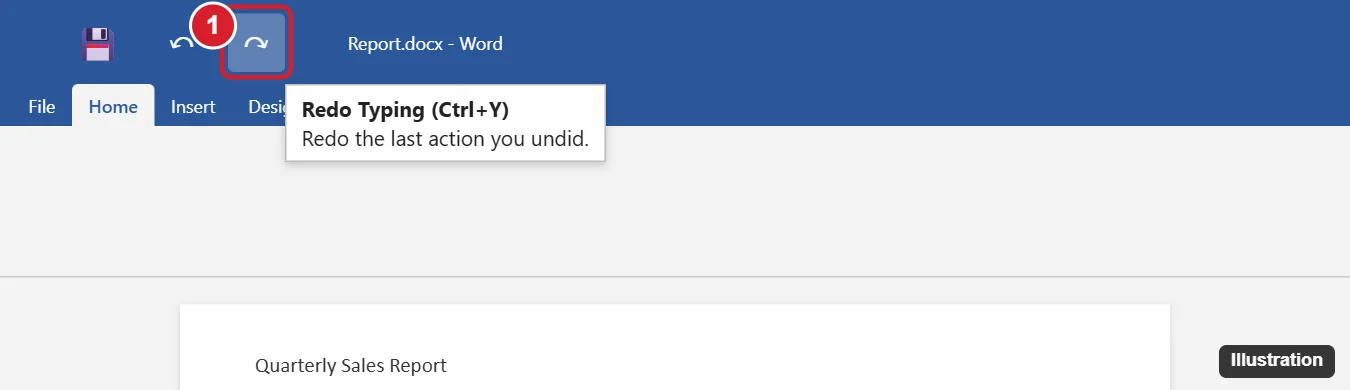
If you don’t see Undo and Redo in newer Office versions, click the dropdown at the end of the Quick Access Toolbar and check Undo and Redo, or turn on Show Quick Access Toolbar from the ribbon’s right-click menu.
Redo vs. Repeat in Office
In Word, Excel, and PowerPoint, Ctrl + Y does two jobs. If you just undid something, it redoes it. If there’s nothing to redo, it repeats your last action, such as applying the same formatting to other text. F4 also repeats your last action in Office apps.
Why isn’t redo working?
- You made a new change after undoing. Redo only works right after Undo. Any new edit clears the redo history.
- The app uses a different shortcut. Try Ctrl + Shift + Z.
- Nothing to redo. The Redo button is grayed out when there’s nothing left to redo.
Frequently asked questions
What’s the opposite of Ctrl + Z?
Ctrl + Y (or Ctrl + Shift + Z in some apps).
How many times can I redo?
As many times as you’ve undone, until you make a new change.
What’s the redo shortcut on a Mac?
Usually Command + Shift + Z. In some Microsoft apps on Mac, Command + Y also works.

Kermit Matthews is a freelance writer based in Philadelphia, Pennsylvania with more than a decade of experience writing technology guides. He has a Bachelor’s and Master’s degree in Computer Science and has spent much of his professional career in IT management.
He specializes in writing content about iPhones, Android devices, Microsoft Office, and many other popular applications and devices.