Backing up your iPhone to a Windows PC keeps a complete copy of your data (messages, app data, settings, photos not in iCloud, and more) on your own computer, so you can restore everything if your phone is lost, broken, or replaced. On Windows 10 and 11, Apple’s free Apple Devices app handles backups; older PCs can use iTunes. This guide covers setting up a backup, encryption, where backups are stored, and restoring.
Quick Answer
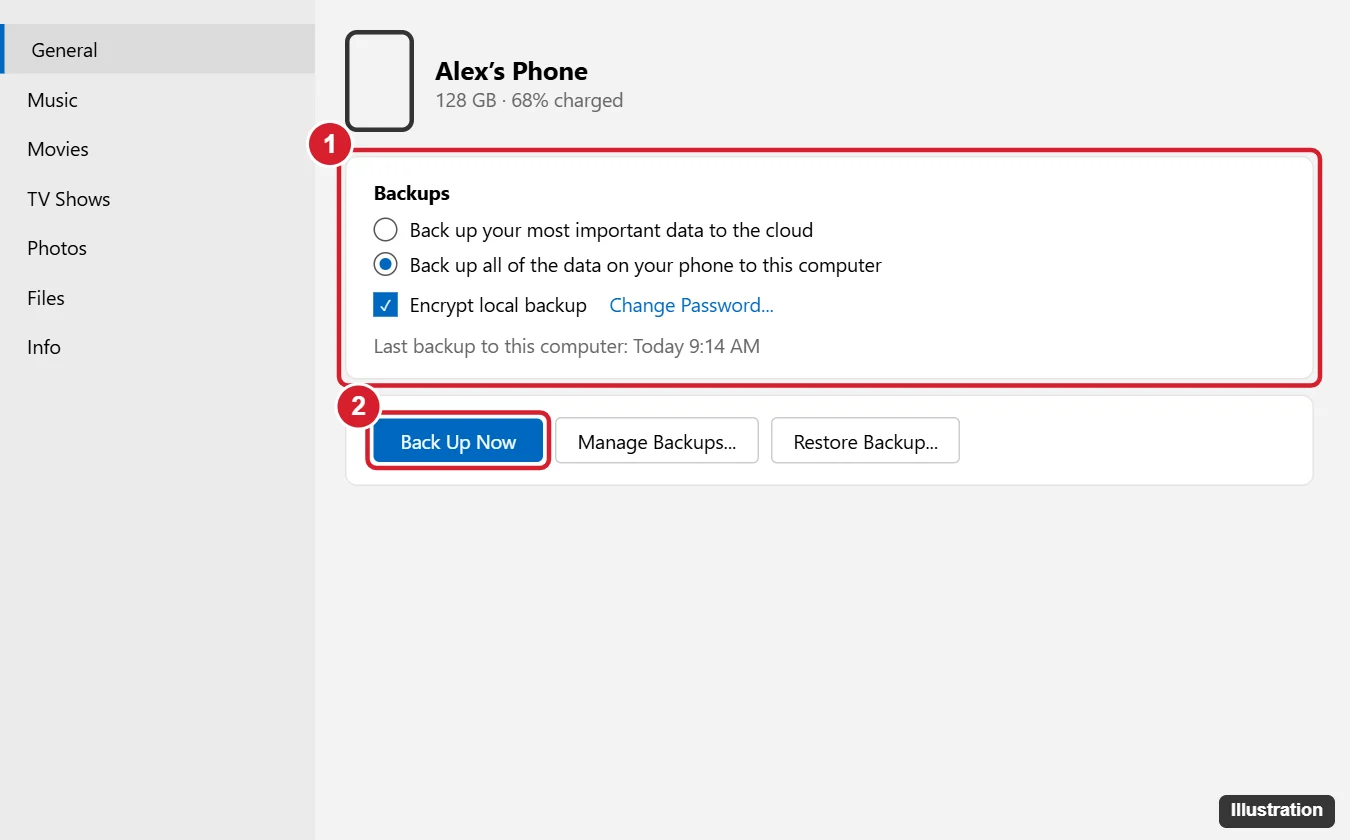
Install Apple Devices from the Microsoft Store, connect your iPhone with a cable, unlock it, and tap Trust. In Apple Devices, select your iPhone, open General, choose Back up all of the data on your iPhone to this computer, optionally check Encrypt local backup, and click Back Up Now.
Step 1: Install Apple Devices (or iTunes)
- Windows 10 (version 19045 or later) and Windows 11: install Apple Devices from the Microsoft Store.
- Older Windows versions: use iTunes from the Microsoft Store or Apple’s website.
Installing Apple Devices may limit iTunes to podcasts and audiobooks; that’s expected.
Step 2: Connect and Trust the iPhone
- Connect the iPhone with a USB cable.
- Unlock the iPhone. When asked Trust This Computer?, tap Trust and enter your passcode.
- Your iPhone appears in the Apple Devices sidebar.
Step 3: Back Up
- Click your iPhone, then General.
- Under Backups, select Back up all of the data on your iPhone to this computer.
- Check Encrypt local backup and set a password to include saved passwords, Wi-Fi settings, website history, and Health data. Write the password down; you can’t restore an encrypted backup without it.
- Click Back Up Now and keep the phone connected until it finishes.
In iTunes, click the phone icon, go to Summary, select This Computer, and click Back Up Now.
Where Backups Are Stored
- Apple Devices / Store iTunes:
%USERPROFILE%\Apple\MobileSync\Backup - iTunes from Apple’s website:
%APPDATA%\Apple Computer\MobileSync\Backup
Backups can be large. To save them on another drive, see our guide to backing up an iPhone to an external hard drive.
Back Up Automatically over Wi-Fi
In Apple Devices, check Show this iPhone when on Wi-Fi. Your iPhone can then sync and back up wirelessly when it’s on the same network and the app is open, though a cable is faster and more reliable.
Restore from a Backup
- On the iPhone, turn off Find My (Settings > [your name] > Find My).
- Connect it to the PC and open Apple Devices.
- Click Restore Backup, pick the backup by date, enter the password if encrypted, and click Restore.
iCloud Backup vs. Computer Backup
iCloud backs up automatically over Wi-Fi but requires enough iCloud storage. A computer backup is free, faster to restore, and can be encrypted locally. Many people use both.
If the phone freezes, see how to hard reset an iPhone 11.
You may be asked for your passcode. See how to change the iPhone passcode.
Troubleshooting
- iPhone not detected: unlock it, tap Trust, try a different cable or port, and restart both devices.
- “Not enough free space”: free up space on drive C:, or redirect backups to another drive.
- Backup failed or corrupt: delete the old backup in Manage Backups and try again; disable security software temporarily if it interferes.
- Forgot encryption password: on the iPhone, go to Settings > General > Transfer or Reset iPhone > Reset > Reset All Settings (this doesn’t erase data but resets settings) to create a new encrypted backup; old encrypted backups stay locked.
Summary
- Install Apple Devices (or iTunes) on Windows.
- Connect, unlock, and trust the iPhone.
- Choose to back up to this computer, encrypt it, and click Back Up Now.
- Restore with Restore Backup after turning off Find My.
Related: restore an iPhone without iTunes.

Kermit Matthews is a freelance writer based in Philadelphia, Pennsylvania with more than a decade of experience writing technology guides. He has a Bachelor’s and Master’s degree in Computer Science and has spent much of his professional career in IT management.
He specializes in writing content about iPhones, Android devices, Microsoft Office, and many other popular applications and devices.