Cover each value once it is played: Google Slides will not hide a number by itself during a game, so you place a shape over it or recolor it between turns. If you want values that vanish the moment a player picks them, PowerPoint’s trigger animations do that, and a Slides deck can be downloaded as a PowerPoint file to use them.
What Google Slides can and can’t do on a game board
It helps to know where the limits are before you build anything, because they decide how you run the game.
- No click-to-hide: Google’s animation help page lists three ways an animation can start: On click (the next click of the mouse or press of the space bar), After previous and With previous. None of them means “when this particular box is clicked.”
- Why a Disappear animation goes wrong: Google defines On click as the next click of the mouse or press of the space bar, not a click on a chosen object, so a Disappear effect on every value runs in the animation list’s order rather than on the value a team picked.
- Links do work: a value can link to its question slide, and a button on that slide can link back to the board.
- The slideshow is for presenting: the shapes on a slide are moved in the editor, so covers are a between-turns job, while the slideshow pen can mark the board as you present.
So the realistic choices are: run the game from the editor and cover values, mark them with the pen in the slideshow, or move the board to PowerPoint.
Build the board and its links
- Make a board slide with categories across the top and point values below, using a table or a grid of shapes. Separate shapes are easier to cover later.
- Add one question slide for each value. Putting the answer on the next slide keeps it hidden until you are ready.
- Select a value, press Ctrl + K (⌘ + K on a Mac) to insert a link, and choose its question slide from the slides in the presentation. The exact steps are in linking to a specific slide in Google Slides.
- On each question or answer slide, add a Back to board shape and link it to the board slide.
You can also mark the question slides as skipped (right-click > Skip Slide), so pressing the arrow key on the board does not step through them. Google says skipped slides stay in the file and anyone you share it with can still see them. Test that your board links still open a skipped slide before class; skipping a slide in Google Slides explains how skipped slides behave.
Cover played values between turns
This is the most dependable method because it needs nothing but shapes. You run the game from the editor rather than the slideshow, so you can move objects between turns.
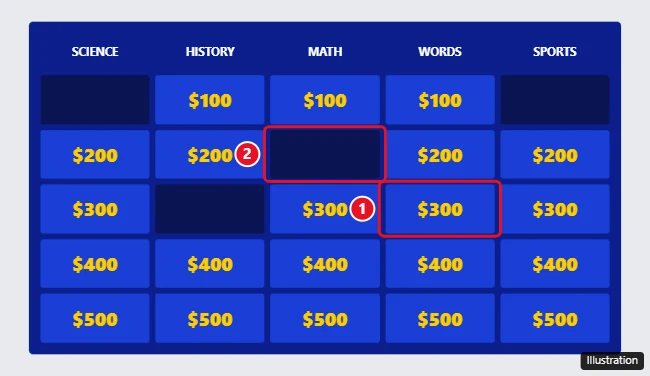
- Draw a rectangle the same size as one value box. Give it a dark fill and remove the border.
- Press Ctrl + D to duplicate it until you have one cover per value, and park the copies just outside the edge of the slide where the audience will not see them.
- Press Ctrl + Shift + F to hide the menus (compact mode) so the board fills more of the screen.
- When a team picks a value, click it and press Alt + Enter (Option + Enter on a Mac) to open its link, or click the question slide in the filmstrip.
- After the answer, return to the board and drag a cover over the value that was just played.
These Windows shortcuts, and their Mac versions, are listed in Google’s keyboard shortcuts for Google Slides.
Mark values with the pen during the slideshow
If you prefer the full-screen slideshow, Google’s slideshow pen lets you draw on the board while presenting.
- Start the slideshow.
- At the bottom left, click Options > Enable pen tool.
- Hold the mouse button and drag to cross out or scribble over a value that has been played. To change the color, click Pen tool at the bottom.
- To clear the current slide, click Erase > Erase all.
Google’s presenting help page says “Annotations stay during your presentation, but disappear after you end your slideshow.” It does not say whether marks on the board are still there after you jump to a question slide and come back, so treat them as something that may clear. Try a short run before the real game, and if the marks clear, use covers in the editor instead.
Delete or recolor a played value
The quickest option in the editor needs no extra shapes: click a played value and press Delete, or change its fill or text color so it fades into the board. If you remove the wrong one, Ctrl + Z undoes it. Changing a box’s fill is covered in changing the color of a shape in Google Slides.
This method edits the deck itself, so play from a copy and keep the original untouched for the next class.
Make values vanish on click in PowerPoint
PowerPoint has the feature Google Slides lacks: an animation trigger that starts when a specific object is clicked. Microsoft’s steps cover PowerPoint for Windows and Mac.
- In Google Slides, choose File > Download and pick the PowerPoint format.
- Open the file in PowerPoint and select a value box.
- Go to Animations > Advanced Animation > Add Animation and pick an effect that hides the box, such as Disappear.
- Open Animations > Advanced Animation > Animation Pane and select that animation.
- In the Advanced Animation group, click Trigger, point to On Click of, and select the value box itself.
Now clicking that box during the slide show plays its own effect, whatever order the others are in. Microsoft’s trigger an animation effect page shows the same steps. Its page does not cover a box that is both a hyperlink and a trigger, so the simplest design keeps them apart: for example, the value box disappears on click to reveal the question written underneath it on the board slide, instead of linking to a separate slide.
If you later want the game back in Slides, turning a PowerPoint into Google Slides covers the import. Check the animations after importing, because Google documents no click trigger for Slides.
Reset the game for the next class
- Keep a clean master: use File > Make a copy for each class and play from the copy.
- Covers: drag them back off the slide, or delete them and duplicate fresh ones from one spare.
- Pen marks: end the slideshow and they are gone.
- Score: a small table on the board slide, edited between turns, keeps the score with the game.
Jeopardy board questions
Can I see the answers on my laptop while the class sees the board?
Yes. Put the answers in the speaker notes and present with Presenter view: next to Slideshow, click the down arrow and choose Presenter view. Presenting through a projector or a video call is covered in sharing Google Slides in presentation mode. Note that the cover method runs in the editor, so Presenter view pairs best with the pen method.
Next step: build the board slide, link one value to its question and back, and try both the cover and the pen method with that single value before you build the rest.

Kermit Matthews runs Live2Tech from just outside Philadelphia. He is an IT specialist with over 20 years of experience, from a university help desk to small-business IT, IT management and his own consulting practice, and has written tech guides full time since 2020. Steps are checked against the current software on a real device or the maker’s official documentation. More about Kermit.