Google’s documented way to try new Gmail features early is Google Workspace Experiments, a sign-up program for personal accounts that gives early access to new AI features in Gmail and other Workspace apps. The old “Enable experimental access” checkbox in Gmail’s settings is no longer documented by Google, so this article covers the program Google does document: who can join, how to check that it worked, what you may see in Gmail, and how leaving works.
Which route applies to your account?
| Your situation | What to do |
|---|---|
| Personal Gmail account, and you are 18 or older | Sign up for Google Workspace Experiments (below) |
| Work or school Google account | Workspace Experiments is not open to you; your administrator decides when new features arrive |
| You are looking for the old “Enable experimental access” checkbox | Google no longer documents it; the sections below explain what to use instead |
What happened to Gmail’s experimental access setting
Gmail once had an “Enable experimental access” checkbox on its settings page. Google’s Gmail Help no longer documents that setting, and Google has not published a date for when it was removed. The screens below are from that older version of Gmail and are kept for reference only.
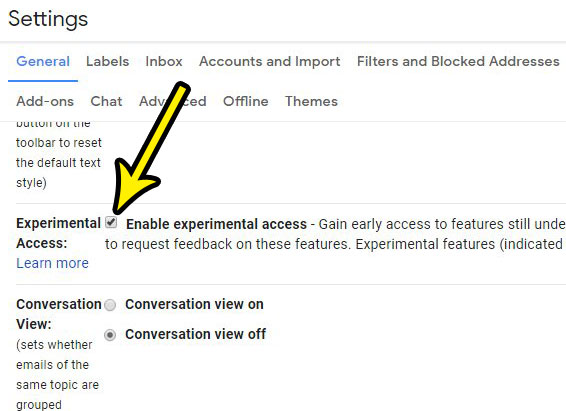
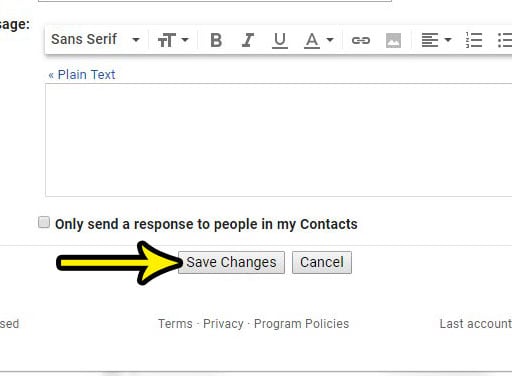
If the feature you wanted was a writing aid, check whether it already has its own setting. Smart Compose, for example, is switched on or off in Gmail’s settings; see how to turn off Smart Compose in Gmail.
Who can join Google Workspace Experiments
Google’s help page, Get started with Google Workspace Experiments, describes the program as a trusted tester program that lets you try out new AI features, and says features in it are in development, so their quality and availability may vary. To join, Google lists two requirements:
- Be 18 years or older.
- Use a personal Google Account that you manage.
Google also states that Workspace Experiments is not available for Google Workspace accounts, which covers most work and school addresses.
Location and language matter too. Google’s page on where you can use Google Workspace Experiments says the program is available for personal accounts in some languages and over 170 countries and territories, and that Google will gradually expand to more. Google lists the supported languages for each Gmail feature (Proofread, for example, supports fewer languages than the others) and says English is the only supported language for the program’s other AI products.
Join and check that it worked
- Sign in to the personal Google Account you want to use.
- Open Google’s Get started with Google Workspace Experiments page (linked above) and select the link labeled Sign up for Workspace Experiments.
- Follow the sign-in and agreement prompts Google shows.
- Open Gmail on a computer and look at the top right of the page.
Google’s check is simple: look for the Gemini icon in a Workspace app like Gmail or Docs. If you can click Ask Gemini at the top right of Gmail, you have access to Workspace Experiments features. If it is not there yet, wait a little and refresh, since Google says some features roll out gradually and might not be available to you yet.
Early features you may see in Gmail
Google’s availability page lists these Gmail features for the program. The list changes over time, so treat it as a snapshot:
- AI Overview in Gmail search: a summary answer at the top of your search results.
- AI Overview conversation summaries: a short summary of a long email thread.
- Gemini in Gmail side panel: a panel where you can ask questions about your mail.
- Help me write: drafts an email from a short prompt.
- Proofread: suggestions to tidy up a draft.
Because these features are still in development, check anything they write or summarize before you rely on it, especially names, dates and amounts.
Leave Workspace Experiments (and why it is permanent)
Read this before you opt out. Google says that to turn off Workspace Experiments features, you must exit the program, and that if you exit, you permanently lose access to all Workspace Experiments features and can’t rejoin. If you only dislike one feature, simply not using it is the safer choice.
Google’s help page has a separate section titled “How to exit from Gmail”, plus sections for Docs, Slides and Sheets and for Meet. In Gmail on a computer, the exit starts from Gmail’s settings:
- On your computer, go to Gmail.
- At the top, click Settings.
- In the Workspace Experiments program notification, click Opt out.
- Click Opt out again to confirm.
- Refresh your browser.
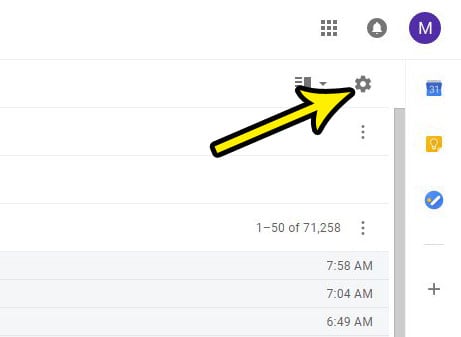
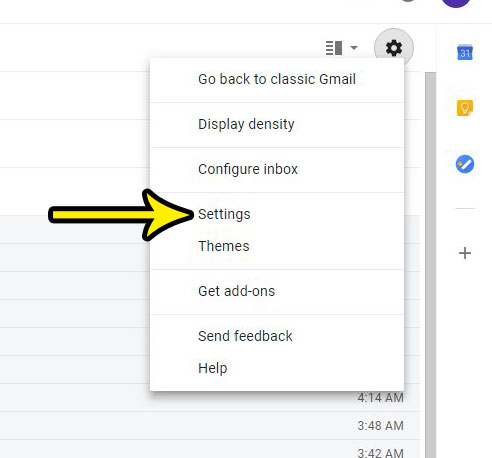
If you do not see the program notification, open the “How to exit from Gmail” section on Google’s page.
Work and school accounts
Because Workspace Experiments is not available for Google Workspace accounts, early access on a work or school account is your administrator’s decision. Google’s admin page, Choose when users get new features, explains that an organization can be on either the Rapid Release or the Scheduled Release track. On Rapid Release, users are among the first to see new features, including early general availability features. If you want earlier access, ask your IT team which track your organization uses; there is no setting you can change yourself.
Gmail early access answers
Can I rejoin after opting out?
No. Google states that leaving Workspace Experiments permanently removes access to its features and that you can’t rejoin.
Why don’t I see the Gemini icon after signing up?
Check three things: that you are signed in to the personal account you used to join, that your country is on Google’s availability list, and that your account language is English if the feature you want is English only. After that, it may simply be a gradual rollout.
Does the program include features outside Gmail?
Yes. Google describes Workspace Experiments as covering AI features across Workspace apps such as Gmail and Docs, and its exit instructions include Docs, Slides, Sheets and Meet. Leaving from any of them ends access to the whole program.
While you wait for new features, you can still tailor Gmail with the settings it has today: change the view in Gmail, set a default font for your emails, delete Gmail emails in bulk, or export your Gmail contacts for use in another program.

Kermit Matthews runs Live2Tech from just outside Philadelphia. He is an IT specialist with over 20 years of experience, from a university help desk to small-business IT, IT management and his own consulting practice, and has written tech guides full time since 2020. Steps are checked against the current software on a real device or the maker’s official documentation. More about Kermit.