Logos from Google appear in a browser when Google is the home page, the new tab page or the default search engine. Find which of the three it is first: the table below matches what you see to the setting behind it, and the sections after it give each browser maker’s own steps. One limit up front: Google documents no setting that removes the Google logo and search box from Chrome’s own New Tab page.
Where the Google logo comes from
| Where you see the logo | What causes it | Setting to change |
|---|---|---|
| A google.com page opens when the browser starts | Google is the startup page | Chrome: On startup; Edge: Start, home, and new tab page; Firefox: Home and startup; Safari: General |
| Google opens when you click the Home button | Google is the home page | Chrome: Show Home button; Firefox: Homepage and new windows; Safari: Homepage field |
| Every new tab shows the Google logo and search box | Chrome’s New Tab page, or google.com set as the new tab page in another browser | Chrome: limited (see below); Firefox: New tabs; Safari: New tabs open with |
| Searches from the address bar go to Google | Google is the default search engine | The browser’s search engine setting |
| A Google bar on your phone’s home screen | A home-screen widget, not the browser | Removing the Google search bar from a home screen |
A browser can have more than one of these set to Google at once, so check every row that matches.
Chrome keeps these in three separate places, which is why changing one often leaves the logo showing somewhere else. Google’s help pages cover each one.
Change what opens at startup
- At the top right, select More (the three dots) > Settings.
- Find the On startup settings. Google’s homepage and startup page help describes the choices as having a new tab open, continuing where you left off, or opening a specific set of pages.
- To start on a site that isn’t Google, choose the option for a specific set of pages, add the address you want, and remove any Google entry from the list.
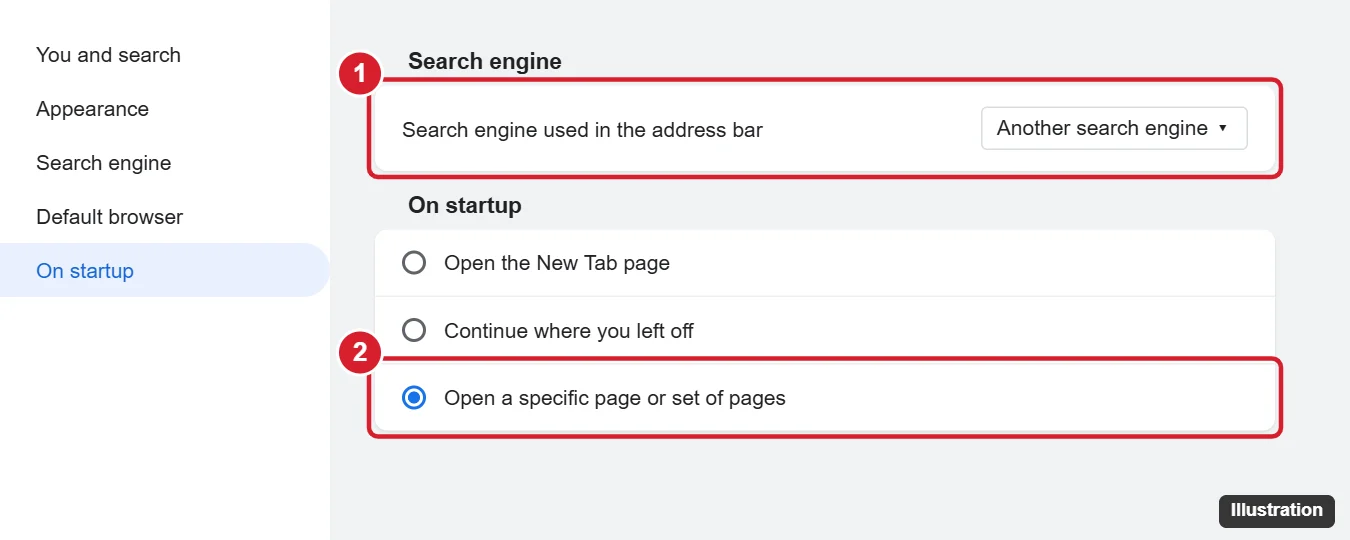
The illustration above is an older one; Chrome’s current settings pages may be laid out differently.
Change the Home button
Under Appearance, Google says to turn on Show Home button and then choose to use the New Tab page or a custom page. If the Home button takes you to google.com, pick a different custom page or switch it off.
Change the default search engine
- Select More > Settings, then select Search engine.
- Under “Search engine,” select Change.
- Select a new default search engine (Google: set default search engine).
The full list is under Manage search engines and site shortcuts on the same page.
What you can and can’t change on the New Tab page
Google’s Customize your New Tab page help says to click Customize Chrome at the bottom right of a New Tab page, where you can change the theme, choose shortcuts, or turn off Show shortcuts to hide the tiles. The page also says that to customize it you must be signed in to your Google Account and use Google as your default search engine. It does not describe any setting that hides the Google logo or the search box, and it doesn’t say what the page shows with another search engine. Editing the shortcut tiles is covered in removing a shortcut from Chrome’s New Tab page.
Add-ons that replace the New Tab page aren’t covered here. If your New Tab page looks different from Chrome’s own and you didn’t change it, Google notes that an extension controlling the page is named in the page’s footer.
Edge: Start, home, and new tab page
In current versions of Edge, Microsoft’s Change your browser home page help lists these steps:
- Select Settings and more > Settings > Start, home, and new tab page.
- Under On startup, the choices are Open the new tab page, Open tabs from the previous session and Open custom sites.
- If Open custom sites lists google.com, remove it and add the site you want, or choose Open the new tab page instead.
In current versions, Edge’s own search engine is a separate setting under Privacy, search, and services, in the Address bar and search section, labeled Search engine used in the address bar. For everything Edge’s new tab page itself can show, see changing the Edge new tab page.
Firefox: Home and startup
- Open Firefox Settings and go to the Home and startup section.
- In the Homepage and new windows drop-down, choose Firefox Home, a blank page or your own address instead of a Google page.
- In the New tabs drop-down, choose a blank page if you want new tabs empty.
- To stop searches going to Google, open the Search page in Settings and change the default search engine (Mozilla: manage Firefox search settings).
These labels come from Mozilla’s current help pages; Firefox may word them slightly differently in your version.
Safari on a Mac: General settings
Apple’s General settings in Safari on Mac page gives every label:
- Choose Safari > Settings, then click General.
- Set New windows open with and New tabs open with to Start Page or Empty Page instead of Homepage.
- If you keep Homepage, replace a google.com address in the Homepage field with the site you want.
Safari’s search engine is in a separate settings pane; changing Safari’s default search engine on a Mac walks through it.
If the page keeps switching back
A setting that returns to Google after you change it may be syncing from another device signed in to the same browser account, or may have been changed by software installed on the computer.
- Chrome: Google’s reset Chrome settings page says to select Reset settings > Restore settings to their original defaults > Reset settings. Google says your saved bookmarks and passwords won’t be deleted or changed, and that the reset isn’t a full one (some settings, such as fonts or accessibility, stay). A reset also returns the default search engine, home page and New Tab page to Chrome’s defaults, so redo the changes above afterward.
- Firefox: Mozilla’s Refresh Firefox page says to choose More troubleshooting information, click the Refresh Firefox button, then confirm. It keeps bookmarks and passwords.
- Edge and Safari: recheck the settings above on every device you sign in to.
If you want Google back later, making Google your homepage reverses these steps.
Browser Google logo questions
Can I remove the Google logo from google.com itself?
No browser setting changes Google’s own page. You can stop the browser from opening it by changing the startup, home and new tab settings above.
Does switching search engines change my Google account?
The search engine setting is a browser setting. It changes where address-bar searches go and doesn’t remove anything from your Google Account.

Kermit Matthews runs Live2Tech from just outside Philadelphia. He is an IT specialist with over 20 years of experience, from a university help desk to small-business IT, IT management and his own consulting practice, and has written tech guides full time since 2020. Steps are checked against the current software on a real device or the maker’s official documentation. More about Kermit.