To remove a shortcut tile from a new tab in Google Chrome, hover over the shortcut, click the three dots in its corner, and choose Remove. To hide all shortcuts, click Customize Chrome (bottom right of the new tab page) and turn off Show shortcuts. The tiles under the search box give you quick access to sites, but they can fill up with pages you don’t visit anymore, or ones you’d rather others didn’t see. The steps below cover Chrome on a computer, Android, and iPhone, plus the Google app.
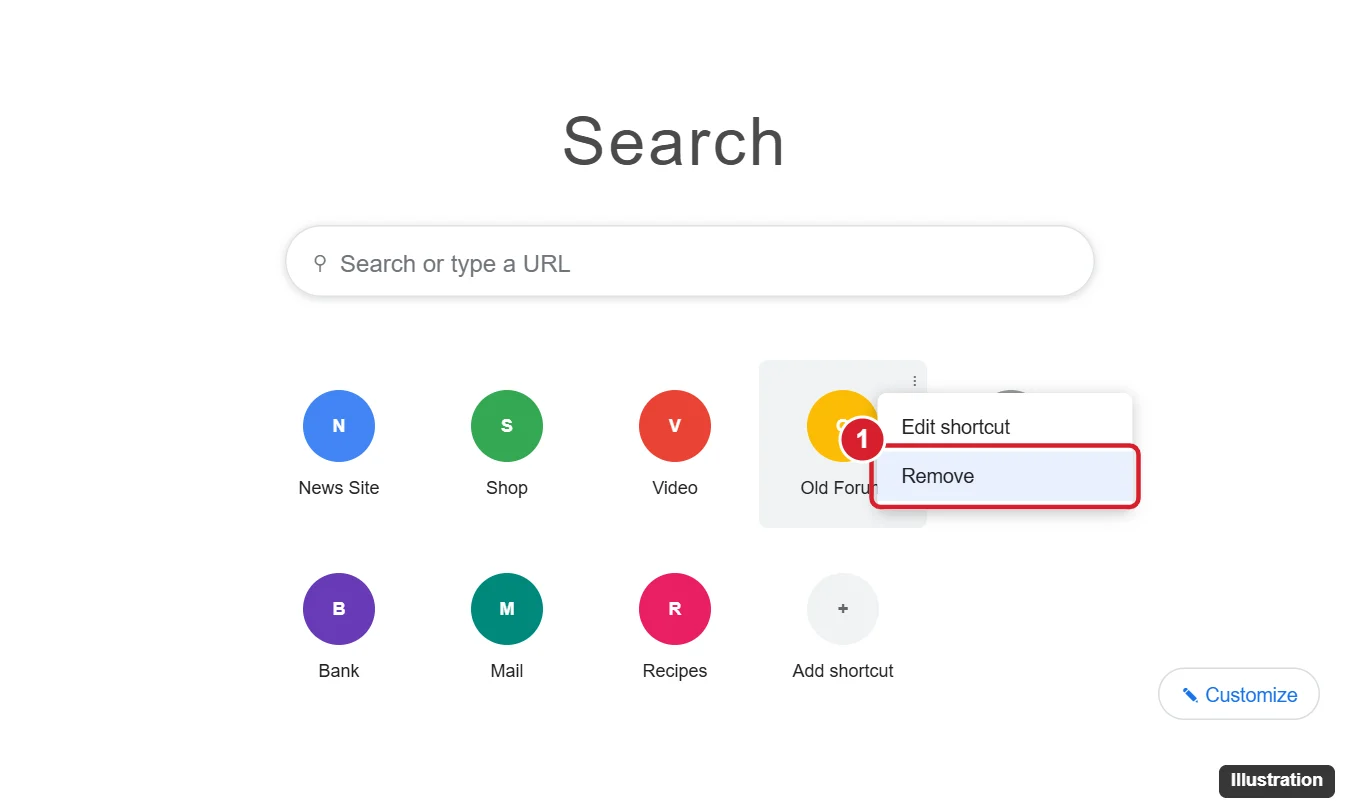
Remove a Shortcut in Chrome on a Computer
- Open a new tab (Ctrl + T, or Cmd + T on Mac). Your default search engine must be Google for these tiles to appear.
- Hover over the shortcut you want to remove.
- Click the three dots (⋮) in the tile’s top-right corner.
- Click Remove. Click Undo in the message at the bottom if you change your mind.
If you use Most visited sites, another frequently visited site will fill the empty spot. Clearing your browsing history also resets these suggestions.
Choose Your Own Shortcuts or Hide Them
- On the new tab page, click Customize Chrome (the pencil button in the bottom-right corner).
- Under Shortcuts:
- Turn off Show shortcuts to hide all tiles.
- Choose My shortcuts to keep only the sites you add yourself, or Most visited sites to let Chrome suggest them.
With My shortcuts, click Add shortcut to add a site, or the three dots > Edit shortcut to rename or change a URL. Drag tiles to reorder them.
How many shortcuts can I have?
Chrome shows up to 10 shortcuts on the desktop new tab page, depending on window size and version.
Remove a Shortcut on Android or iPhone
- Open Chrome and a new tab.
- Touch and hold the shortcut under the search bar.
- Tap Remove.
To hide the whole section on Android, tap the three dots next to Most visited (or the section header) and choose Hide, where available. Options vary by Chrome version.
Shortcut tiles are only part of the page; if it’s the Google logo you want gone, getting rid of the Google logo in your browser explains which settings control it and what Chrome can’t change.
Shortcut tiles are not the only thing Google adds around the search box; turning off trending searches in Chrome and the Google app clears the list of popular searches as well.
The Google App and Other Places
- Google app (Android/iPhone): shortcuts under the search bar (like Translate or Lens) can be managed by tapping the shortcut row’s edit or Customize option, depending on version.
- Desktop shortcuts: a Chrome web shortcut on your Windows desktop is a regular shortcut file; right-click it and choose Delete.
- Search suggestions: if you meant removing items from the search box’s drop-down, hover over a suggestion and click the X, or delete it from My Activity.

Kermit Matthews runs Live2Tech from just outside Philadelphia. He is an IT specialist with over 20 years of experience, from a university help desk to small-business IT, IT management and his own consulting practice, and has written tech guides full time since 2020. Steps are checked against the current software on a real device or the maker’s official documentation. More about Kermit.