Windows 11 has no Help menu. Microsoft points you to three places instead: the search box on the taskbar, the Get help link inside Settings, and the Microsoft Support website. Behind them sits the Get Help app, which answers questions, runs troubleshooters and, for many problems, can put you in touch with Microsoft support. Below is each built-in route on current versions of Windows 11.
There is no single Help button in Windows 11. Microsoft’s own how to get help in Windows page names three starting points and offers a button that opens the Get Help app. Which one to use depends on where you are when the question comes up.
| Where you start | What it gives you | Best moment to use it |
|---|---|---|
| Search box on the taskbar | Apps, files and settings on the PC, plus help results from the web | You know roughly what you are looking for |
| Get help link in Settings | Help about the setting you are looking at | You are already in Settings and unsure what an option does |
| support.microsoft.com/windows | Articles grouped by topic for complex problems, and a way to contact support | The problem is bigger than one setting, or the PC is not usable |
| Get Help app | Answers, troubleshooters, diagnostics and the Contact Support option | Something is broken and you want a fix or a person |
On Windows 10, Microsoft says support ended on October 14, 2025, and “Microsoft customer service will no longer be available to provide Windows 10 technical support.”
Help for the setting in front of you
When the question is narrow, such as what a toggle does, two routes answer it without leaving what you are doing.
- The Get help link in Settings. Microsoft says to “select the Get help link when you’re in Settings to learn more about the setting you’re using.”
- The taskbar search box. Microsoft describes it as the place “to find apps, files, settings, and get help from the web.” Type the name of the setting or the problem.
Microsoft also keeps a “Windows 11 features & tips” page on microsoft.com for learning what Windows can do.
How troubleshooters work now
Troubleshooters are automated checks that fix common causes of a problem. They still live in Settings:
- Select Start > Settings > System > Troubleshoot > Other troubleshooters.
- Select Run next to the troubleshooter for the area that is giving you trouble. Windows Update is listed under Most frequent.
- Follow the prompts, then restart the PC and check whether the problem is gone.
What happens after you select Run has changed. Microsoft is retiring the older troubleshooters built on the Microsoft Support Diagnostic Tool (MSDT). Its MSDT deprecation notice lists the ones that redirect to Get Help: Audio, Background Intelligent Transfer Service (BITS), Bluetooth, Camera, Network and Internet, Printer, Program Compatibility, Video Playback, Windows Media Player and Windows Update. Others, including Keyboard, Power, Search and Indexing, Speech and Windows Store Apps, are on its removal list. So if Run opens Get Help, that is where the troubleshooter now runs. The same notice says Windows 11 version 22H2 and older, and Windows 10, keep their legacy troubleshooters.
For update problems, Microsoft tells Windows 11 users to start with the troubleshooter in Get Help. The full walkthrough is in running the Windows Update troubleshooter, and if it finds nothing, the next steps are in fixing Windows Update when it keeps failing.
Contact Support inside Get Help
The Get Help app is also the way to a person at Microsoft. Most problems start with a question, and the contact option appears when the suggested fixes run out.
Start with a question in Get Help
Microsoft’s page for Get Help with a Microsoft personal account says that when you are signed in with a personal account, the app offers troubleshooting resources and diagnostic tests.
- Open Get Help: select Start and type Get Help, or use the Open Get help app button on Microsoft’s how to get help page.
- Describe the problem in the search box. Short, specific phrases work best, for example “printer shows offline” rather than “printer broken.”
- Read the suggested answer. If Get Help offers a troubleshooter or a diagnostic test, let it run and follow the prompts.
- If the answer does not fix it, look for the option to contact support, covered next.
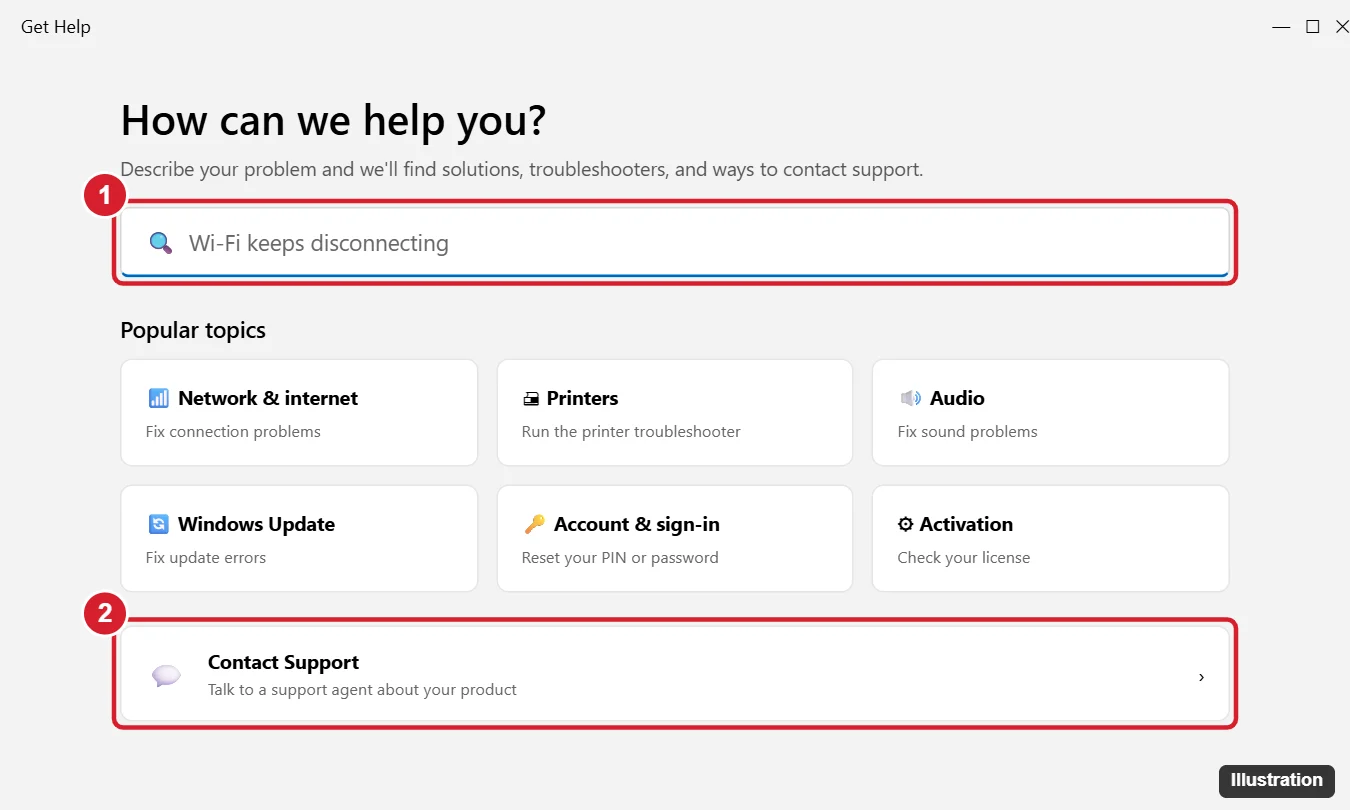
The image above shows an older version of Get Help, so the app on your PC may be laid out differently. If the PC cannot get online, open the support website on a phone or another device.
Contact Support steps
Microsoft documents these steps for people signed in with a personal Microsoft account:
- In Get Help, select Contact Support when the app directs you to it.
- Pick the product or service that is affected and, if asked, select any further options.
- Select Confirm.
- Choose a contact method. Microsoft lists three: chat with a support agent in your web browser, give your phone number so an agent calls you, or submit a repair request for a hardware problem.
Do not be surprised if you see fewer choices. Microsoft states that “availability of contact options depend on hours of operation, product, scenario and subscription.” So you may see only some of the three methods. Microsoft’s contact page starts from the same place (“Get support in the Get Help Windows app”) and lets you pick a product if you are not at the PC.
Before you contact anyone, note your Windows edition and version (checking your Windows version takes a few seconds), any exact error message, and what changed just before the problem started.
Quick Assist for help from someone you trust
Quick Assist lets them see your screen and, with your permission, control it. Microsoft’s Quick Assist support page gives the steps for both people:
- The helper opens Quick Assist, selects Help someone, and shares the 6-digit code with you.
- You open Quick Assist (Microsoft’s learning center lists Ctrl + Windows logo key + Q as the shortcut), type the code in the Code from assistant box, and select Submit.
- Select Allow to share your screen. If the helper selects Request control, you choose Allow again to let them use your mouse and keyboard.
- You can take control back with Cancel control, and either person ends the session with Leave.
If Quick Assist is missing, Microsoft says to install it from the Microsoft Store (select Get or Install, then Open). On a PC managed by an employer or school, a policy may stop you installing it from the Microsoft Store. Microsoft’s warning is blunt: “Only allow a Helper to connect to your device if you initiated the interaction by contacting Microsoft Support directly.” For sharing a screen in a meeting or on a TV, see how to screen share on Windows.
When the PC can’t reach the desktop
If the PC keeps failing to start, Get Help is out of reach and the Windows Recovery Environment takes over. From its screens, Microsoft’s Startup Repair page gives the path Troubleshoot > Advanced options > Startup Repair, then Restart. If the drive is encrypted with BitLocker, you may be asked for the recovery key first. For the ways to get to those screens, see entering recovery mode in Windows 11, and for what Startup Repair does and what to try if it fails, see running Startup Repair in Windows 11.
Hardware faults belong to your PC maker
A cracked screen, a dead battery or a grinding fan is a hardware problem, and the company that built the PC handles repairs, including any warranty that still covers it. Check your PC maker’s support website or the support app that came installed on the PC, and have the exact model name ready. Get Help’s contact options also include a repair request for hardware problems.
Spotting a fake support pop-up or call
Scammers copy the look of Microsoft help. Microsoft’s tech support scam page sets out the rules in its own words:
- “Microsoft will never proactively reach out to you to provide unsolicited PC or technical support.”
- “Never call a number provided in an error message. Genuine Microsoft error messages never include a phone number to call.”
- If you get a call claiming to be Microsoft, or see a warning with a phone number, it is “better to be safe and not click any links or provide any personal information.”
The same Microsoft page has a Submit report option for reporting a scam. The safe pattern: you contact Microsoft, never the other way around.
If Get Help itself won’t open
Get Help is an app like any other, so Microsoft’s general steps for repairing apps in Windows apply:
- Select Start > Settings > Apps > Installed apps.
- Find Get Help and select the More icon (three dots) next to it.
- Select Advanced options. Microsoft notes that some apps do not have this option.
- Select Repair. If that is not available or does not help, select Reset.
While Get Help is out of action, support.microsoft.com/windows in any browser still works, including from a phone.
Windows 11 help route answers
Why is there no way to contact a person for my problem?
Microsoft says contact options depend on hours of operation, product, scenario and subscription. Try again during Microsoft’s hours of operation, check that you are signed in with your personal Microsoft account (Microsoft’s contact steps are written for personal-account users), or start from Microsoft’s contact page and choose the product there.
Why does Run on a troubleshooter open Get Help?
Microsoft is retiring the older MSDT troubleshooters, and its deprecation notice lists the ones that now redirect to Get Help. On Windows 11 version 22H2 and older, and on Windows 10, the legacy troubleshooters stay in place.
If you are still finding your way around the PC, learning the Windows 11 basics makes the help options easier to use.

Kermit Matthews runs Live2Tech from just outside Philadelphia. He is an IT specialist with over 20 years of experience, from a university help desk to small-business IT, IT management and his own consulting practice, and has written tech guides full time since 2020. Steps are checked against the current software on a real device or the maker’s official documentation. More about Kermit.