Dial Assist adds the right country or local prefix when you call a number from your contacts. It helps when traveling, but it can also add the wrong code to some numbers. You can turn it off in the Phone settings on your iPhone 13.
Quick Answer
On iOS 18 or later, open Settings, Apps, Phone and turn off Dial Assist. On older versions, go to Settings, Phone.
How to Turn Off Dial Assist on iPhone 13
- Open the Settings app.
- Scroll down and tap Apps (on iOS 18 and later).
- Tap Phone.
- Find Dial Assist near the bottom of the list.
- Turn the Dial Assist switch off.
- Test by calling a saved contact.
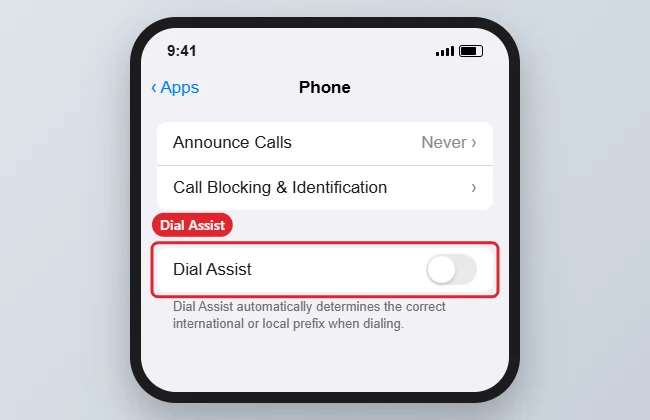
On vs Off
| Dial Assist | What happens |
|---|---|
| On | iPhone adds a country or long-distance prefix when it thinks one is needed |
| Off | iPhone dials the number exactly as saved |
| Off, calling abroad | Save numbers in full international format, starting with + and the country code |
When Turning It Off Helps
- Calls fail to some saved contacts: Dial Assist may be adding a prefix the number does not need, especially for short codes, extensions or numbers saved in an unusual format.
- Calling home while abroad: if your contacts are already saved in full international format, Dial Assist has nothing to add and switching it off removes any guesswork.
- Business lines and calling cards: numbers that need an access code first should be dialled exactly as entered.
If calls work fine, there is no need to change anything; Dial Assist is designed to help, and most people never notice it. For a fuller explanation, see what Dial Assist does on iPhone.
Save Contacts So They Always Work
The most reliable fix is to store numbers in full international format, which works from any country with Dial Assist on or off:
- Open the contact and tap Edit.
- Replace the leading 0 or trunk prefix with a plus sign and the country code, for example +1 for the US and Canada or +44 for the UK, followed by the rest of the number.
- Tap Done and test a call.
To type the plus sign on the keypad, touch and hold 0. Updating your most-called contacts before a trip saves trouble once you land.
Troubleshooting
- No Dial Assist option: it is only offered with some carriers and regions, so it may not appear.
- Wrong code added: turn Dial Assist off and edit the contact to use the full international format.
- Calls fail abroad: make sure international roaming is on in Settings, Cellular.
- Related: locking apps on iPhone and scheduling messages on iPhone.
Frequently Asked Questions
Should I keep Dial Assist on?
If your contacts are saved without country codes and you travel, it can help. If it adds the wrong prefix, turn it off.
Does Dial Assist affect texts?
No. It only affects phone calls.
Is it the same on other iPhones?
Yes. The setting is in the same place on any iPhone with the same iOS version.
Where is it on iOS 17?
Settings, Phone, Dial Assist.
Summary
- Open Settings.
- Tap Apps, then Phone.
- Find Dial Assist.
- Turn it off.
- Save contacts with country codes.

Kermit Matthews is a freelance writer based in Philadelphia, Pennsylvania with more than a decade of experience writing technology guides. He has a Bachelor’s and Master’s degree in Computer Science and has spent much of his professional career in IT management.
He specializes in writing content about iPhones, Android devices, Microsoft Office, and many other popular applications and devices.