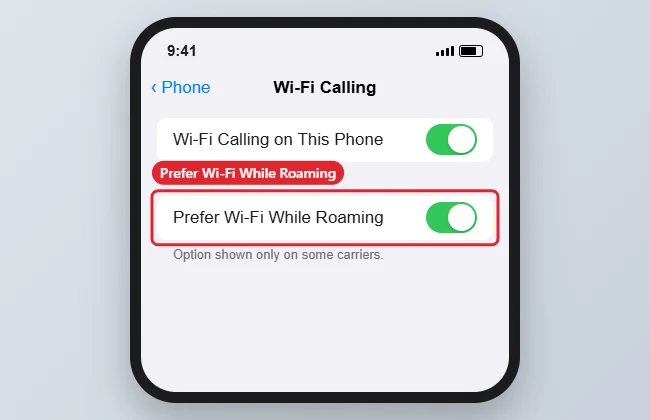
If your carrier supports Wi-Fi Calling, your iPhone 11 can place calls over Wi-Fi instead of a cellular network. When you travel abroad, some carriers add a Prefer Wi-Fi While Roaming switch, which tells the phone to use Wi-Fi for calls when available and can help avoid roaming charges. The option only appears for carriers that offer it, so you may not see it.
Quick Answer
Open Settings, Phone (or Cellular on newer iOS versions), Wi-Fi Calling, turn on Wi-Fi Calling, then turn on Prefer Wi-Fi While Roaming if your carrier shows it.
How to Prefer Wi-Fi While Roaming on an iPhone 11
- Open Settings and tap Phone. On newer iOS versions, Wi-Fi Calling may be under Cellular instead.
- Tap Wi-Fi Calling and turn on Wi-Fi Calling on This iPhone.
- Confirm your emergency address if your carrier asks.
- Turn on Prefer Wi-Fi While Roaming, if it appears.
- While abroad, connect to Wi-Fi and look for Wi-Fi next to your carrier name in the status bar before calling.
Roaming Cost Controls
| Setting | Effect |
|---|---|
| Wi-Fi Calling | Calls over Wi-Fi where supported |
| Prefer Wi-Fi While Roaming | Uses Wi-Fi first when abroad (carrier dependent) |
| Data Roaming off | Stops cellular data abroad |
| Low Data Mode | Reduces background data |
Troubleshooting
- The option is missing: your carrier does not offer it, or it only appears after Wi-Fi Calling is on. Check with your carrier.
- Calls still go over cellular: the Wi-Fi signal may be weak. Move closer to the router or turn on Airplane Mode and then Wi-Fi.
- To stop cellular data abroad, turn off Data Roaming in Settings, Cellular, Cellular Data Options.
- To save data further, see how Low Data Mode works and how to manage Wi-Fi on iPhone.
Frequently Asked Questions
Are Wi-Fi calls abroad free?
Many carriers treat them like calls from home, but rules vary. Check your carrier’s international policy.
Does Airplane Mode stop Wi-Fi Calling?
No. You can turn on Wi-Fi while in Airplane Mode and still use Wi-Fi Calling.
Does this work on newer iPhones?
Yes, where the carrier supports it; the location in Settings may differ.
Summary
- Turn on Wi-Fi Calling.
- Turn on Prefer Wi-Fi While Roaming if shown.
- Connect to Wi-Fi abroad.
- Turn off Data Roaming to avoid charges.

Kermit Matthews is a freelance writer based in Philadelphia, Pennsylvania with more than a decade of experience writing technology guides. He has a Bachelor’s and Master’s degree in Computer Science and has spent much of his professional career in IT management.
He specializes in writing content about iPhones, Android devices, Microsoft Office, and many other popular applications and devices.