Swapped WASD and arrow keys are usually a mode inside the keyboard itself rather than a Windows setting, and on some keyboards a documented key combination switches it back. Before you press anything, take one minute to confirm where the swap lives: try a second keyboard or Microsoft’s On-Screen Keyboard, and if those behave normally, the fix belongs to your keyboard, not to Windows.
Is it the keyboard or Windows?
A quick test tells you which half of the problem to work on, and it stops you from changing Windows settings that were never the cause.
- Open Notepad, click in the empty page and press W, A, S and D, then each arrow key. Note exactly what happens: letters where you expected cursor movement, cursor movement where you expected letters, or both.
- Open the On-Screen Keyboard. Microsoft describes it as a built-in accessibility tool “that can be used instead of a physical keyboard.” On current versions of Windows 11, Microsoft’s page on using the On-Screen Keyboard says to go to Start > Settings > Accessibility > Keyboard and turn on the On-Screen Keyboard toggle. On Windows 10 the labels may differ, so searching Start for On-Screen Keyboard is the simplest route.
- Click W, A, S, D and the arrow keys on the on-screen keys while Notepad is active.
- If you have a second keyboard, plug it in and repeat the Notepad test.
How to read the results:
- On-screen keys and the second keyboard behave normally: your physical keyboard is sending swapped keys. Go to the next section.
- Everything is swapped, including the On-Screen Keyboard: something in Windows may be changing the keys, such as a remapping tool. Skip to the Windows-side checks.
- Only one game is affected: open that game’s control or key binding settings and restore the defaults there. Games keep their own bindings, separate from the keyboard and from Windows.
Switch the keyboard back with its own key
Many gaming keyboards include a WASD and arrow swap so that a player can steer with either set of keys. There is no single key combination that works on every keyboard, so the right answer comes from your keyboard maker. Three makers document it on their own support pages:
- MonsGeek: its WASD swap FAQ says that “on most MonsGeek 75% or larger keyboards,” pressing Fn + W swaps the WASD keys and arrow keys.
- Akko: its support answer on swapped WASD and arrow keys says you can press FN+W to swap them. The page does not list which models it applies to.
- Trust (GXT 850 Metal Gaming Keyboard): the GXT 850 support page lists FN + W or ALT + W, and notes that on AZERTY keyboards you replace the W with Z.
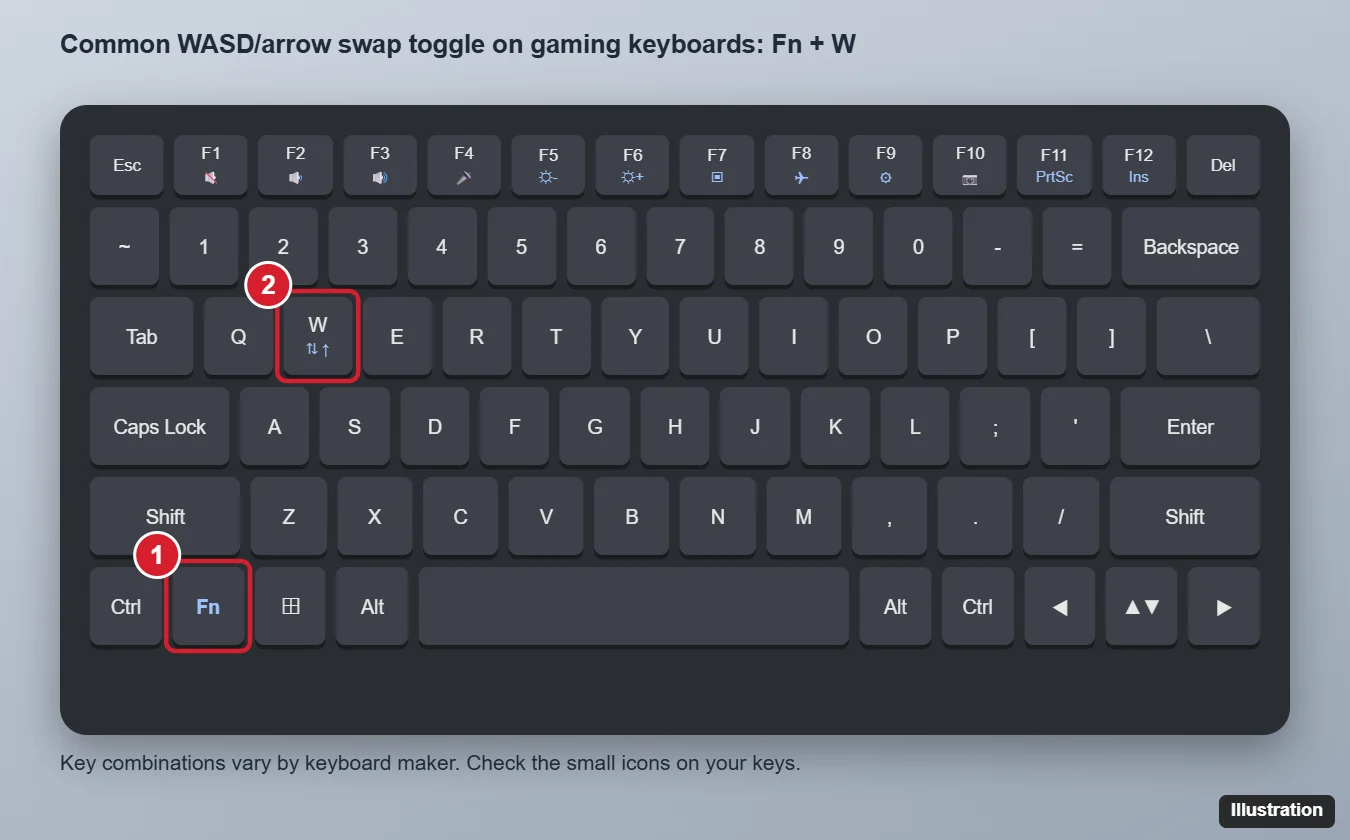
The illustration shows Fn + W because that is the combination the makers above document. It is not a universal key, so on any other keyboard, look up your exact model before you start pressing combinations at random:
- Find the model name, usually on a label under the keyboard or on the box.
- Check the printed manual or quick-start card that came with it.
- Search the maker’s own support site for the model name plus “WASD” or “arrow keys.”
- Press the documented combination once, then repeat the Notepad test.
If the documented combination does not help, a full reset is the next step, but only if your maker documents one. MonsGeek, for example, says to long-press Fn + ~ on 75% layout keyboards, or left Win + right Win on full-size keyboards, for 5 seconds to reset all keys to their default layout. Other makers use different combinations, and a reset may also undo other custom settings, so check your manual first.
Return the keyboard app to its default profile
Keyboards that come with a maker’s app can also swap keys through a profile. A game profile might assign arrow functions to WASD, and switching profiles by accident can make the swap appear out of nowhere. If your keyboard has such an app:
- Open it and check which profile is active. Switch to the default profile and test in Notepad.
- Look at the key assignments for W, A, S, D and the arrow keys, and restore any that were changed.
- If the app offers a firmware update for the keyboard, install it through the app as the maker describes.
Some keyboards save profiles in the keyboard’s own memory, which would explain a swap that follows the keyboard to another computer. Your maker’s documentation is the place to confirm how its keyboards store settings.
For a wired keyboard, unplug it, wait a moment and plug it back in. For a wireless one, switch it off and on and let it reconnect. This does not clear a mode on every keyboard, but it is a quick check before you change anything else.
Windows-side checks
Move here if the On-Screen Keyboard test showed the swap inside Windows too, or if the keyboard steps changed nothing.
- Microsoft PowerToys Keyboard Manager. If PowerToys is installed, a remap there can swap keys. Microsoft’s Keyboard Manager documentation says remaps apply only while PowerToys is running and Keyboard Manager is enabled, and that “to stop remapped keys, close PowerToys or disable Keyboard Manager in the PowerToys settings.” Do that, then repeat the Notepad test. If the keys come back, remove the WASD or arrow remap inside Keyboard Manager.
- Keyboard layout. An extra keyboard layout changes which letters appear, not WASD into arrows, but it can look similar at first. Resetting keyboard settings in Windows 11 covers removing layouts you did not add, and switching keyboard languages in Windows 10 explains the shortcut that changes layouts by accident.
- The keyboard driver. Microsoft’s steps to update drivers through Device Manager start with right-clicking the Start menu and selecting Device Manager. Expand Keyboards, right-click your keyboard, choose Uninstall device, confirm with Uninstall, and restart the PC. Windows attempts to reinstall the driver when it starts.
Microsoft says Windows 10 reached the end of support on October 14, 2025, and no longer receives security updates. The checks above still work on a Windows 10 PC, but the swap itself is usually solved on the keyboard side.
On a laptop keyboard
Some gaming laptops may offer a similar WASD mode, and when a laptop’s keys act strangely the cause can also be the Fn key or a lock key. Check the laptop maker’s support page and any control app the maker provides for gaming or keyboard settings. If the top row or other keys behave differently than expected, turning off Fn Lock on a Windows 11 laptop and changing function key settings in Windows 11 explain what each maker documents. On HP models, disabling the Fn key on an HP laptop covers Action Keys Mode, and if the keyboard stopped responding altogether, see fixes for a laptop keyboard that stopped working.
WASD swap questions
Why did the keys swap on their own?
The likeliest causes are the keyboard’s swap combination being pressed by accident or a keyboard app switching to a different profile.
My keyboard has no Fn key. How do I switch it back?
Check the manual and the maker’s support site for your model. Some makers document other keys; Trust, for example, lists ALT + W for the GXT 850. If the keyboard has an app, its profile and key settings are the next place to look.
Does the On-Screen Keyboard fix the problem?
No. It is a test, and a way to keep typing while you sort out the physical keyboard. If the on-screen keys work and the physical keys do not, the fix is on the keyboard.
Is there a Windows setting that swaps WASD and the arrow keys?
Microsoft does not document one. A remapping tool such as PowerToys Keyboard Manager can change keys while it runs, which is why closing it is part of the Windows-side checks.
Start with the quick Notepad and On-Screen Keyboard test; it tells you whether to reach for your keyboard’s manual or for Windows, and saves a lot of guesswork.

Kermit Matthews runs Live2Tech from just outside Philadelphia. He is an IT specialist with over 20 years of experience, from a university help desk to small-business IT, IT management and his own consulting practice, and has written tech guides full time since 2020. Steps are checked against the current software on a real device or the maker’s official documentation. More about Kermit.