Nothing in Windows 11 resets every keyboard setting at once, so you put back the part that changed: the layout, an accessibility key, a typing option, a key remap or the driver. Start with the layout: an extra keyboard in Settings > Time & language > Language & region can make keys type the wrong symbols. The table below matches each symptom to the setting that fixes it.
Symptom-to-setting table
| What you notice | Setting to put back | Section below |
|---|---|---|
| Symbols or letters land on the wrong keys | Keyboard layout | Put the layout back to the one you use |
| The layout keeps changing while you type | Switching shortcuts | Stop the layout switching by itself |
| Shift or Ctrl stays held down after one press | Sticky keys | When Shift, Caps Lock or short key presses act strangely |
| Short or repeated key presses are ignored | Filter keys | When Shift, Caps Lock or short key presses act strangely |
| A beep plays on Caps Lock or Num Lock | Toggle keys | When Shift, Caps Lock or short key presses act strangely |
| Suggestions appear as you type on the physical keyboard | Typing settings | Check the typing settings |
| One key does a different key’s job | A remap in PowerToys or the keyboard maker’s app | Undo a key remap |
| Nothing above helps, or keys do nothing | The keyboard driver, then the PC itself | Reinstall the keyboard driver, then Reset the PC only as a last resort |
Work down the table from the top and test after each change, so you know which setting was the cause. On a Windows 10 PC the pages have different names, so follow how to change keyboard settings back to normal in Windows 10 instead; Microsoft notes that Windows 10 support ended on October 14, 2025.
Put the layout back to the one you use
Microsoft’s language and keyboard settings page covers these steps for current versions of Windows 11.
- Select Start > Settings > Time & language > Language & region.
- Under Preferred languages, find any language you never use. Select the ellipses (⋯) next to it and choose Remove.
- Select the ellipses next to your main language and choose Language options.
- Under Keyboards, check that the layout you normally type with is listed. If it is missing, select Add a keyboard next to Installed keyboards and pick it.
- Select the ellipses next to any other keyboard you did not add on purpose and choose Remove.
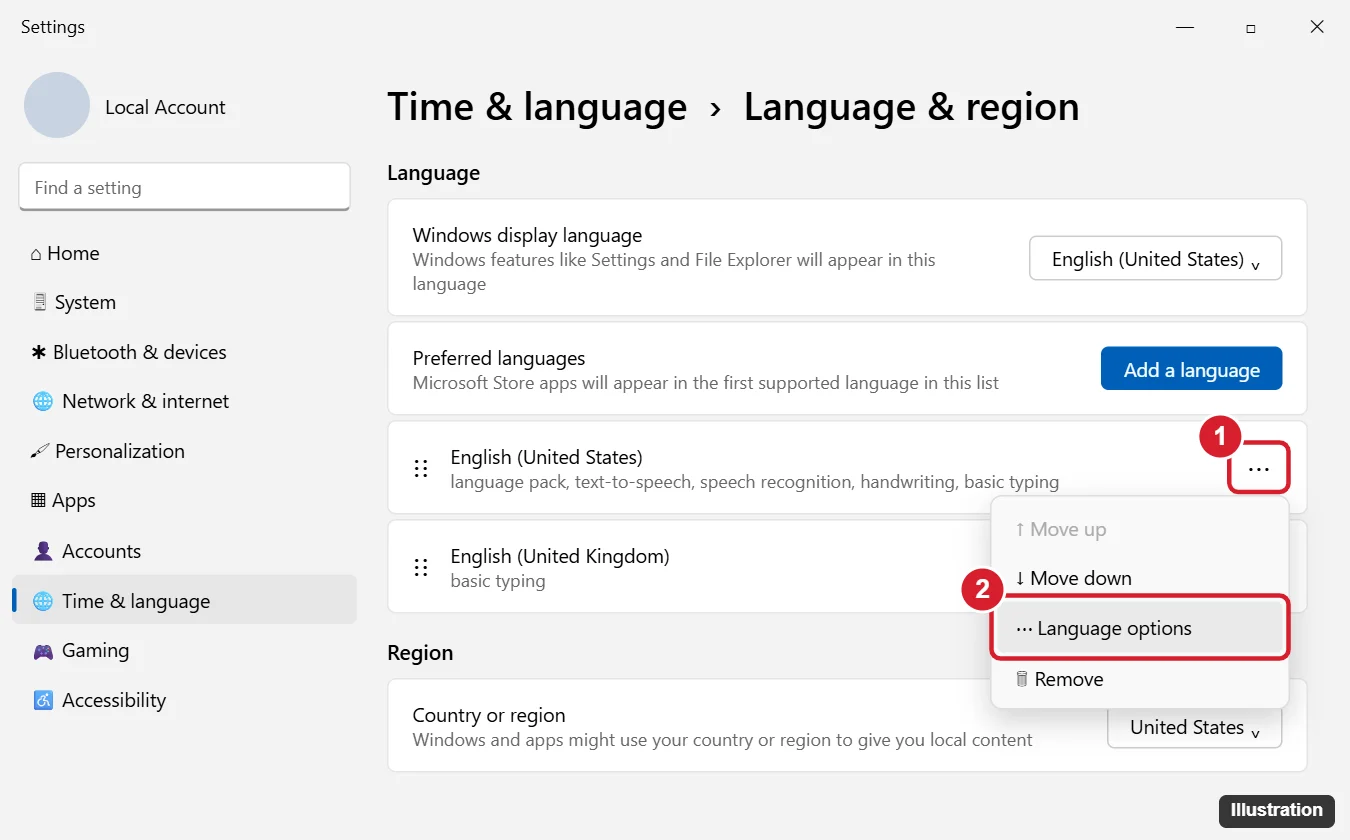
The image shows an older version of this page, so your screen may look slightly different. Two buttons can be greyed out. A keyboard’s Remove button is unavailable when it is the only installed layout for the current Windows display language, so add the right one before you remove the wrong one. A language’s Remove button is unavailable when it is the Windows display language. Microsoft also notes that a layout is not always filed under its matching language, so if you cannot find a stray keyboard, check the Language options of your display language too.
Stop the layout switching by itself
When a layout changes in the middle of a sentence, a switching shortcut such as Alt + Shift or Ctrl + Shift may have been pressed by accident. Windows 11 keeps the switching options behind Settings > Time & language > Typing > Advanced keyboard settings; how to change or turn off those keys is covered in switching between keyboard languages (its steps use the same Advanced keyboard settings page).
When Shift, Caps Lock or short key presses act strangely
These accessibility features help many people, but they make a keyboard feel broken if they switch on by accident. Press Windows logo key + U, or go to Start > Settings > Accessibility, then select Keyboard. Microsoft’s keyboard accessibility page lists what each switch does:
- Sticky keys lets you press keyboard shortcuts one key at a time, so Shift or Ctrl seems to stay down.
- Filter keys ignores brief or repeated keystrokes, which feels like lag.
- Toggle keys plays a sound when you press Caps lock, Num lock or Scroll lock.
Turn off the ones you did not mean to use. The same page also holds Underline access keys and Use the Print screen key to open screen capture, worth a look if Print Screen behaves differently than before. Microsoft’s accessibility shortcut list explains how they come back on: Shift five times turns Sticky Keys on or off, holding Right Shift for eight seconds does the same for Filter Keys, and holding Num lock for five seconds does it for Toggle Keys. To stop the Sticky Keys prompt for good, see how to turn off Sticky Keys in Windows 11 and its shortcut. If keys still feel slow after Filter keys is off, the fixes for keyboard delay in Windows 11 cover the remaining causes.
Check the typing settings
Go to Settings > Time & language > Typing. Microsoft documents two switches here that change what appears as you type on a physical keyboard: Show text suggestions when typing on the physical keyboard and Multilingual text suggestions. Turn them off if suggestions you never asked for are popping up. The page may also list spelling options such as autocorrect and highlighting of misspelled words; set those the way you prefer.
Undo a key remap
If one key now does another key’s job, check for a remap before you blame Windows. Microsoft’s PowerToys app has a Keyboard Manager that remaps keys, and Microsoft’s Keyboard Manager documentation says the remapping stops if you close PowerToys or disable Keyboard Manager, which makes closing PowerToys a quick test of whether a remap is the cause.
- Open PowerToys Settings and select the Keyboard Manager tab.
- To drop every remap at once, turn Keyboard Manager off.
- To remove only one, open the remap window and delete that mapping (the control may be a trash-can icon).
Gaming and office keyboards often have their own maker app for macros, lighting and key assignments; reset its profile to the default there.
Reinstall the keyboard driver
When settings look right but keys still misbehave, reinstalling the driver gives Windows a fresh start with the device. HP’s keyboard reset article describes these steps, which use standard Windows tools:
- Press Windows logo key + X and choose Device Manager.
- Expand Keyboards.
- Right-click your keyboard and choose Uninstall.
- Restart the PC. Windows usually reinstalls the driver on its own.
Keep a second way to type handy, such as a USB keyboard or the On-screen keyboard (Windows logo key + Ctrl + O). If the built-in keyboard was switched off on purpose earlier, see how to turn a laptop keyboard back on in Windows 11; if it seems locked, try the fixes for a laptop keyboard that will not respond. If the top row sends volume or brightness instead of F1 to F12, that is Fn Lock, covered in how to turn off Fn Lock on a Windows 11 laptop. Also check Settings > Windows Update for pending updates.
What happened to the keyboard troubleshooter
Older guides tell you to run the Keyboard troubleshooter. Microsoft’s notice on retiring legacy troubleshooters names the Keyboard troubleshooter among those being retired, and it lists no Get Help replacement for it. Use the sections above instead.
Reset the PC only as a last resort
If every part above is back to normal and the keyboard still misbehaves in Windows, test it on another PC (or try another keyboard on this one) before you go further; a fault that follows the keyboard is hardware. Resetting Windows is the final software step, and Microsoft’s Reset your PC page explains both choices:
- Keep my files reinstalls Windows and removes apps and settings but preserves your documents, photos and other personal data.
- Remove everything removes all your personal files, apps and settings.
To start, go to Settings > System > Recovery and, under Recovery options, select Reset PC. Back up first, and if the drive uses BitLocker, Microsoft advises having your recovery key ready.
Related: change the user name in Windows 11.

Kermit Matthews runs Live2Tech from just outside Philadelphia. He is an IT specialist with over 20 years of experience, from a university help desk to small-business IT, IT management and his own consulting practice, and has written tech guides full time since 2020. Steps are checked against the current software on a real device or the maker’s official documentation. More about Kermit.