To find the MAC address on an iPhone 7, open Settings > General > About and look at Wi-Fi Address; that’s the phone’s hardware MAC address. Since iOS 14, iPhones use a private Wi-Fi address for each network by default, so a router may see a different address. To see or change that, go to Settings > Wi-Fi, tap the (i) next to the network and check Wi-Fi Address and the Private Wi-Fi Address setting.
Quick Answer
Settings > General > About > Wi-Fi Address. For the address a specific network sees: Settings > Wi-Fi > (i).
Steps to Find the MAC Address
- Open Settings.
- Tap General > About.
- Scroll to Wi-Fi Address. Touch and hold it to copy.
Hardware vs. Private Address
| Address | Where | Used when |
|---|---|---|
| Hardware Wi-Fi address | General > About | Private Wi-Fi Address is off |
| Private Wi-Fi address | Wi-Fi > (i) next to a network | Default on iOS 14 and later |
| Bluetooth address | General > About | Bluetooth connections |
When a Network Needs Your Real Address
Some routers filter by MAC address. Tap (i) next to that network and turn off Private Wi-Fi Address (on iOS 18 it’s a setting with Off, Fixed or Rotating), then register the address shown.
Troubleshooting
- Router shows a different address: That’s the private address. Compare with Wi-Fi > (i).
- Wi-Fi Address shows N/A: Turn Wi-Fi on and check again.
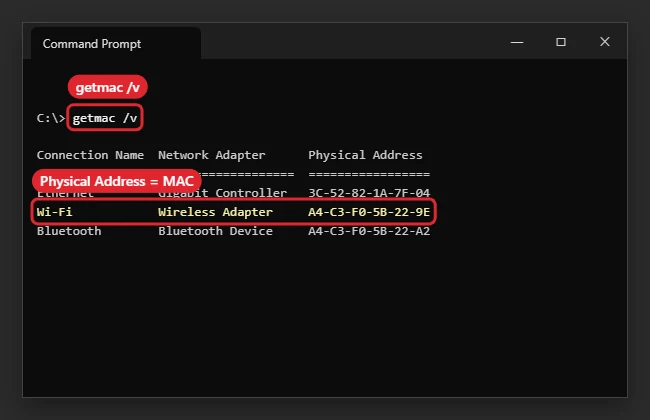
- On a PC: See finding the MAC address in Windows 11. For signal help, see checking Wi-Fi signal on iPhone.
Frequently Asked Questions
Is the MAC address the same as the IP address?
No. MAC identifies the hardware; the IP address is assigned by the network.
Does this work on newer iPhones?
Yes. The same steps apply to every iPhone.
Should I turn off the private address?
Only for networks that require it. It helps prevent tracking.
Summary
- Open Settings > General > About.
- Read Wi-Fi Address.
- Check Wi-Fi > (i) for the private address.
- Turn off the private address only if a network needs it.

Kermit Matthews is a freelance writer based in Philadelphia, Pennsylvania with more than a decade of experience writing technology guides. He has a Bachelor’s and Master’s degree in Computer Science and has spent much of his professional career in IT management.
He specializes in writing content about iPhones, Android devices, Microsoft Office, and many other popular applications and devices.