If the same default Radar tone drags you out of bed every morning, you can swap it in under a minute. Open Clock > Alarms, tap the alarm, tap Sound, pick a tone or a song, tap Back, then Save. The steps below work on any iPhone running current iOS and cover new and existing alarms, songs, vibration, silent alarms and the Sleep | Wake Up alarm.
Before you start: how alarm sounds work
- Every alarm has its own sound. There is no single setting that changes all alarms at once, so changing one alarm leaves the others alone.
- New alarms start with the default tone. That includes alarms you create by asking Siri, so a freshly made alarm will usually play Radar until you change it.
- Sound and vibration are separate. The Sound screen holds both a tone (or song) and a vibration pattern, called Haptics on current iOS and Vibration on older versions.
- The Sleep | Wake Up alarm is different. It belongs to your sleep schedule and has its own sound setting, covered in its own section below.
Change the sound for an existing alarm
- Open the Clock app and tap Alarms at the bottom of the screen.
- Tap the alarm’s time to open the Edit Alarm screen. If tapping does nothing on your iOS version, tap Edit in the upper-left corner first, then tap the alarm.
- Tap Sound.
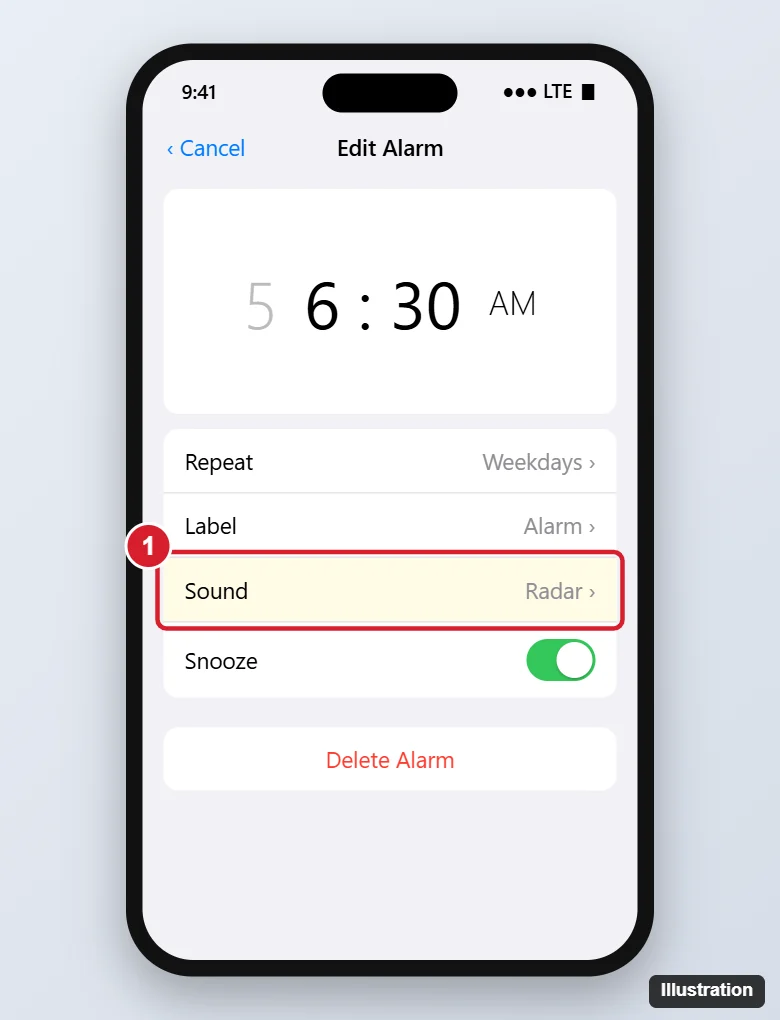
- Tap any tone under Ringtones to hear a preview. A check mark shows the one that is selected. Scroll to the bottom and tap Classic if you want the older tones from earlier iPhones.
- Tap Back (the arrow in the upper-left corner) to return to the Edit Alarm screen.
- Tap Save in the upper-right corner. If you leave without saving, the old sound stays.

Repeat these steps for every alarm you want to change. If your list is cluttered with alarms you no longer need, it is quicker to delete the old alarms first so you only edit the ones you use.
Pick a sound while creating a new alarm
- In Clock > Alarms, tap the Add button (+).
- Spin the wheels to set the time. Set Repeat and Label now if you want them.
- Tap Sound, choose a tone or song, and tap Back.
- Tap Done (on some iOS versions the button reads Save).
For the other options on this screen, including Snooze, Snooze Duration and repeating days, see setting up a new alarm on iPhone.
Wake up to a song instead of a tone
- Open the alarm and tap Sound.
- Scroll up to the Songs section and tap Pick a song.
- Browse by artist, album or song and tap the track you want. It now appears under Songs with a check mark.
- Tap Back, then Save.
The song has to be in your Music app library. Songs from an Apple Music subscription are safest when they are downloaded to the iPhone, because the alarm may not be able to stream them at wake-up time. If the song can’t play (for example, it was removed from your library or your subscription ended), the iPhone falls back to a default tone so you still wake up. There is more detail on choosing and trimming tracks in using a song as your iPhone alarm.
Spotify, YouTube and other streaming apps can’t be picked as an alarm sound. If you own an audio file of the track, you can turn it into a tone with GarageBand, described next.
Buy, download or make more tones
- Tone Store: at the top of the Sound screen, tap Tone Store to buy ringtones from the iTunes Store. Purchased ringtones show up in the alarm list too.
- Purchased before? Tap Download All Purchased Tones on the same screen to bring back tones bought on an earlier iPhone with the same Apple Account.
- Make your own with GarageBand: import an audio file you own, trim it to under 30 seconds, then use Share > Ringtone to export it. The new tone appears under Ringtones for alarms and calls. This is also the way to use a voice memo as an alarm: export the memo as an audio file, then turn it into a ringtone.
Any tone you add here is also available for calls. To set one as your ringer, see changing your iPhone ringtone.
Choose a vibration, or vibrate only
- On the alarm’s Sound screen, tap Haptics (or Vibration on older iOS) at the top.
- Pick a pattern, tap Create New Vibration to tap out your own rhythm, or choose None to turn vibration off for this alarm.
- For a silent, vibrate-only alarm, go back to the Sound screen, scroll to the bottom of the Ringtones list and choose None. Keep a vibration pattern selected, or the alarm will make no sound and no vibration at all.
- Tap Back and Save.
A vibrate-only alarm is handy if you share a room. The trade-off is that it is easy to sleep through, so setting an alarm to vibrate explains where to place the phone so you feel it.
Change the Sleep | Wake Up alarm sound
The Sleep | Wake Up alarm comes from your sleep schedule in the Health app, so it has its own sound list. Songs aren’t offered here.
- In Clock > Alarms, find Sleep | Wake Up at the top and tap Change. (You can also open Health, tap Browse > Sleep, and edit your schedule there.)
- Scroll down to the alarm options and tap Sounds & Haptics.
- Choose a sound and drag the volume slider. This slider only affects the wake-up alarm.
- Tap Done.
If you prefer the regular Clock alarms, you can turn the wake-up alarm off in the same place and keep the sleep schedule for tracking only.
Make alarms louder or quieter
- Open Settings > Sounds & Haptics.
- Drag the Ringtone and Alerts slider. Regular Clock alarms use this volume.
- Turn off Change with Buttons if you don’t want the volume buttons to lower your alarm by accident while you adjust media.
According to Apple, the Ring/Silent switch, Silent mode and Do Not Disturb don’t change the alarm sound. If you have headphones connected, the alarm plays through them and through the iPhone’s built-in speaker. Apple also notes that in StandBy, alarm haptics are turned off, so a vibrate-only alarm is a poor choice for a phone sitting on a StandBy nightstand setup.
If the alarm is silent, quiet or plays the wrong sound
| What happens | Likely cause | What to do |
|---|---|---|
| It only vibrates | Sound is set to None | Open the alarm, tap Sound and choose a tone |
| It is very quiet | Ringtone and Alerts volume is low | Raise the slider in Settings > Sounds & Haptics |
| A song alarm plays a regular tone | The song is not available offline | Download the song or pick another one in your library |
| It gets quieter when you look at it | Attention Aware Features on Face ID models is commonly reported to lower alert volume | Turn it off in Settings > Face ID & Passcode |
| A new alarm still plays Radar | New alarms start with the default tone | Change the Sound on that alarm too |
If none of that helps, work through the checks for an iPhone alarm that isn’t going off.
Alarm sound questions
Can I set one default sound for all my alarms?
No. iOS has no global alarm-tone setting. Each alarm keeps the sound you chose for it, and new alarms start with the default tone.
Which tone is best for waking up?
That is personal, but a tone that starts softly and builds is easier on light sleepers, while a sharp tone suits heavy sleepers. To test a choice, set a temporary alarm one or two minutes ahead and listen from across the room.
Can I rename an alarm?
Yes. Open the alarm, tap Label, type a name such as “Gym” or “School run”, then tap Save. The label shows on the screen when the alarm rings.
Does changing the sound change the snooze length?
No. Sound and Snooze are separate options. On current iOS, turn on Snooze in the alarm and set its Snooze Duration. Older iOS versions don’t offer a duration setting. There is more on snooze options in changing the snooze time on an iPhone alarm.
Once your alarms sound the way you want, set a quick test alarm tonight so tomorrow’s wake-up has no surprises. For Clock app details beyond sound, see Apple’s page on setting and managing alarms on iPhone.

Kermit Matthews runs Live2Tech from just outside Philadelphia. He is an IT specialist with over 20 years of experience, from a university help desk to small-business IT, IT management and his own consulting practice, and has written tech guides full time since 2020. Steps are checked against the current software on a real device or the maker’s official documentation. More about Kermit.