What Excel 2013 called a comment is now called a note, and a comment in current Excel is a threaded conversation that other people can reply to. To add a comment, right-click a cell, choose New Comment (or go to Review > New Comment), type, and select Post. To add the familiar yellow box, choose New Note instead.
Comment or note: which one to add
Excel for Microsoft 365, Excel 2024 and Excel 2021 (on Windows and Mac), Excel for the web and the Excel phone and tablet apps all offer both types. They look and behave differently (Microsoft compares threaded comments and notes side by side), so pick before you click.
| What you need | Threaded comment | Note |
|---|---|---|
| Appearance | White card with a reply box | Yellow box, the old-style comment |
| Replies from other people | Yes, as a thread | No |
| Email someone with an @mention | Yes | No |
| Change font, resize the box, add a picture | No | Yes |
| Name shown | Your signed-in account (can’t be changed) | The User name set in Excel Options |
| Printing | At the end of the sheet only | At the end of the sheet or as shown on the sheet |
For example, on a shared budget sheet a reviewer who asks “Does this figure include tax?” should leave a comment, because the owner can reply in the same thread. A label such as “Source: March invoice” that nobody needs to answer works better as a note.
Add a threaded comment in Excel for Windows
- Select the cell you want to talk about.
- Right-click the cell and choose New Comment. You can also select New Comment on the Review tab, or press Ctrl+Shift+F2.
- Type your comment. To direct it at a colleague, type @ and start typing their name, then pick them from the list. Microsoft says an @mention sends that person an email notification of the comment.
- Select Post (or press Ctrl+Enter).
An indicator now sits in the corner of the cell. Rest the pointer on that cell to see the thread; people with edit access can reply to it.
Add a note (the yellow box)
- Select the cell.
- Right-click it and choose New Note, press Shift+F2, or go to Review > Notes > New Note.
- Type the note, then click outside the cell.
The name at the top of a note comes from File > Options > General, in the User name box under Personalize your copy of Microsoft Office. If notes show a generic name, change it there before you add more. To change a note later, right-click the cell and choose Edit Note. Notes can also be resized and formatted (font, size, color), which threaded comments cannot.
Reply to, edit and resolve a comment thread
- Reply: rest the pointer on the cell and type in the reply box, or right-click the cell and choose Reply to Comment.
- Edit: rest the pointer on the cell, then on the comment text itself, and select Edit. Excel offers this only for comments you created. Microsoft also points out that anyone with edit access to the file can technically change comment text, so do not treat a comment as a locked record.
- Resolve: open the thread, select More (the three dots) and choose Resolve thread. A resolved thread stays in the workbook and can be reopened, and anyone with write access to the workbook can resolve or reopen it.
When a thread or note is no longer useful at all, you can delete comments in Excel one at a time or in bulk.
See every comment and note on a sheet
Comments and notes stay hidden until you point at a cell. Three settings change that.
- Comments pane: select Comments on the ribbon (next to the Editing menu) or Review > Show Comments. A pane opens on the right with every thread on the sheet.
- All notes at once: go to Review > Notes > Show All Notes. For one cell only, right-click it and choose Show/Hide Note.
- Indicators: go to File > Options > Advanced and, under Display, find For cells with comments, show. The choices are No comments, notes, or indicators, Indicators only, and comments and notes on hover, and Indicators and notes, and comments on hover. If you see no indicators at all, check that this is not set to the first option. It changes only your own copy of Excel, not what others see.
Print comments and notes
- On the Page Layout tab, select the small launcher arrow in the corner of the Page Setup group.
- Open the Sheet tab.
- In the Comments box, choose At end of sheet to print threaded comments and notes on a separate page after the data, or As displayed on sheet (legacy) to print notes where they appear on screen.
- Select Print Preview or OK.
For As displayed on sheet (legacy), use Show All Notes first so the boxes are visible. If the printout still needs work, this Excel printing checklist covers print areas and scaling, and you can also print row and column headings so a printed note that mentions cell D14 is easy to match up.
Excel for Mac, Excel for the web and the mobile apps
Each platform has its own tab on Microsoft’s page about inserting comments and notes in Excel.
Excel for Mac
Right-click the cell, choose New Comment, type, and select Post. For a note, choose New Note or press Shift+F2. Resolve a thread with More > Resolve thread. The Comments button sits next to the Share menu. Indicator settings live in Excel > Preferences > View, under Authoring, and the note name in Excel > Preferences > General.
Excel for the web
Right-click the cell and choose New Comment, type, then select Post Comment (or press Ctrl+Enter). Others reply with New Reply, and threads are resolved from More thread actions > Resolve thread. Notes use New Note or Shift+F2, but they cannot be moved in the browser, and notes formatted in the desktop app do not show that formatting on the web.
iPhone, iPad and Android
On an iPhone, tap the cell, then Home > Review > Comment. On an iPad, tap Insert > Comment. On an Android phone, tap the Edit icon, then Home > Review > Comment; on an Android tablet, tap Review > Comment. Show Comments on the Review menu lists the threads.
Excel 2013, 2016 and 2019: the older comment box
Older versions have only one type, the yellow box, and they call it a comment. When a file made in those versions opens in current Excel, these boxes show up as notes. The steps below, shown with Excel 2013 screenshots, still apply to those versions.
- Select the cell for the comment.

Excel 2013 shown; current screens look different. - Open the Review tab.

Excel 2013 shown; current screens look different. - Select New Comment.

Excel 2013 shown; in current Excel this button starts a threaded comment. - Type in the box, then click outside it to close it.

Excel 2013 shown; this yellow box is called a note in current Excel.
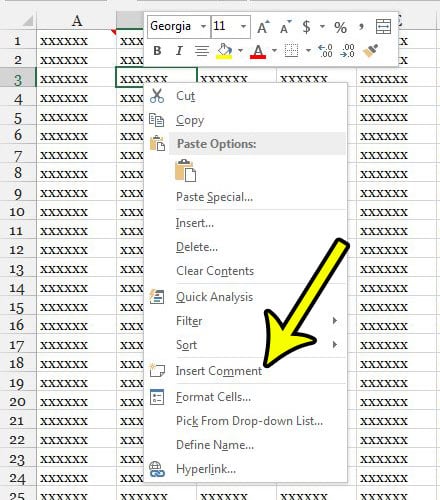
You can also right-click the cell and choose Insert Comment.
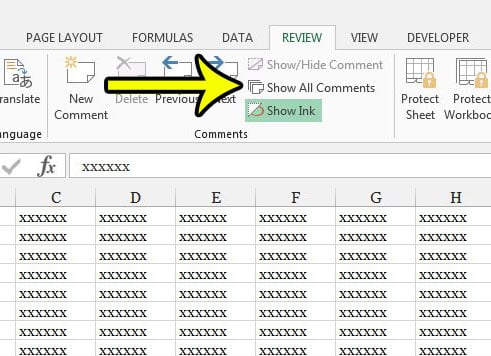
To keep every box visible, select Show All Comments in the Comments group of the Review tab.
When New Comment or New Note is missing
- Gone from the right-click menu: Microsoft documents a problem where New Comment and New Note go missing from the context menu after an Office update if that menu was customized, possibly by an add-in. Use the Review tab in the meantime; Microsoft’s workaround resets the menus with a short macro.
- Buttons grayed out: you may have view-only access to a shared file, or the sheet may be protected. Ask the owner for edit access.
- Converting notes to comments: some versions show Convert to Comments under Review > Notes. Microsoft’s comment help pages do not describe it, so check your ribbon and try it on a copy first.
Comments and notes in Excel: FAQ
How do I copy a comment to other cells?
Copy the cell, select the destination cells, then use Paste Special and choose Comments on Windows or Comments and Notes on a Mac. Only the comment is pasted, not the value. In Excel for the web a normal copy and paste also brings the cell values along.
If the sheet needs a formal approval rather than a quick remark, you can add a signature line in Excel. Working in other apps too? See how to add a comment in Google Docs or add notes on the side of a Word document.

Kermit Matthews runs Live2Tech from just outside Philadelphia. He is an IT specialist with over 20 years of experience, from a university help desk to small-business IT, IT management and his own consulting practice, and has written tech guides full time since 2020. Steps are checked against the current software on a real device or the maker’s official documentation. More about Kermit.