Mask your main address: Yahoo Mail still offers disposable addresses that forward to your inbox, but Yahoo now limits them to Yahoo Mail Plus subscribers and people who already had them, with up to 3 free trial addresses in countries where Plus is sold. If you have access, you create one under Settings > Mailboxes by choosing a permanent nickname and a keyword, and you remove it from the same screen with Delete address.
Who Can Create Disposable Addresses Today
Yahoo’s help page on disposable email addresses in New Yahoo Mail sets out the current rules:
- Yahoo Mail Plus subscribers can create up to 500 disposable addresses, a perk of the subscription.
- Existing users who already set up a nickname and disposable addresses keep the feature.
- Free accounts in Yahoo Mail Plus locales can try up to 3 disposable addresses for free.
- Everyone else: Yahoo Mail Plus isn’t available in all locales, and Yahoo says that if the option isn’t listed in your account, it’s not available at this time.
So the quickest test is to open Settings and look. If you see Disposable email addresses under Mailboxes, you can use it. If you don’t, skip to the alternatives near the end. Plus isn’t sold everywhere, so check the Plus offer inside your own account rather than relying on a price you read elsewhere.
How a Disposable Address Is Built
Every disposable address has two parts, a nickname and a keyword, in the form [email protected].
- The nickname is chosen once and shared by all your disposable addresses. Yahoo says it can’t be changed after you set it, so pick something that doesn’t reveal your real name if privacy is the point.
- The keyword is different for each address. Use it to label where you gave the address out, such as shopping, travel or forums.
- Delivery: anything sent to a disposable address arrives in your main account’s Inbox. There is nothing separate to sign in to.
Here is how that helps in practice. Say you sign up for a store newsletter with [email protected], using your own nickname. A year later, spam starts arriving at that exact address. You know where it came from, you delete that one address, and your main address and every other disposable address carry on untouched.
Create Your First Disposable Address
These steps follow Yahoo’s instructions for the current Yahoo Mail on a computer:
- Sign in to Yahoo Mail in a web browser.
- Click the More icon on the left side of the screen, below your mail folders, and select Settings.
- Click Mailboxes.
- Click Add under disposable email addresses.
- In the nickname field (under Create a permanent nickname), enter an available nickname. This can’t be changed later.
- Click Next.
- Add a keyword and, if you like, a description so you remember what the address is for.
- Click Save.
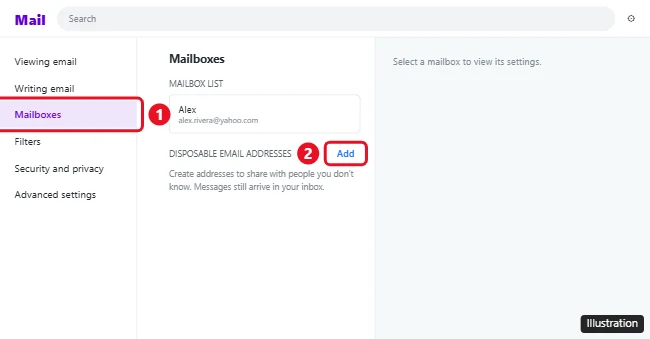
To add another address later, click the Expand icon next to Disposable email addresses, click Add, type a keyword after the nickname, optionally enter a sending name and description, and click Save.
If your inbox still uses the older Yahoo Mail for Desktop, the route is slightly different: Yahoo’s older help article says to click the Settings icon, then More Settings, then Mailboxes. For what changed between the old and new designs, see whether you can still switch to classic Yahoo Mail.
Over the limit?
If you create more addresses than your account allows, Yahoo shows a red triangle next to each new address over the limit. Those addresses don’t work until you delete others to make room.
Send From a Disposable Address
Replying from your main address would undo the privacy, so pick the disposable one as the sender:
- Click the New Message icon (Compose in the older layout).
- Click the Expand icon next to your email address.
- Select the disposable address you’d like to use, then write and send as usual.
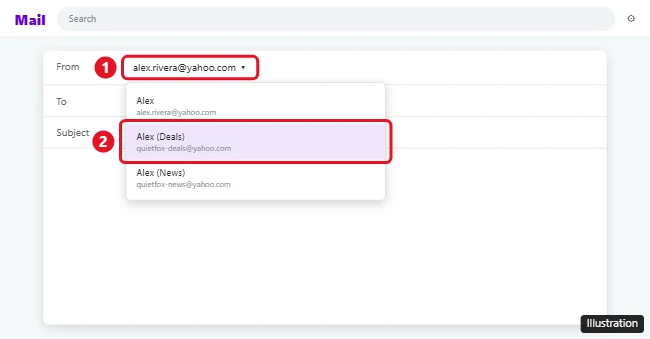
When you reply to a message that arrived at a disposable address, check the sender line before you click Send. It is the easiest place to reveal your main address by accident.
Because all the mail lands in one Inbox, a filter can keep newsletters and sign-ups out of your way. Yahoo’s help on using filters to organize Yahoo Mail shows where to add one; set a rule for the disposable address if your filter options let you match the recipient.
Edit or Delete an Address
- Open Settings > Mailboxes.
- Click the Expand icon next to Disposable email addresses.
- Select the address you want to change.
- Edit the details and click Save, or click Delete address and then Confirm.
Before deleting, sign in to any site that uses the address and switch it to another one, especially accounts you might need to recover with a password reset. Once it’s deleted, don’t expect mail sent to that address to reach you.
If the Option Isn’t in Your Settings
Yahoo Mail Plus isn’t available in all locales, and Yahoo says that if the option isn’t listed in your account, it’s not available at this time. Yahoo’s help covers setting them up on the website; it doesn’t describe creating them in the Yahoo Mail app, so use a computer browser for setup.
Other Yahoo settings live in the same area. To let people know you’re away, see setting a vacation response in Yahoo Mail, and if you’d like Yahoo to open whenever your browser starts, see making Yahoo your homepage on Windows.
Other Ways to Keep Your Main Address Private
- Gmail plus addressing: Google’s Gmail help on using Gmail aliases explains that you can add a plus sign and a category after your username, for example [email protected], and the messages still arrive in your main Gmail inbox. It costs nothing extra, but the real address is visible before the plus sign. To sort that mail automatically, see creating filters in Gmail.
- Apple Hide My Email: with an iCloud+ subscription, Apple’s iPhone guide explains how to create and manage Hide My Email addresses under Settings > [your name] > iCloud > Hide My Email. The addresses are random and forward to your real inbox, and you can deactivate one when you no longer want its mail.
- A separate account: a second mailbox used only for sign-ups keeps everything apart. Creating a new Gmail account takes a few minutes.

Kermit Matthews runs Live2Tech from just outside Philadelphia. He is an IT specialist with over 20 years of experience, from a university help desk to small-business IT, IT management and his own consulting practice, and has written tech guides full time since 2020. Steps are checked against the current software on a real device or the maker’s official documentation. More about Kermit.